Best Free AI Image-to-Video Generators in 2026
Choose an image-to-video workflow, prepare a stable source image, write a motion-first prompt, and compare models without wasting generation credits.
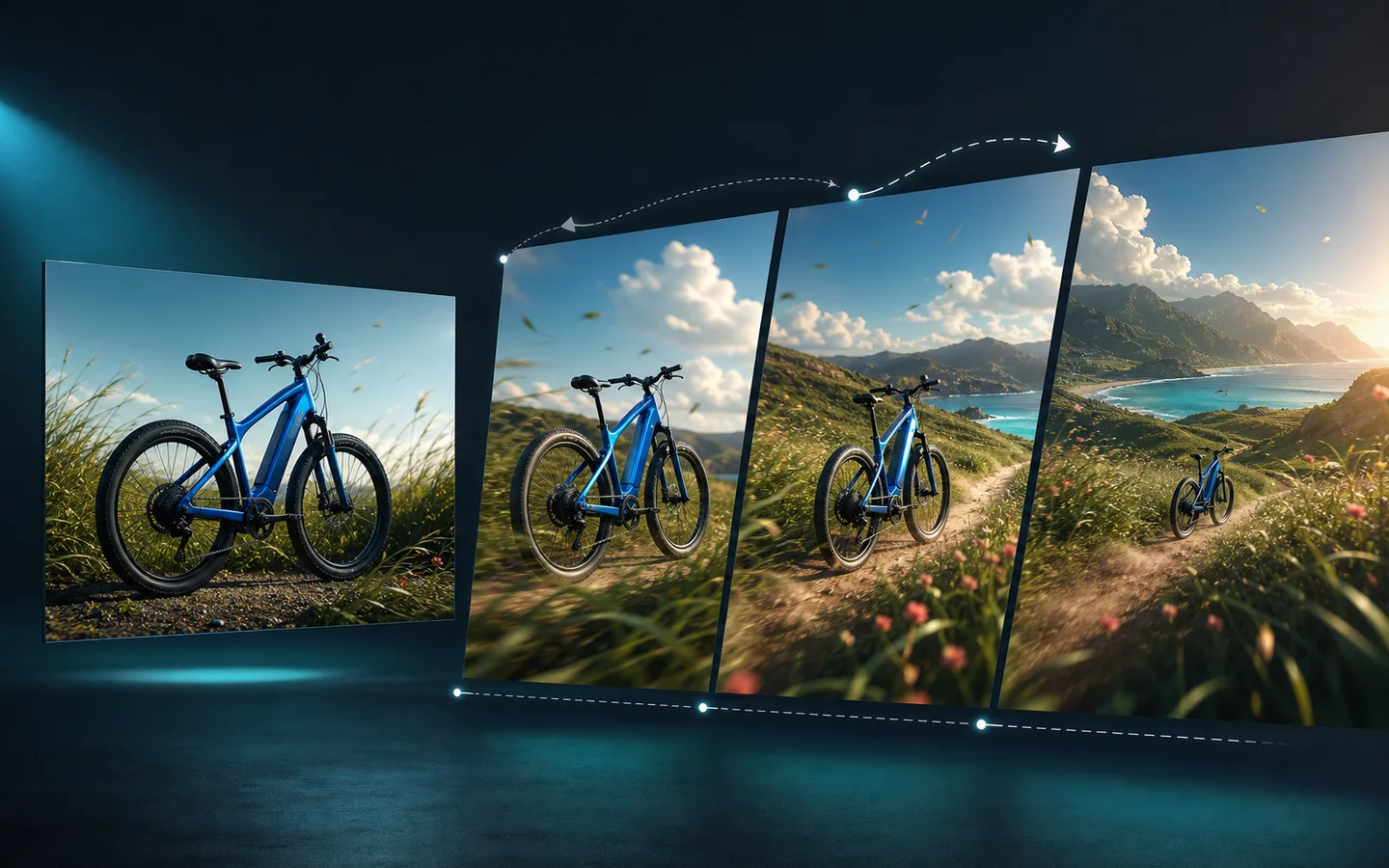
Image-to-video is often the most efficient AI video workflow because the source image already solves the hardest visual decisions. The product, character, palette, composition, and opening frame are visible before generation begins. The prompt can concentrate on motion.
This guide compares image-to-video workflows available in AI Image Editor in 2026. It is based on the product’s current model families and controls, not an exhaustive review of every provider. Always check the live generator for compatible inputs, credit cost, duration, ratio, and resolution.
“Free” means you can evaluate the workflow using the access or starter credits currently available in the product. It does not promise unlimited generation, no sign-up, no watermark, or permanent zero cost.
Quick recommendations
- Best for a cinematic move from one key visual: Veo 3.1.
- Best for a flexible image-led production path: Wan 2.7.
- Best for comparing one image with several references: HappyHorse.
- Best when the project may expand into mixed-source editing: Gemini Omni.
- Best when one image is not enough: Reference to Video AI Generator.
Image-to-video or reference-to-video?
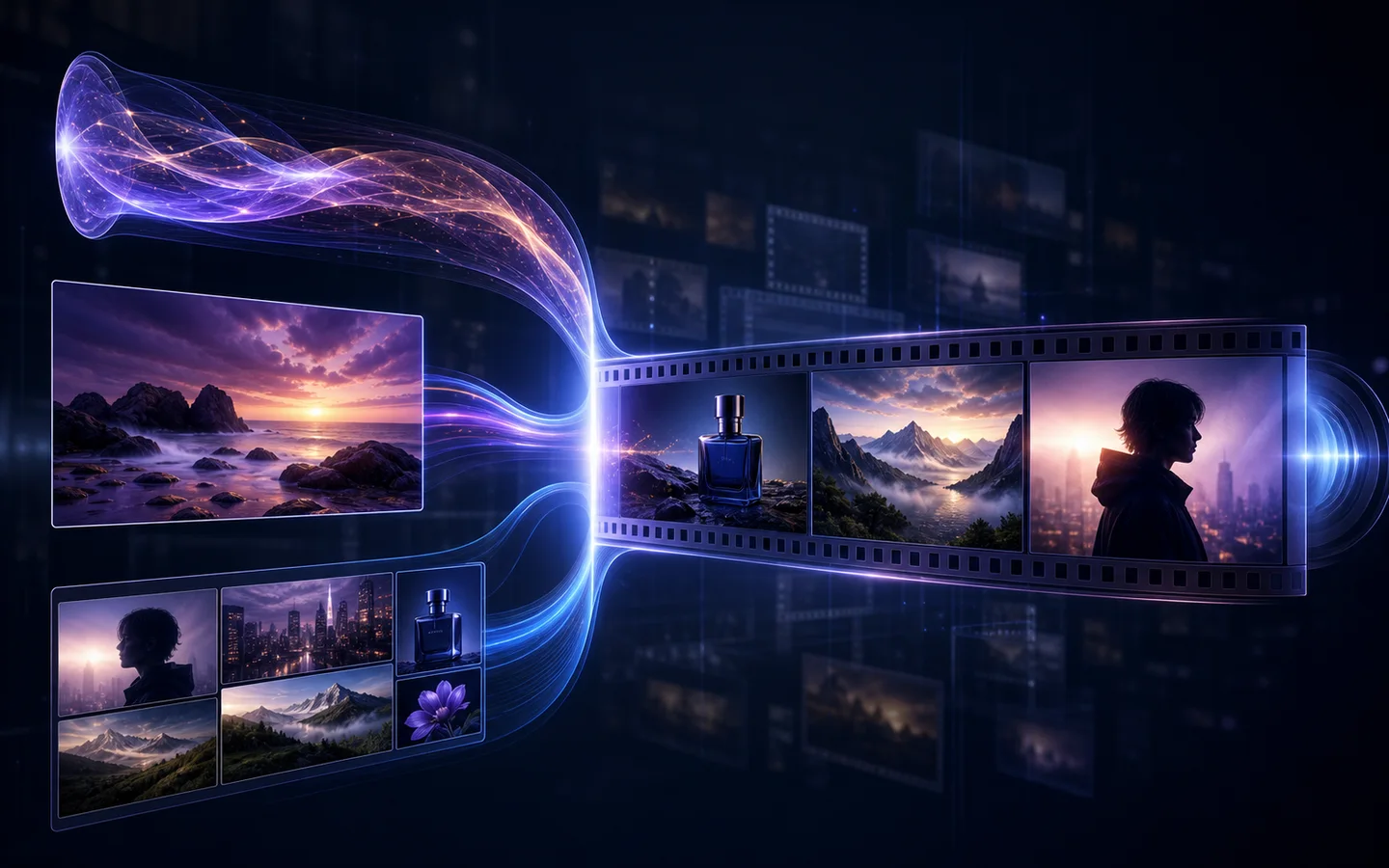
Use image-to-video when one source image communicates the subject and starting composition clearly. Use reference-to-video when several images are needed to explain identity, angles, wardrobe, product details, location, or art direction.
Image-to-video is usually the simpler choice when:
- The source image is already approved.
- The opening frame matters.
- One product angle or character pose is enough.
- The desired motion is simple and local.
- You want to preserve the overall composition.
Move to reference-to-video when:
- Hidden product angles contain important details.
- A character needs portrait, profile, full-body, and wardrobe references.
- The campaign look comes from several approved assets.
- One image cannot explain what must remain consistent.
The best image-to-video models by workflow
Veo 3.1 for cinematic image animation
Veo 3.1 is useful when the source image can act as the opening frame of a deliberate shot. Describe a single subject movement, a single camera path, the environmental motion, and the final composition.
Use Veo 3.1 for:
- Product reveals, pullbacks, push-ins, and restrained orbits.
- Landscape or interior scenes with atmospheric motion.
- Character shots where the source pose already works.
- Clips that need a clear visual beginning and end.
Wan 2.7 for an image-led production chain
Wan 2.7 supports a broader family of text, image, reference, and editing workflows. It fits projects where the first image animation may lead to another source-led iteration.
Use Wan 2.7 for:
- Product and social asset experiments.
- Comparing prompt rewrite and output controls where available.
- Teams that expect to move between generation modes.
- Using generated frames as inputs for later iterations.
HappyHorse for one-image versus multi-reference testing
HappyHorse exposes both image-to-video and reference-to-video within the same family. That makes it practical when you want to discover whether the source image contains enough information.
Use HappyHorse for:
- Animating a clean product, character, poster, or scene image.
- Re-running the idea with more references when identity drifts.
- Short campaign drafts across landscape and portrait placements.
- Comparing source strategies without changing the full workspace.
Gemini Omni for a changing source brief
Gemini Omni suits projects where image-to-video may become reference generation or video editing after review. It is a flexible choice for early creative development with mixed assets.
Use Gemini Omni for:
- Multimodal creative exploration.
- Projects with images and source video in the same asset set.
- Testing whether a direct animation or an edit-led path works better.
- Briefs that will evolve after stakeholder feedback.
Seedance for version-specific output needs
Different Seedance versions expose different capabilities. Check Seedance 2.5 and Seedance 2.0 against the required duration, resolution, and source controls before selecting a workflow.
Use Seedance when:
- The live output settings match the delivery specification.
- The image can support a longer or more structured shot.
- You can review continuity over the full duration.
- The selected model accepts the source assets the brief requires.
Prepare the source image before animation
A clean source image gives the model fewer contradictions to solve.
Use a complete subject
Avoid accidental crops through hands, product edges, wheels, furniture legs, or clothing. If the animation needs those areas, include them in the source.
Check the perspective
Extreme wide-angle distortion or an impossible product perspective can become more visible once the camera moves. Use a source whose geometry already feels stable.
Leave room for movement
A tightly cropped subject has nowhere to move. Add negative space in the direction of travel, camera pullback, or environmental motion.
Remove text that must stay exact
Small labels, prices, headlines, and logos can distort across frames. Preserve critical product marks where necessary, but plan to add final campaign typography in post-production.
Match the delivery ratio first
Choose or crop the source for landscape, portrait, or square delivery before generation. Changing ratio later can damage the composition and remove useful motion space.
If the source needs cleanup, use the AI Image Editor with Prompt to correct the scene or the Image to Image Generator to build a controlled new version before animation.
Write a motion prompt, not a second image prompt
The source image already describes appearance. Use the prompt for what changes over time.
A strong image-to-video prompt includes:
- Subject movement.
- Environmental movement.
- Camera movement.
- Speed and pacing.
- Details that must remain fixed.
- The final frame.
Product orbit prompt
Preserve the product shape, materials, controls, logo placement, and color exactly. The camera makes a slow ten-degree orbit from front three-quarter view toward the right side. A soft highlight travels across the metal surface while the background remains still. No new objects, no text changes, no product deformation. End on a stable side three-quarter hero frame.Portrait motion prompt
Keep the person’s identity, facial features, hairstyle, clothing, pose, and background composition recognizable. A gentle breeze moves a few strands of hair and the subject makes one natural blink. The camera performs a very slow push-in at eye level. Stable anatomy, restrained motion, no change of wardrobe or location.Environment prompt
Preserve the architecture, furniture, materials, and daylight direction from the source image. Sheer curtains move slightly, tree shadows drift across the floor, and dust catches the window light. The camera remains locked with a subtle optical push. No new furniture or people. End with the original composition nearly restored.How to run a fair comparison
Use one source image and one motion prompt across the models you are considering.
- Match duration and aspect ratio where possible.
- Keep output resolution consistent for the first review.
- Generate a small number of versions per model.
- Record model, settings, date, source image, and exact prompt.
- Review the opening frame, midpoint, and final frame separately.
- Score preservation, motion, camera, background, and usability.
The model with the most dramatic result is not always the best choice. A restrained clip that preserves the product or character may be much easier to publish.
Common image-to-video failures
The subject melts or changes shape
Reduce the amount of movement. Ask for a smaller camera move and explicitly preserve geometry, proportions, materials, and recognizable details.
The scene adds unwanted objects
State that the environment and object count should remain unchanged. Remove decorative language that implies a larger redesign.
The camera and subject move at the same time
Simplify one of them. A moving subject with a locked camera, or a still subject with a slow camera move, is easier to control than both performing complex motion.
The final frame breaks composition
Describe where the camera and subject should settle. Negative space, product orientation, and end-frame stability should be part of the prompt.
One image cannot preserve identity
Do not keep lengthening the prompt. Add the missing visual evidence with the Reference to Video AI Generator.
A credit-conscious testing sequence
- Begin with the shortest suitable duration.
- Test motion at a practical preview resolution where available.
- Change only one prompt instruction at a time.
- Reuse the successful source and prompt as the baseline.
- Increase duration or resolution only after subject preservation works.
- Save the best result and its exact settings before experimenting further.
Final recommendation
Start with one image when it already defines the visual truth of the shot. Veo 3.1 is a useful first option for cinematic motion, Wan 2.7 supports a flexible production path, HappyHorse helps compare one-image and multi-reference strategies, and Gemini Omni fits projects that may move into mixed-source editing.
Open the AI Video Generator to compare image-led modes. If the source cannot explain all important angles or identity details, switch to the Reference to Video AI Generator instead of forcing the prompt to carry missing visual information.