
Uploaded image editing
Start from an existing image and control the parts you want to change with text instructions.
Preview
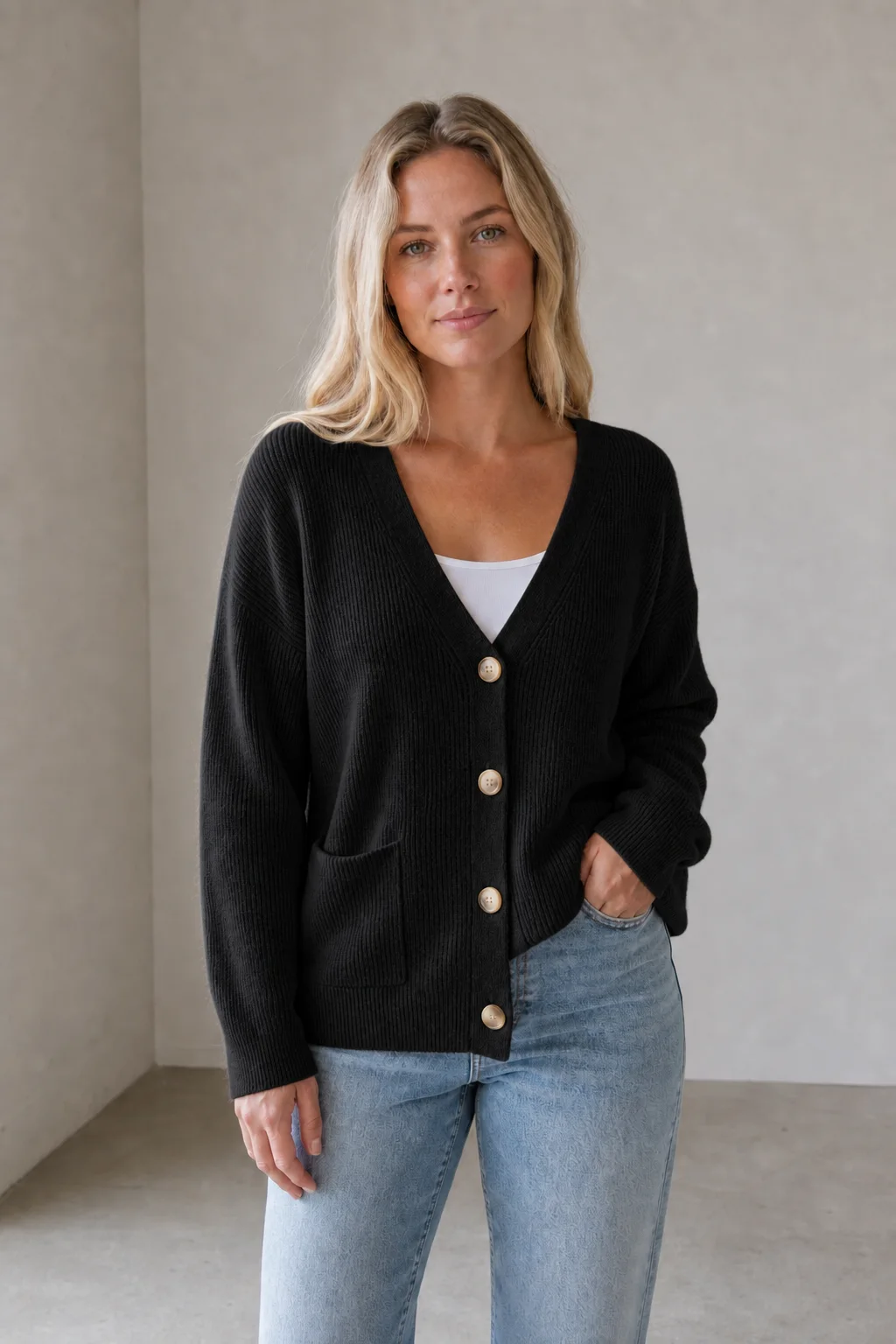
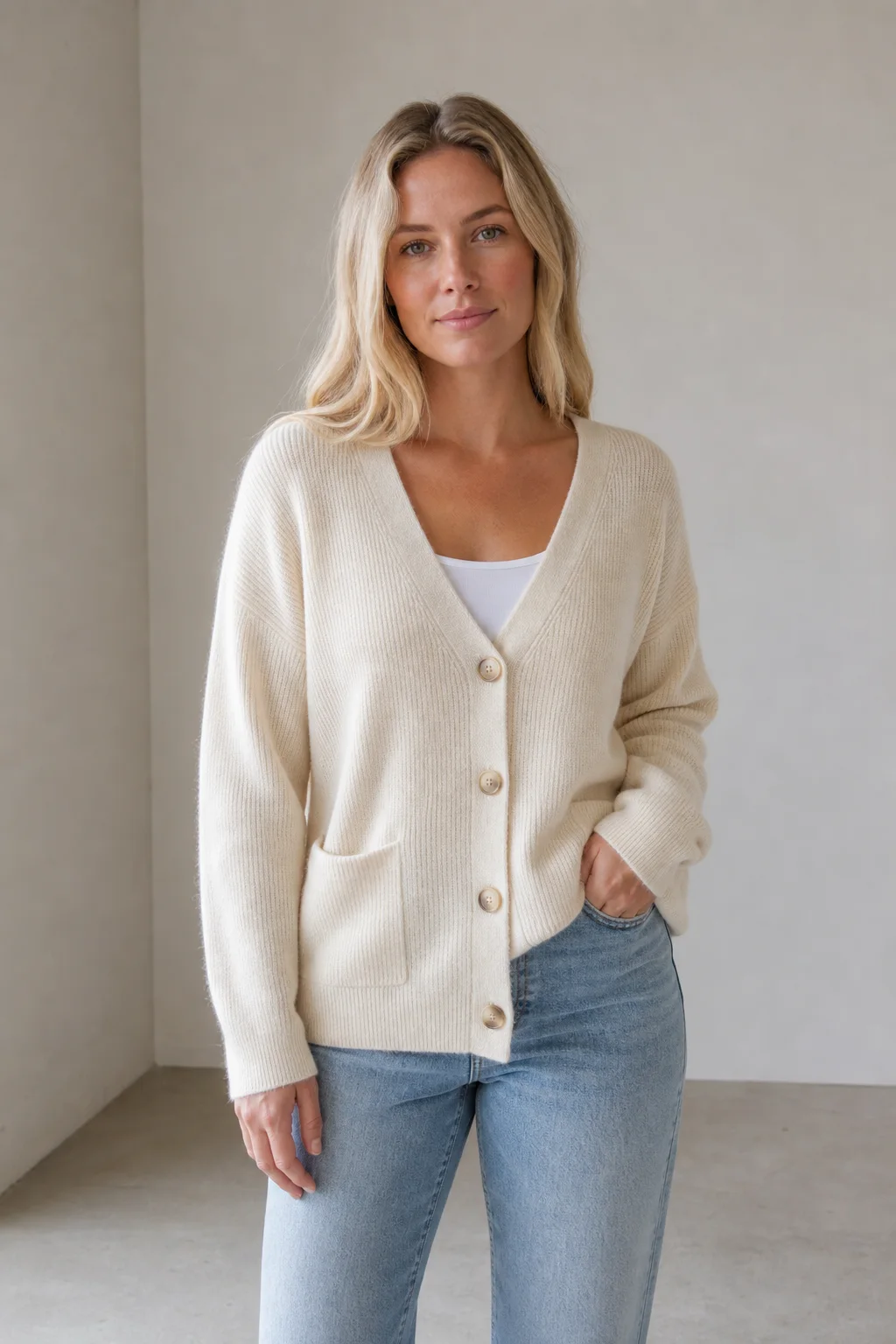
Continue with image generation, background removal, image upscaling, and image-to-image tools to extend edited results.
Open GPT Image 2.5 in AI Image Editor.
Open FLUX 3 Image in AI Image Editor.
Open Seedream 5.0 Pro in AI Image Editor.
Open GPT image 2 in AI Image Editor.
Open Nano Banana 2 in AI Image Editor.
Open Seedream 5 Lite in AI Image Editor.
Upload an image, describe what to preserve and what to change, and generate cleaner product shots, new backgrounds, corrected visuals, or publish-ready versions.
Start from an existing image and control the parts you want to change with text instructions.
Use product photos, portraits, social images, ad creatives, or references where the subject should stay recognizable.
Check the subject, edges, text, and details after generation, then download or keep adjusting.
This page is built for AI image editing after upload: tell the model what to preserve and what to change, then continue with background removal, image upscaling, or other image-to-image tools when needed.
Use the original image as visual reference when you do not want to generate from scratch and only need to adjust subject details, background, or overall style.
Separate the subject to preserve, the background to replace, the details to fix, and the final use case to reduce unrelated changes.
Clean distractions, adjust lighting, and improve presentation for product pages, ad images, and ecommerce listings while watching labels, edges, and materials.
Place the original image into a better desktop, studio, lifestyle, or social scene while trying to avoid turning the subject into a different object.
Try a more consistent tone, mood, and visual style while preserving composition and subject recognition.
After editing, continue to remove backgrounds, upscale, generate variants, or use an image-to-image model for larger revisions.
Built around high-intent needs after image upload: AI image editing, product image optimization, image background replacement, social asset refreshes, and image-to-image refinement.
Turn existing product photos into images that fit product pages, ad campaigns, and launches while preserving shape, marks, material, and important details.
Use a real product photo, listing image, or product asset that needs cleanup.
Ask for a cleaner background, more natural lighting, fewer distractions, and clear constraints for details that must not change.
Before downloading, inspect labels, edges, reflections, texture, and product proportions for credibility.
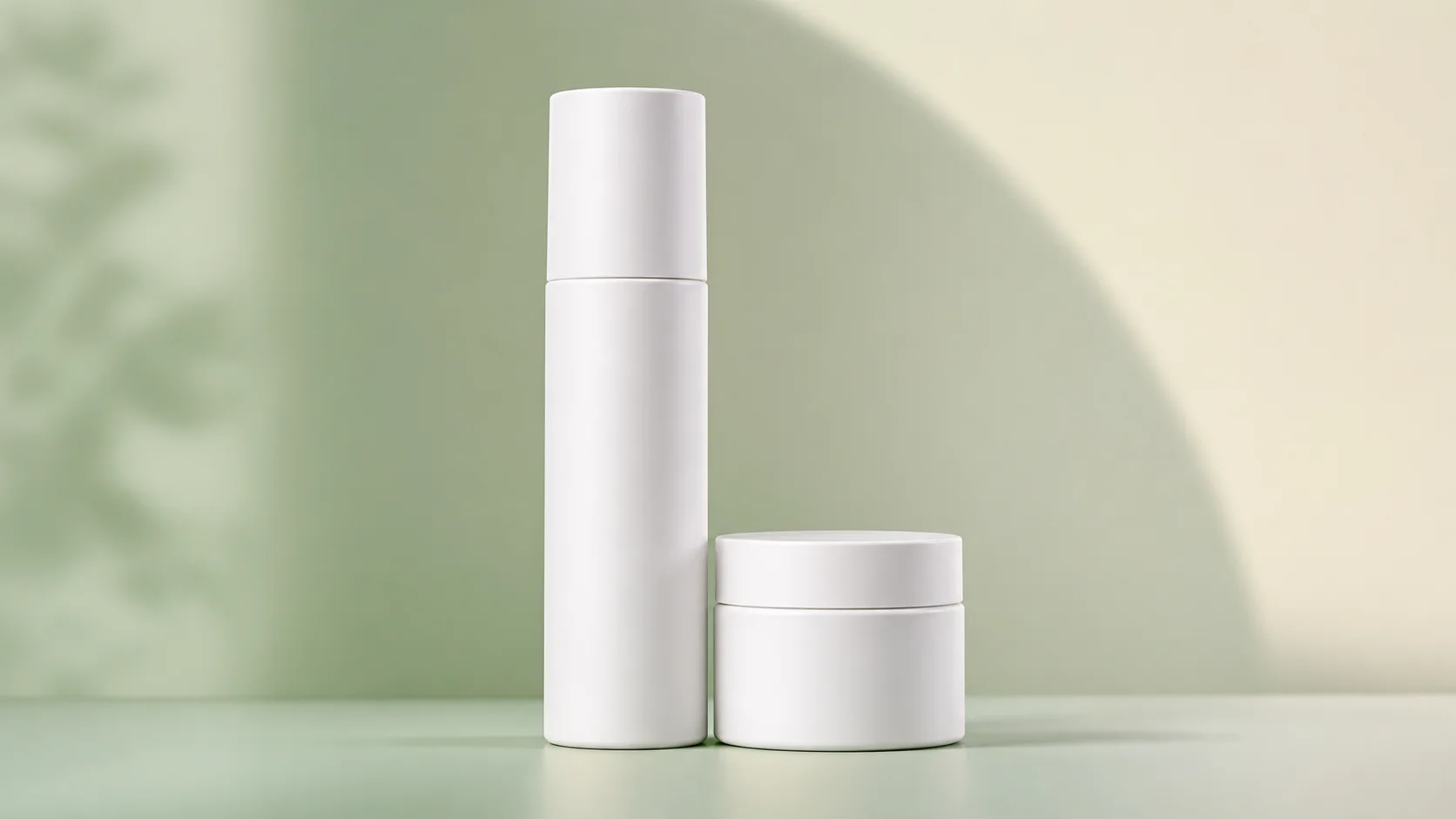
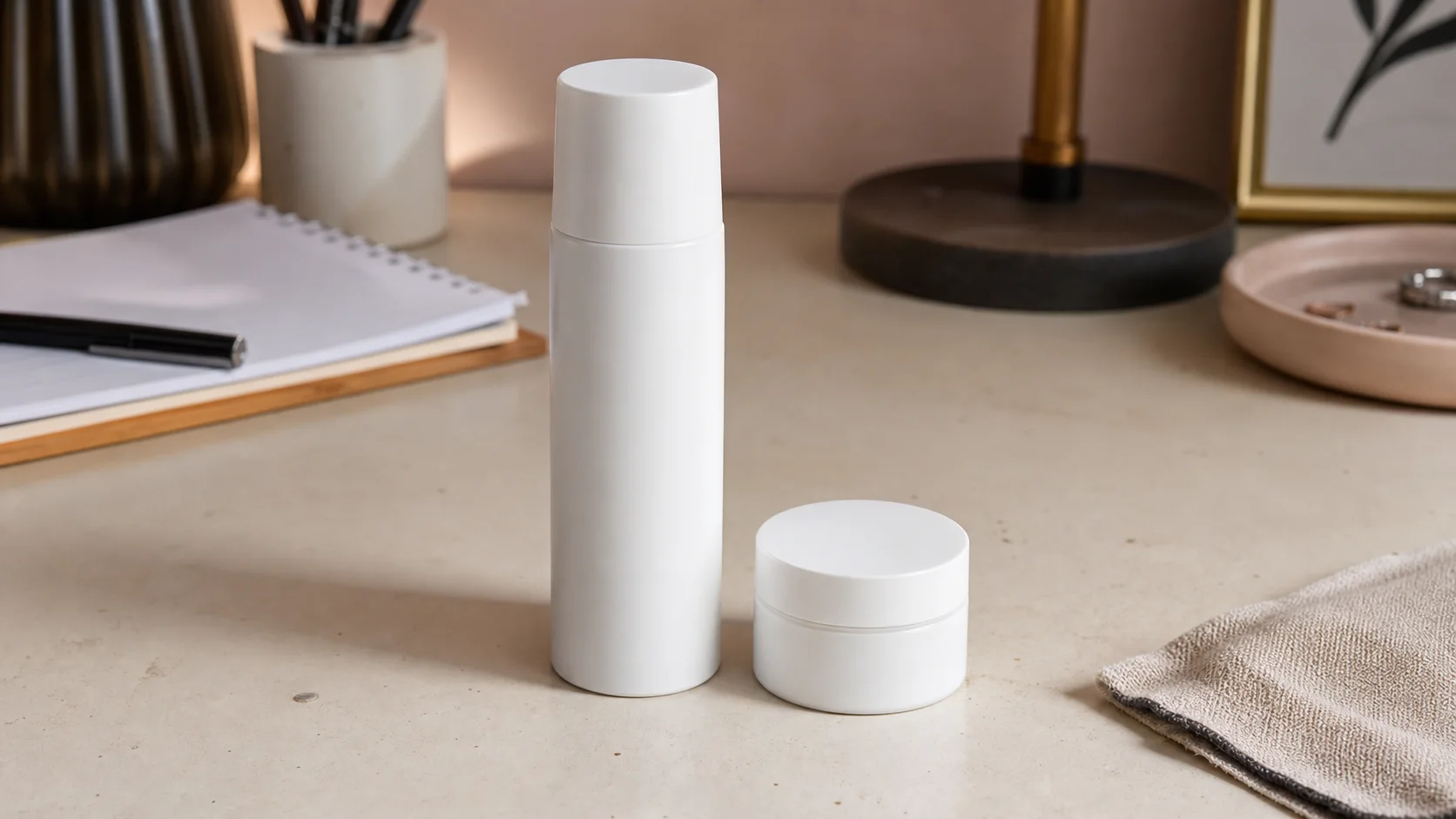
Replace an unsuitable shooting environment with a cleaner, more brand-aligned, or more social-ready background while keeping the subject as consistent as possible.
Tell the model to preserve the person, product, pose, outline, and important edges.
Specify the scene, lighting, surface, material, depth of field, and overall mood without letting the background overpower the subject.
Before using the result, check contact shadows, subject edges, perspective, and background lighting consistency.
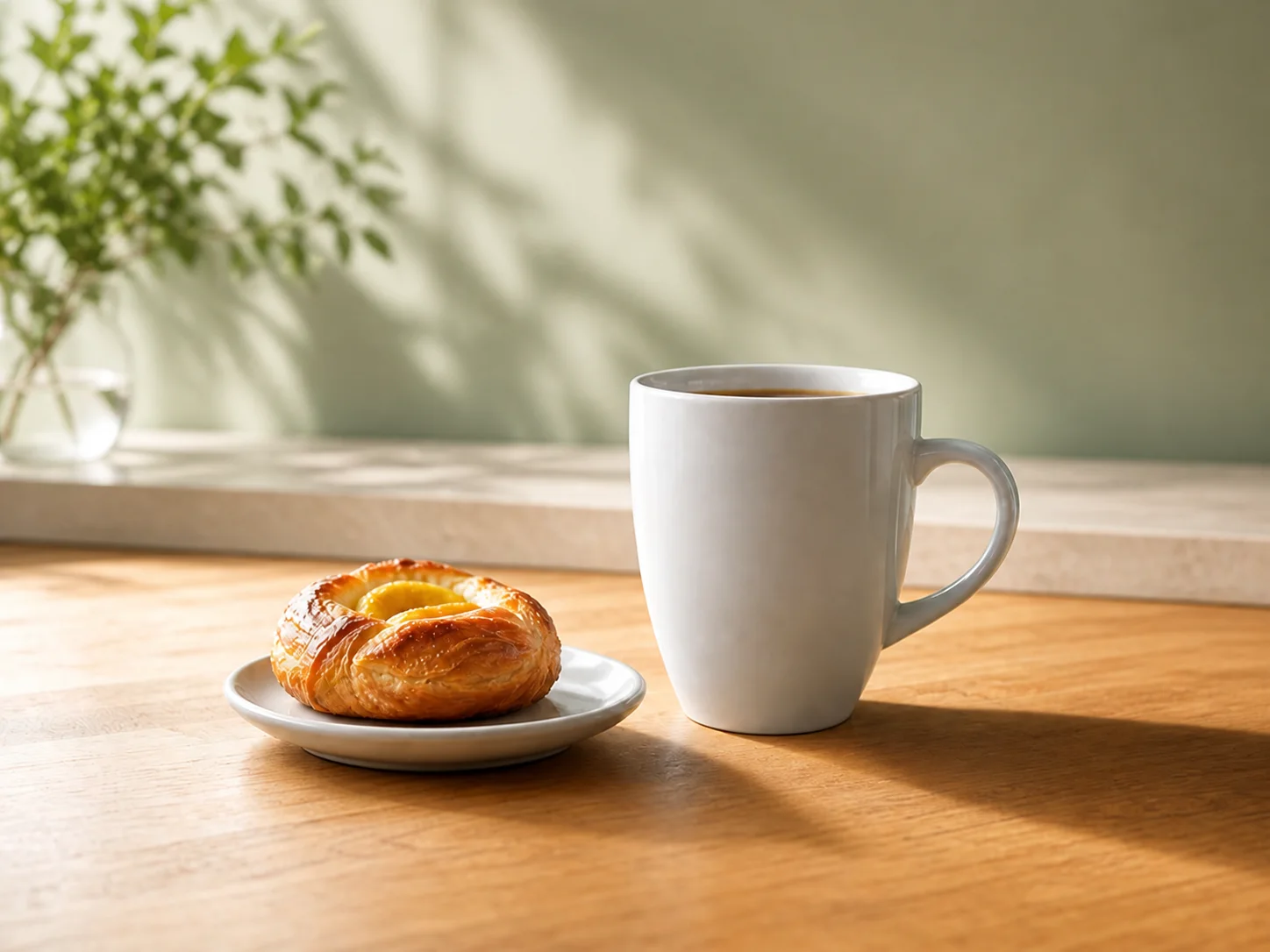
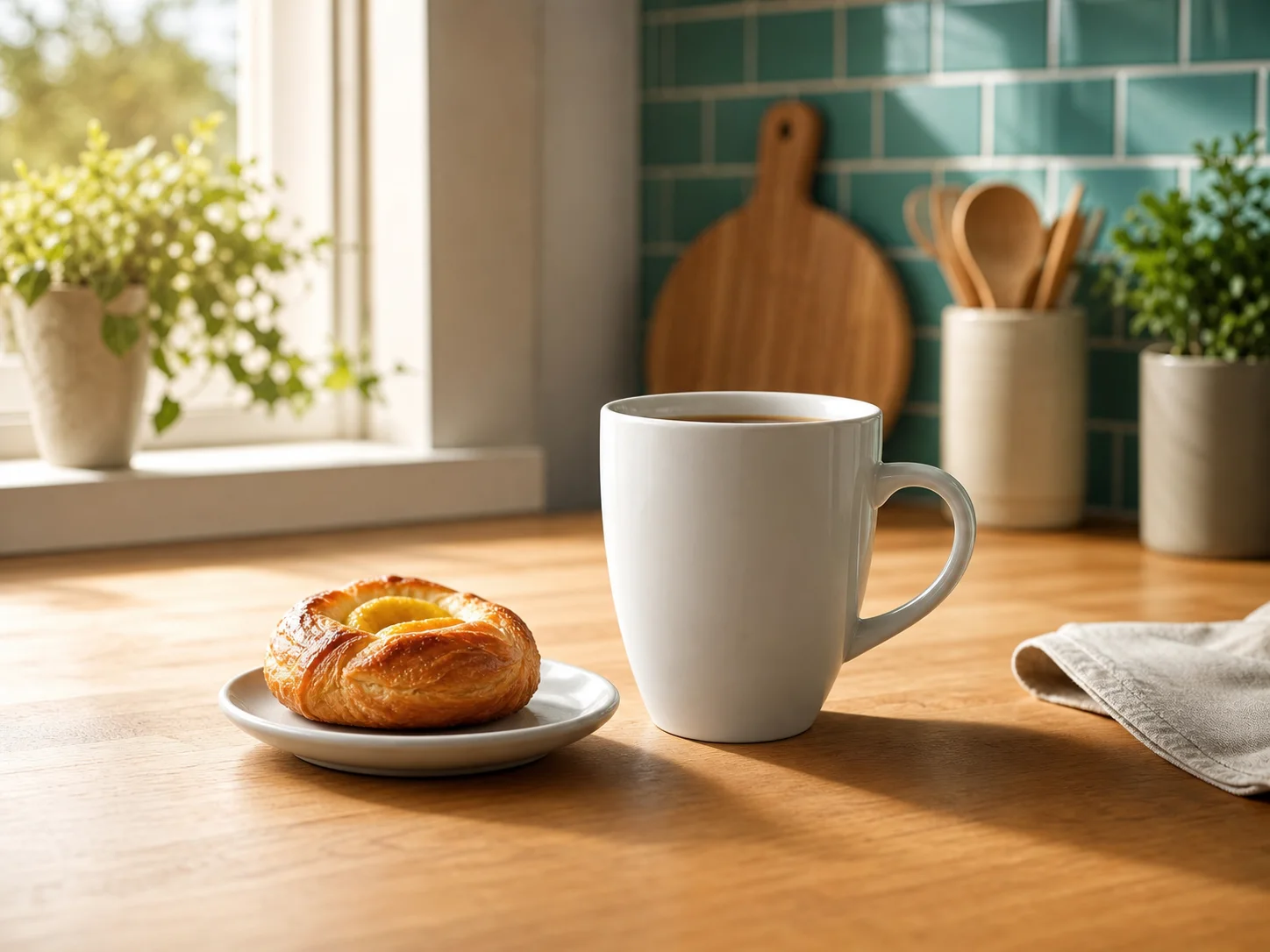
Adjust mood, color, composition emphasis, and visual style from an existing hero image or campaign asset to quickly create a new version for review.
Choose an image that already has the subject, composition, or offer you want to keep.
Clarify which parts may change style, lighting, or background, and which brand elements need to stay consistent.
Generate multiple edited results and compare which one fits ads, social posts, covers, or landing pages best.


Choose a source image that needs optimization, a new background, a style change, or a new version.
Describe the subject, background, lighting, color, detail constraints, and final image use separately.
Compare the source and edited result, confirm subject consistency, then download or adjust the prompt and generate again.
AI Image Editor is an online AI image editing tool for uploading an existing image and changing it with text instructions, such as product image optimization, background replacement, style adjustment, and image-to-image redesign.
Text-to-image tools mainly create new images from text. An AI image editor references your uploaded source image, so it is better for preserving the subject, changing backgrounds, adjusting lighting, or extending existing assets.
Yes. It is useful for cleaning ecommerce product images, improving presentation lighting, replacing cluttered backgrounds, and trying to preserve product shape, labels, edges, and materials.
Yes. Describe the new background, lighting, surface material, and subject features that should remain, which helps create a more natural background replacement result.
Write the must-keep details separately, such as face, product shape, logo, text, edges, and proportions. After generation, still compare against the source image to check details.
Upload an image, describe changes, and generate a clean edit.