
Image to image
Start generation from an uploaded image instead of relying only on a text prompt.
Preview
After image-to-image generation, continue with Nano Banana 2, GPT image 2, Seedream 5 Lite, AI Image Editor, background removal, and image upscaling tools.
Open GPT Image 2.5 in AI Image Editor.
Open FLUX 3 Image in AI Image Editor.
Open Seedream 5.0 Pro in AI Image Editor.
Open GPT image 2 in AI Image Editor.
Open Nano Banana 2 in AI Image Editor.
Open Seedream 5 Lite in AI Image Editor.
The Image to Image page starts from an existing visual: upload a product image, portrait, sketch, screenshot, or layout reference, then describe what should stay and what should change. The default model is Nano Banana 2, useful for subject preservation, background replacement, style redesign, product image revisions, and social asset expansion.
Start generation from an uploaded image instead of relying only on a text prompt.
Separate source-image details that must stay consistent from the background, style, object, or lighting changes you want.
Nano Banana 2 is the default. Switch to GPT image 2 or Seedream 5 Lite when a different image-to-image behavior fits better.
When a reference image defines the subject, composition, or brand direction, image-to-image is more useful than pure text-to-image: it anchors the result to the source while generating a new scene, style, or marketing version.
Upload one or more images as visual context so the model can generate around a subject, composition, color, material, or layout.
Use the prompt to call out product shape, person identity, pose, logo, texture, edges, color, or spatial relationships that must stay intact.
Keep the subject while changing background, surface, scene, lighting, material, color tone, seasonality, or advertising mood.
Use it to add details, remove distractions, change small objects, adjust composition, or create a version better suited for publishing.
Nano Banana 2 is a strong default for image-to-image drafts; GPT image 2 fits complex prompts and reference editing; Seedream 5 Lite is useful for quick variation tests.
Use text-to-image when there is no source image, background removal when you only need a cutout, and image upscaling when you need a sharper final output.
Image-to-image turns existing visuals into new usable assets: preserve product identity, replace shooting environments, redesign visual style, or expand sketches and screenshots into complete images.
Use the original product photo as a reference and generate a new image for product pages, ads, or social posts while keeping the core appearance.
Prefer a product photo where the subject is complete, edges are clear, and materials or key details are visible.
State which shape, proportion, color, texture, logo, port, button, or package text cannot change.
Before using it on a product page or ad, compare output and source for product identity, edges, and detail drift.
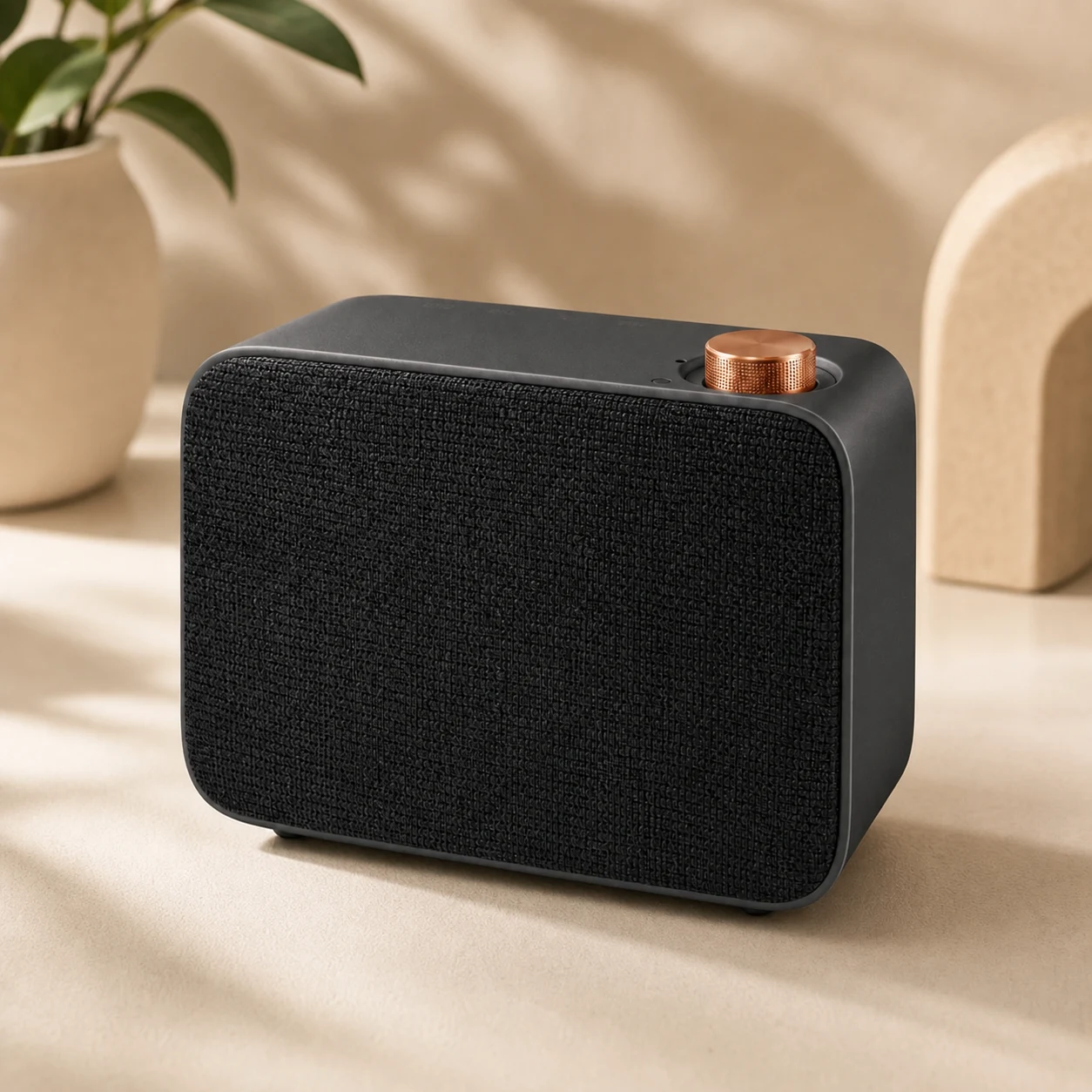
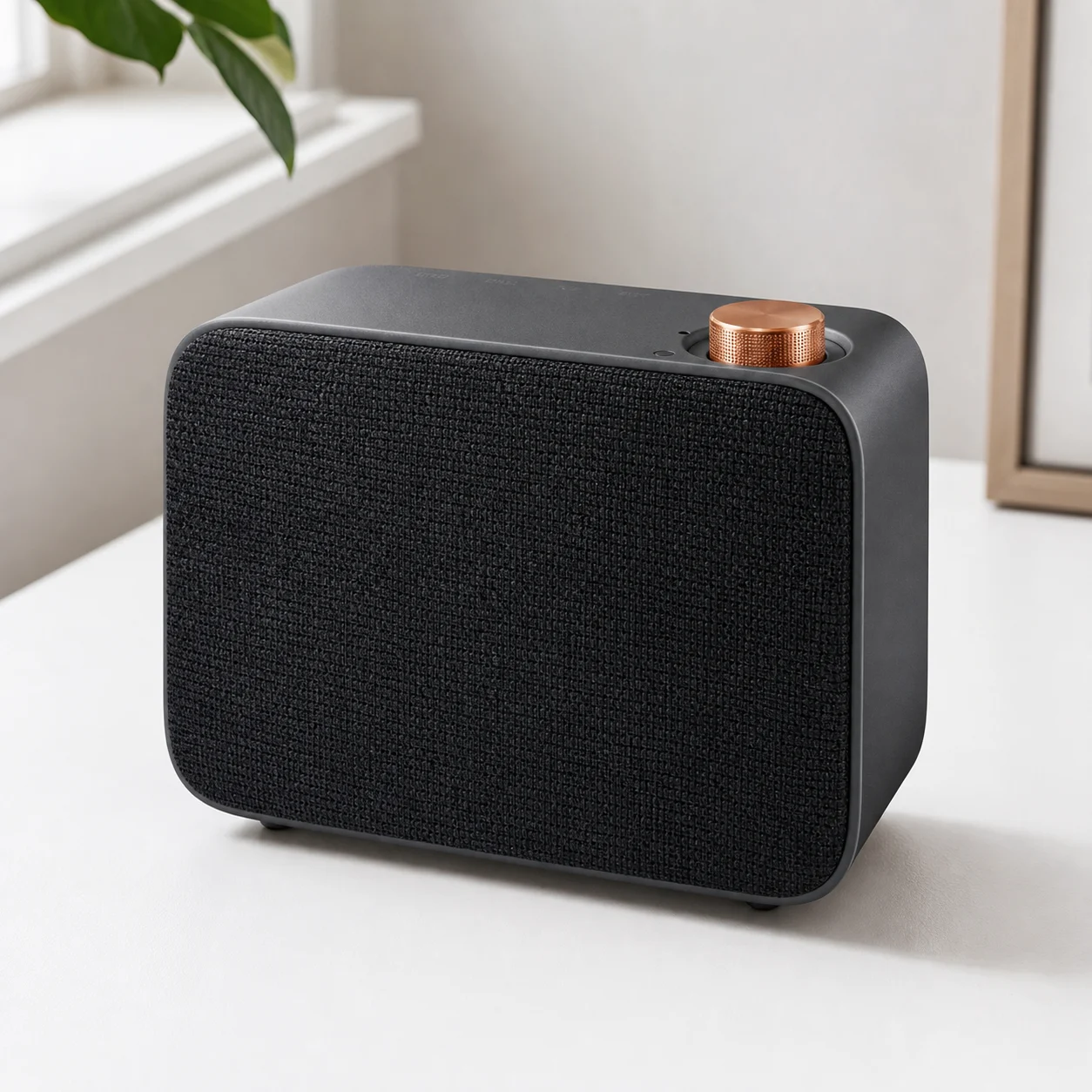
Place the subject from the uploaded image into a new indoor, outdoor, tabletop, studio, seasonal, or advertising scene without reshooting.
Let the reference image define the subject outline, pose, scale, angle, and main edges.
Specify background environment, light direction, surface material, depth of field, color tone, and image use case.
Review shadows, reflections, contact edges, perspective, and the overall fit between subject and new background.
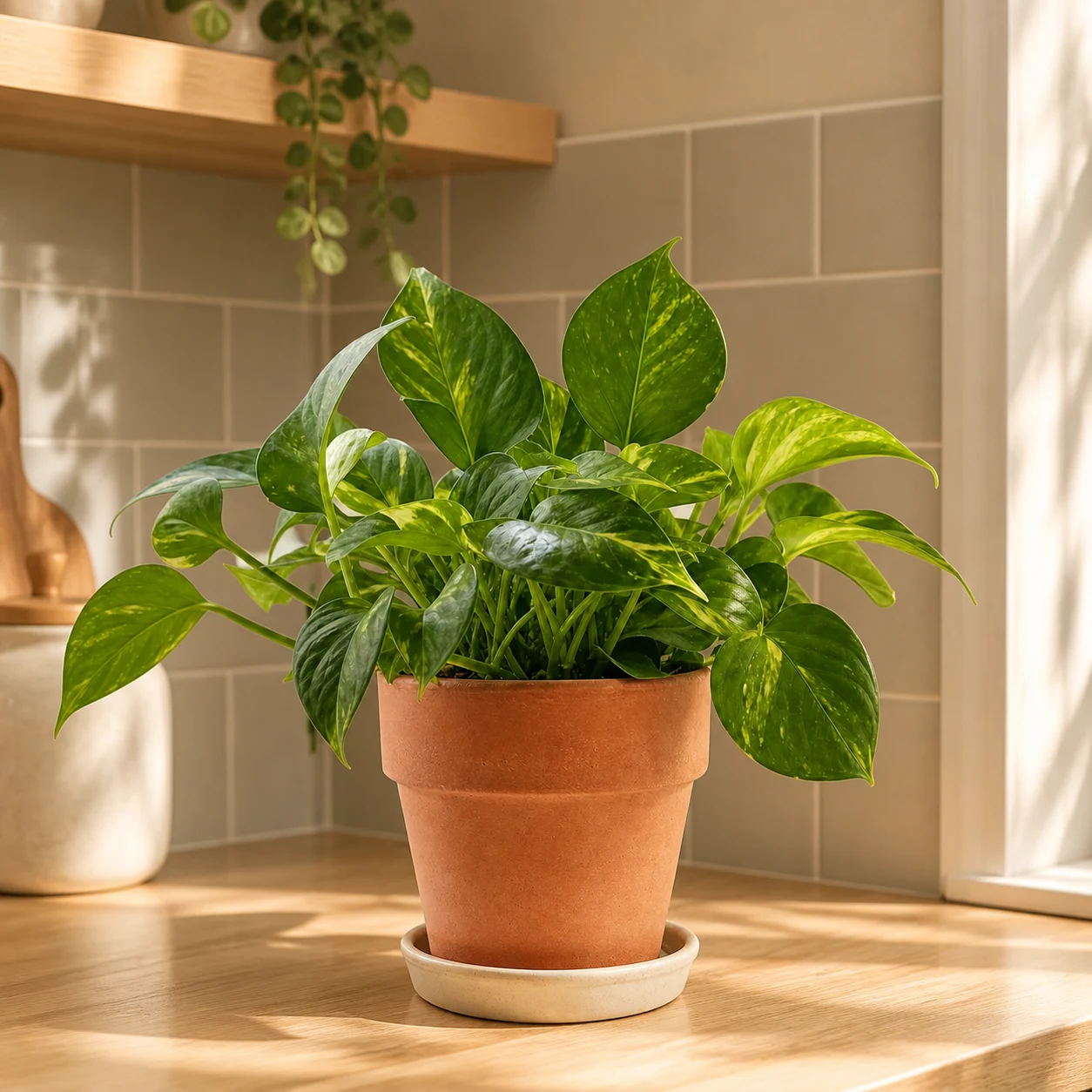
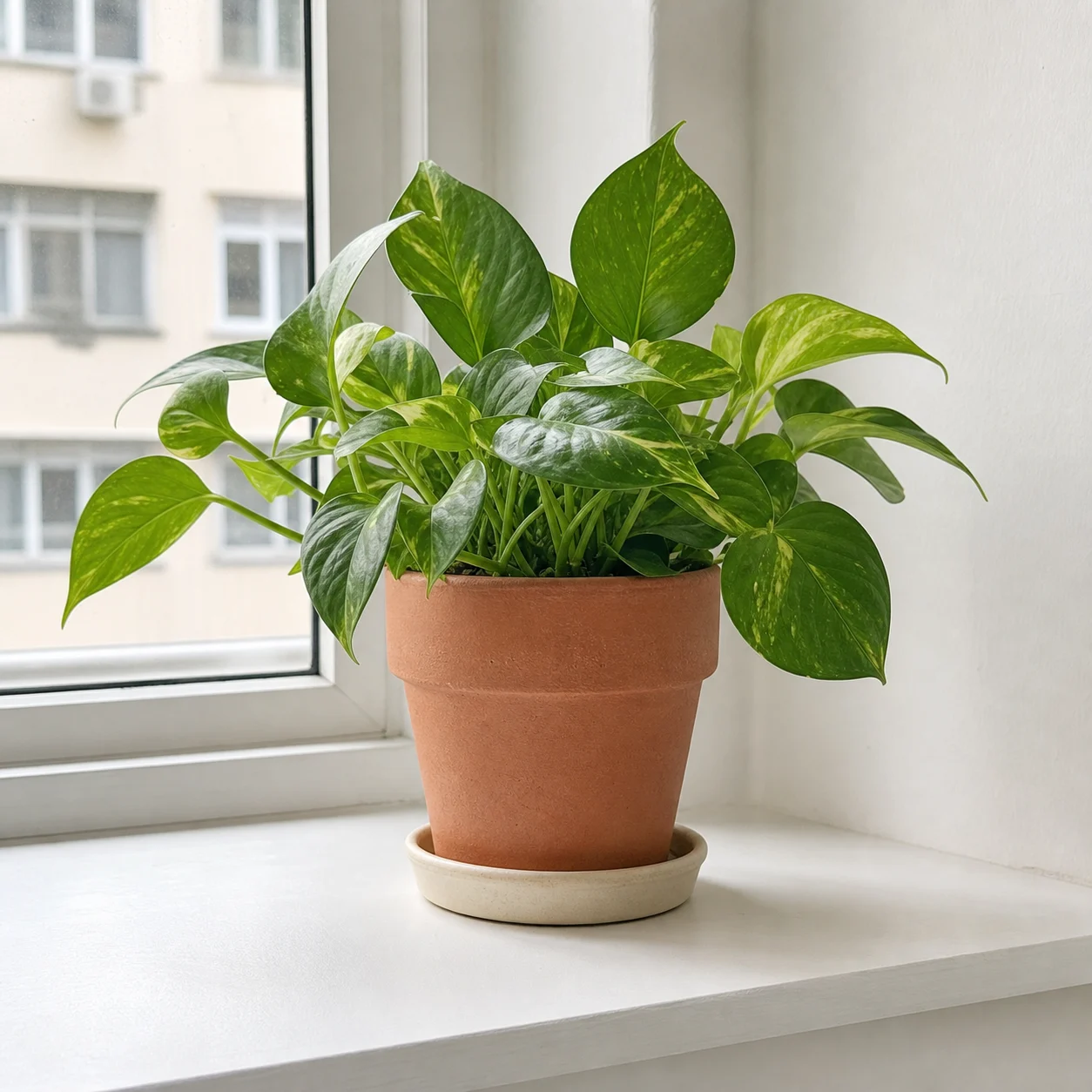
Keep the composition, person, object, or layout direction while testing a new color system, material treatment, illustration style, lighting mood, or brand look.
Start from a photo, mockup, sketch, screenshot, cover, or older content image.
Describe the style change you want, then list what cannot drift, such as identity, product appearance, composition, or text areas.
If preservation or change is off, adjust the prompt, switch models, or use the generated image as the next reference.
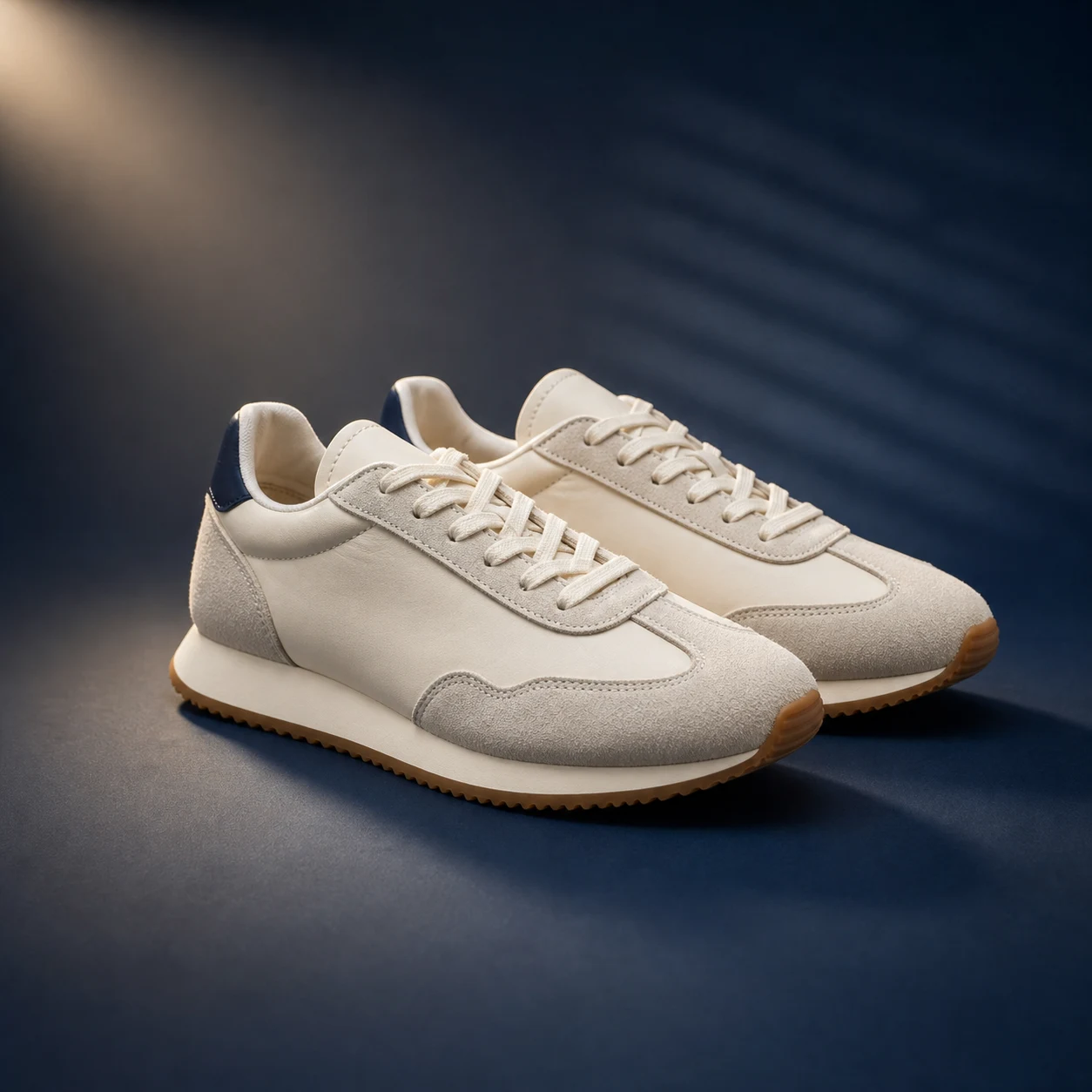
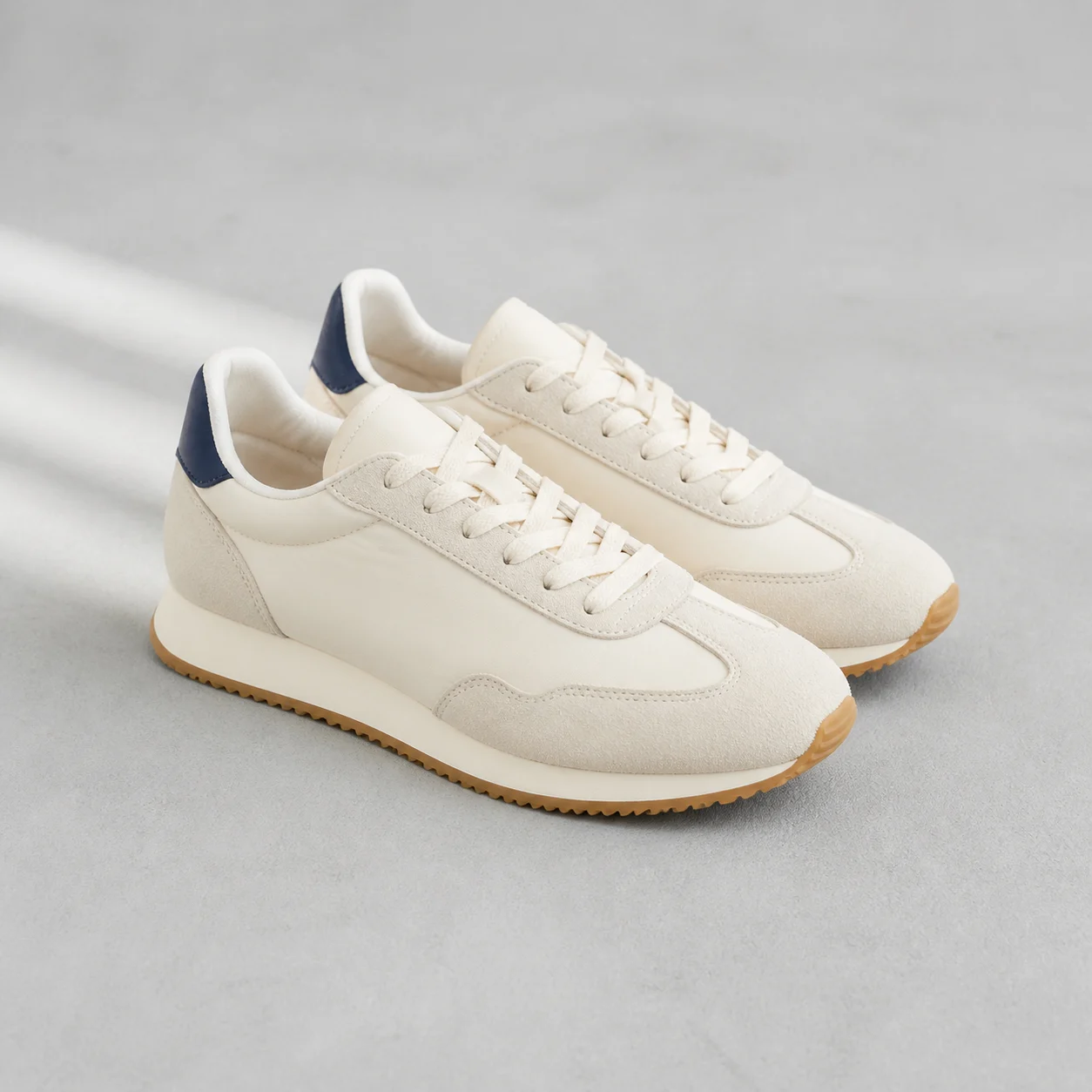
Add images that should guide the subject, product identity, pose, layout, style, composition, or brand direction.
Separate source details that must stay from the background, style, lighting, object, material, or scene changes you want.
Generate first with the default Nano Banana 2 model, or switch to another image model that supports image-to-image, then compare and refine.
AI image to image is an image tool where uploaded images guide the generated result. Your prompt explains which source details to preserve and how the background, style, lighting, objects, or details should change.
Yes. Upload a clear reference and explicitly preserve subject identity, product appearance, pose, composition, color, material, and key details in the prompt.
Yes. Describe the new background, surface, room, light, and image purpose while asking the model to keep the subject outline, proportions, and important source details.
This page starts with Nano Banana 2 by default. You can also switch to GPT image 2 or Seedream 5 Lite depending on reference count, ratio, resolution, and style needs.
If you do not have a reference image, use text-to-image. If you only need to remove a background, use Background Remover. If you need higher clarity or size, use Image Upscaler.
Upload a reference, adjust the prompt, and generate an edit.