
Coming soon
BFL plans to open FLUX 3 Image early access after the initial FLUX 3 Video rollout.
Preview
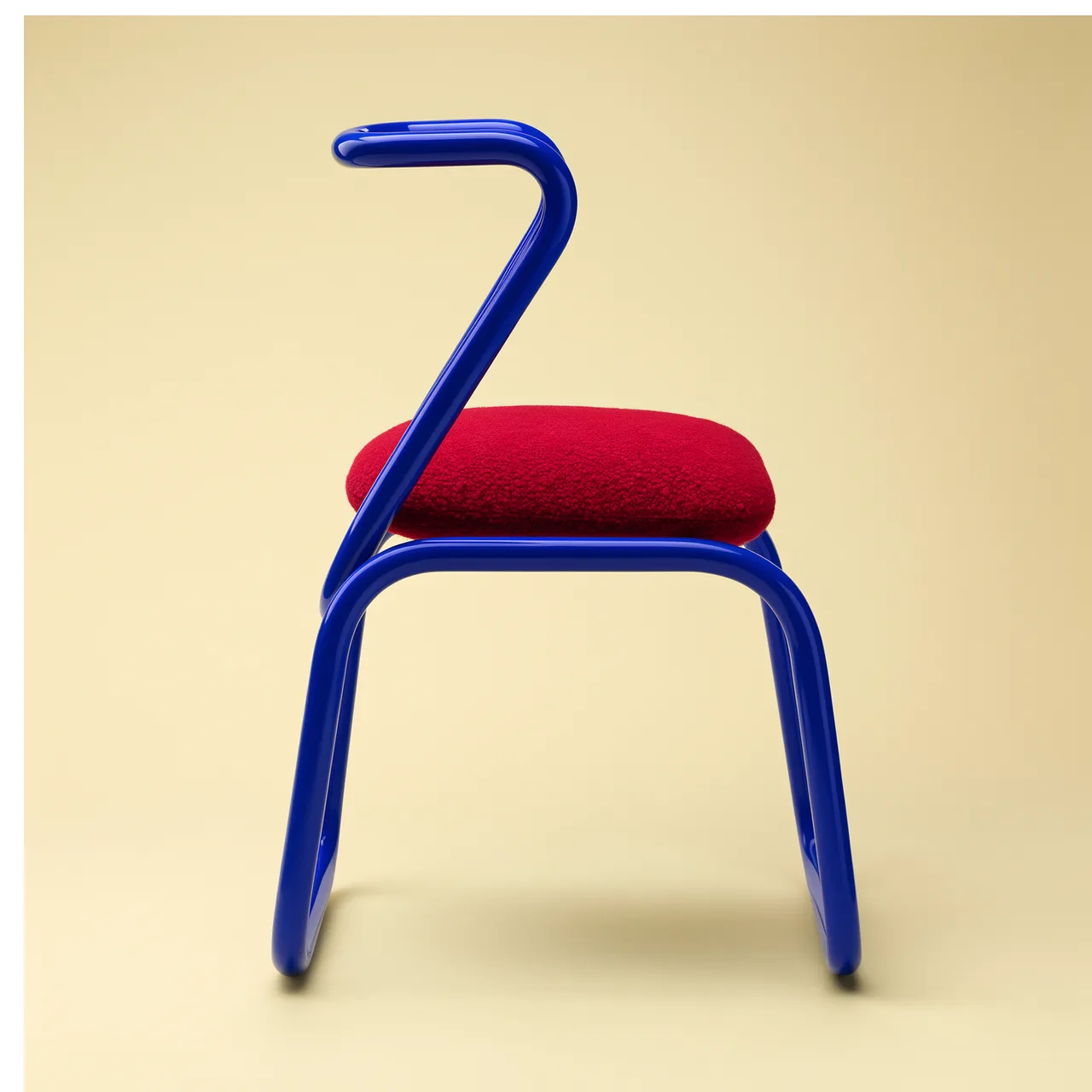
FLUX 3 Image is coming soon. In the meantime, compare image generators and editing tools already available in AI Image Editor.

Open Seedream 5.0 Flash in AI Image Editor.

Open Nano Banana 2.1 in AI Image Editor.
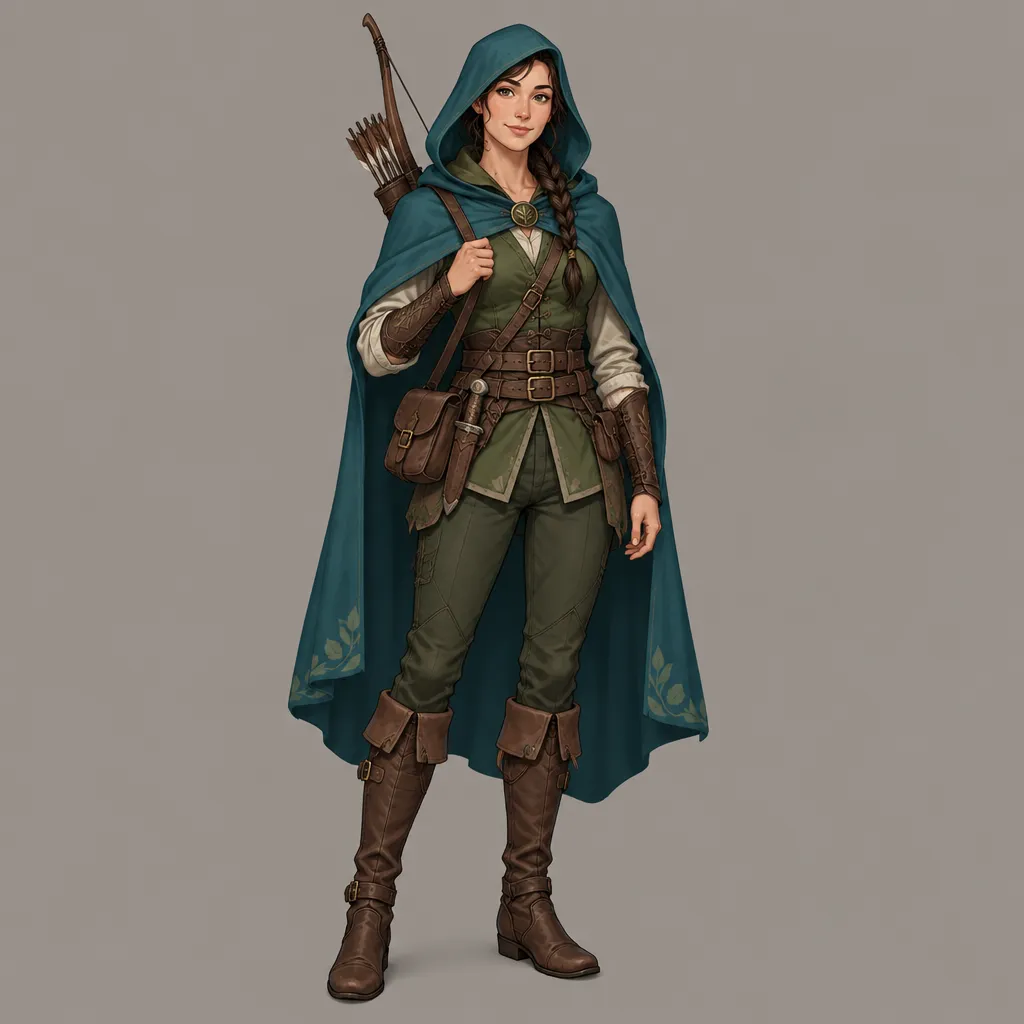
Open GPT Image 2.5 in AI Image Editor.
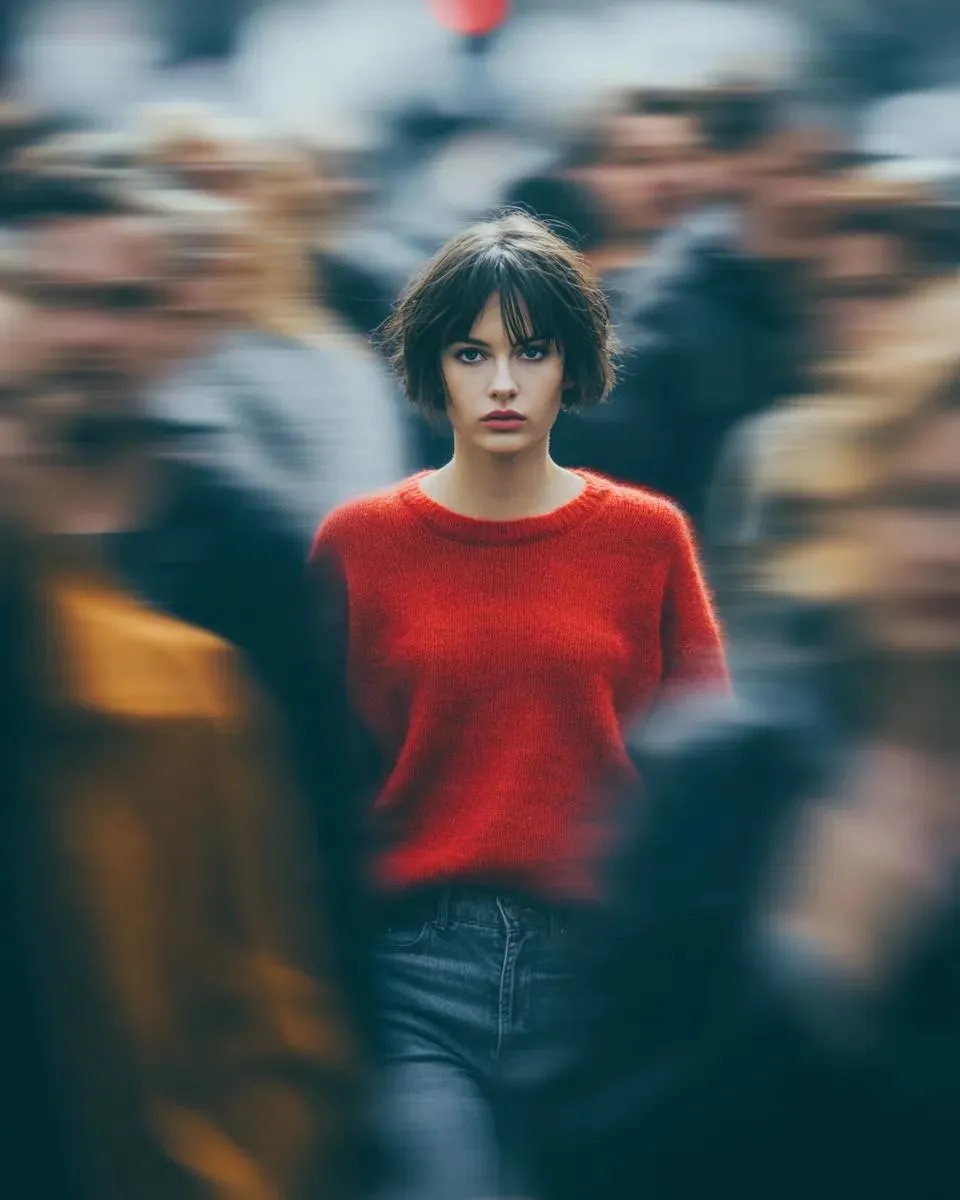
Open Seedream 5.0 Pro in AI Image Editor.
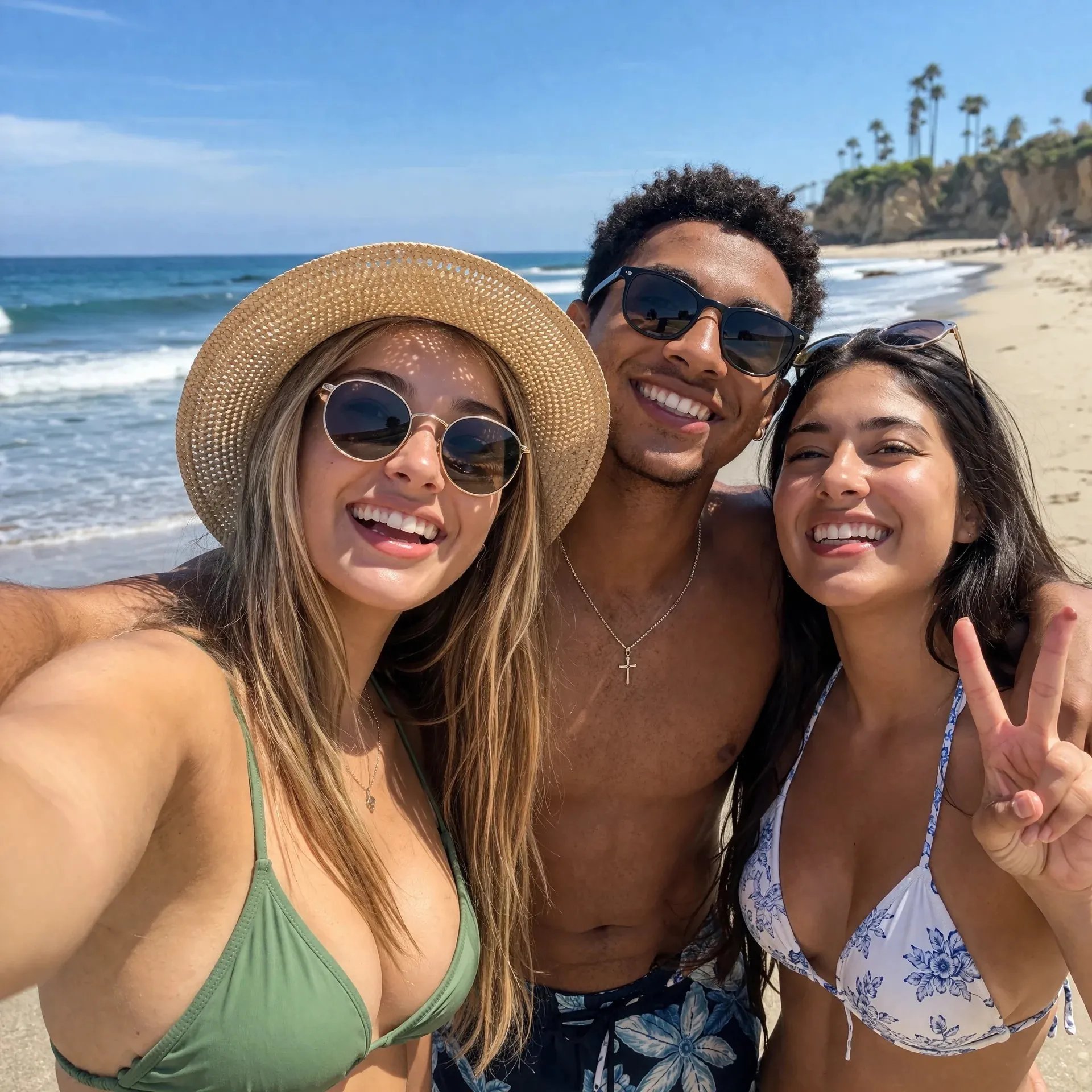
Open GPT image 2 in AI Image Editor.
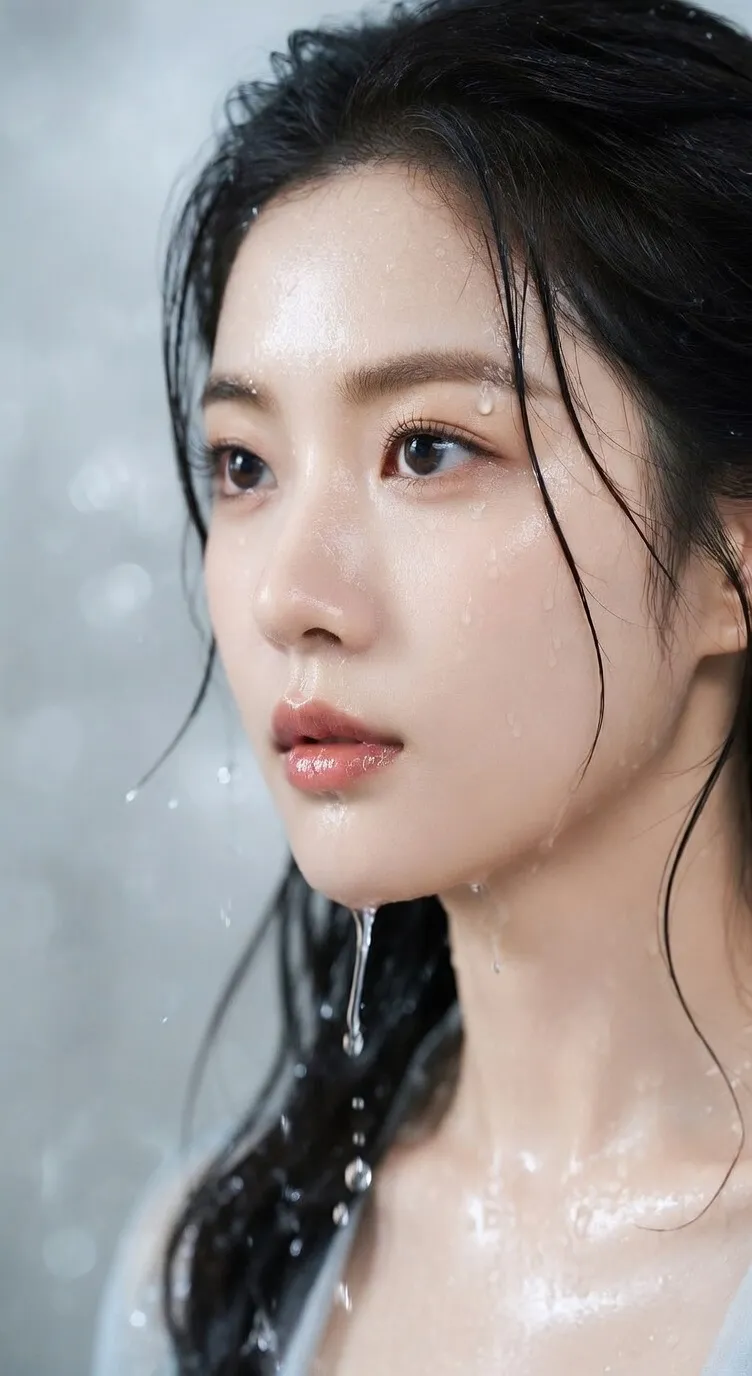
Open Seedream 5 Lite in AI Image Editor.
FLUX 3 Image is the image synthesis and editing capability of Black Forest Labs' unified FLUX 3 model. BFL says it is designed for complex prompts, accurate multilingual text, visual references, and a wide range of styles, aspect ratios, and resolutions. AI Image Editor is an independent service and is not affiliated with or endorsed by Black Forest Labs.
BFL plans to open FLUX 3 Image early access after the initial FLUX 3 Video rollout.
Create new images or direct edits with prompts and visual references.
FLUX 3 is jointly trained across images, video, and audio in one architecture.
Built for image generation and editing with complex prompts, multilingual text, visual references, and flexible styles, aspect ratios, and resolutions.
Create a new composition from text or direct changes to an existing visual while working within the same FLUX 3 foundation.
BFL reports substantial progress over earlier FLUX versions on prompts that combine multiple subjects, relationships, actions, and visual constraints.
Generate visual text in multiple languages for posters, packaging concepts, signs, editorial graphics, and localized campaign drafts.
Move between photographic, illustrative, graphic, painterly, and experimental directions instead of being limited to one house look.
BFL has confirmed support for varied aspect ratios and resolutions; exact production options will be added here when the public API is documented.
Use visual inputs alongside language to communicate subject, composition, material, color, or style more directly.
Explore how FLUX 3 Image can support product concepts, brand visuals, and narrative-driven creative work.
Describe shape, material, color, lighting, backdrop, and camera language to explore objects that feel designed rather than assembled from stock imagery.
Specify silhouette, proportions, construction, finish, and the details that must remain recognizable.
Describe surface response, reflections, shadow softness, lens choice, and background contrast.
Treat generated designs as concepts and review structure, labels, safety, and claims before production.
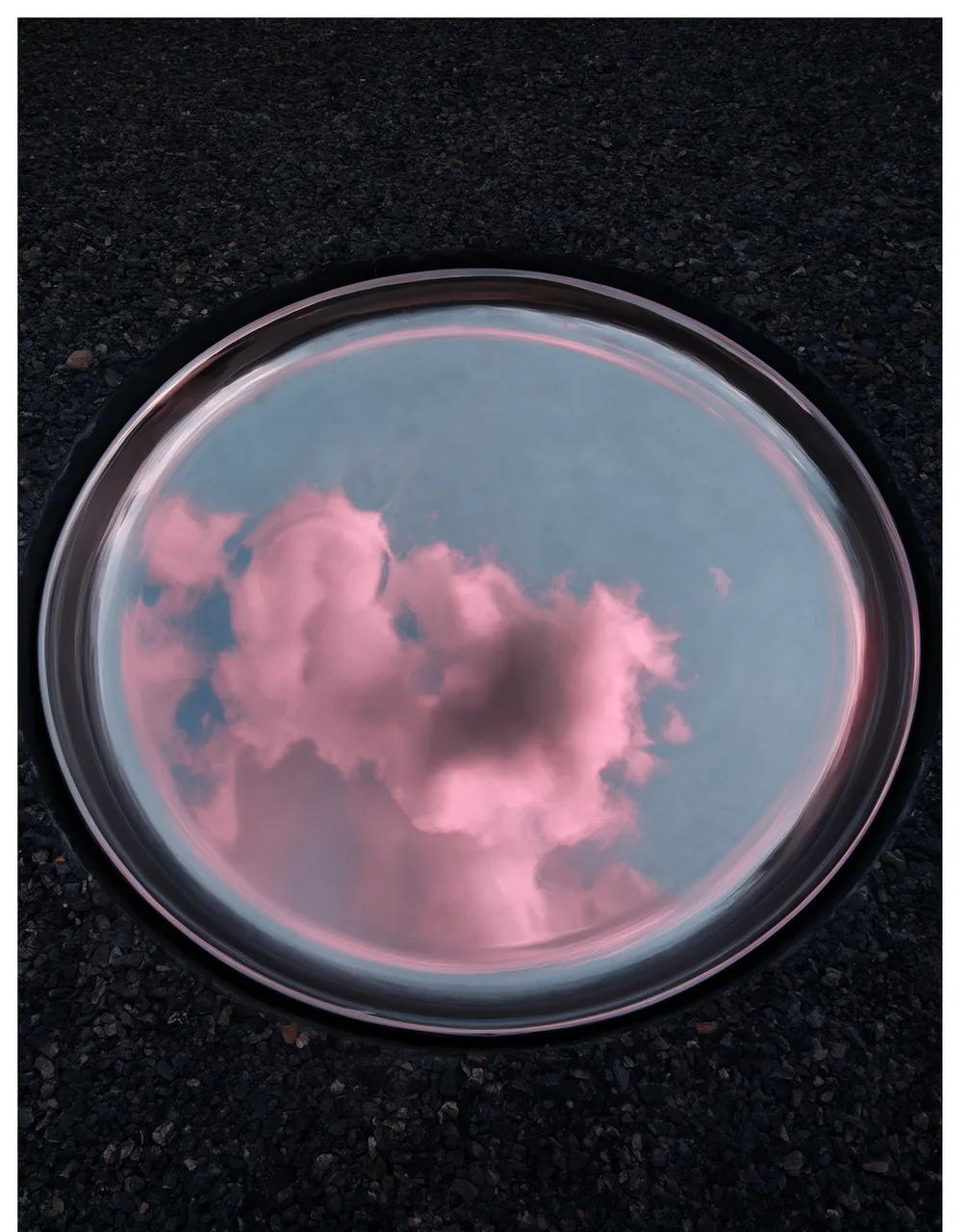
Use the same subject brief across photographic, painterly, editorial, or graphic treatments to compare art directions.
State the identity, pose, form, viewpoint, and composition that should remain stable across variations.
Vary medium, palette, texture, era, or lighting separately so each result remains easy to evaluate.
Compare anatomy, edges, object structure, color, and small details at full resolution.
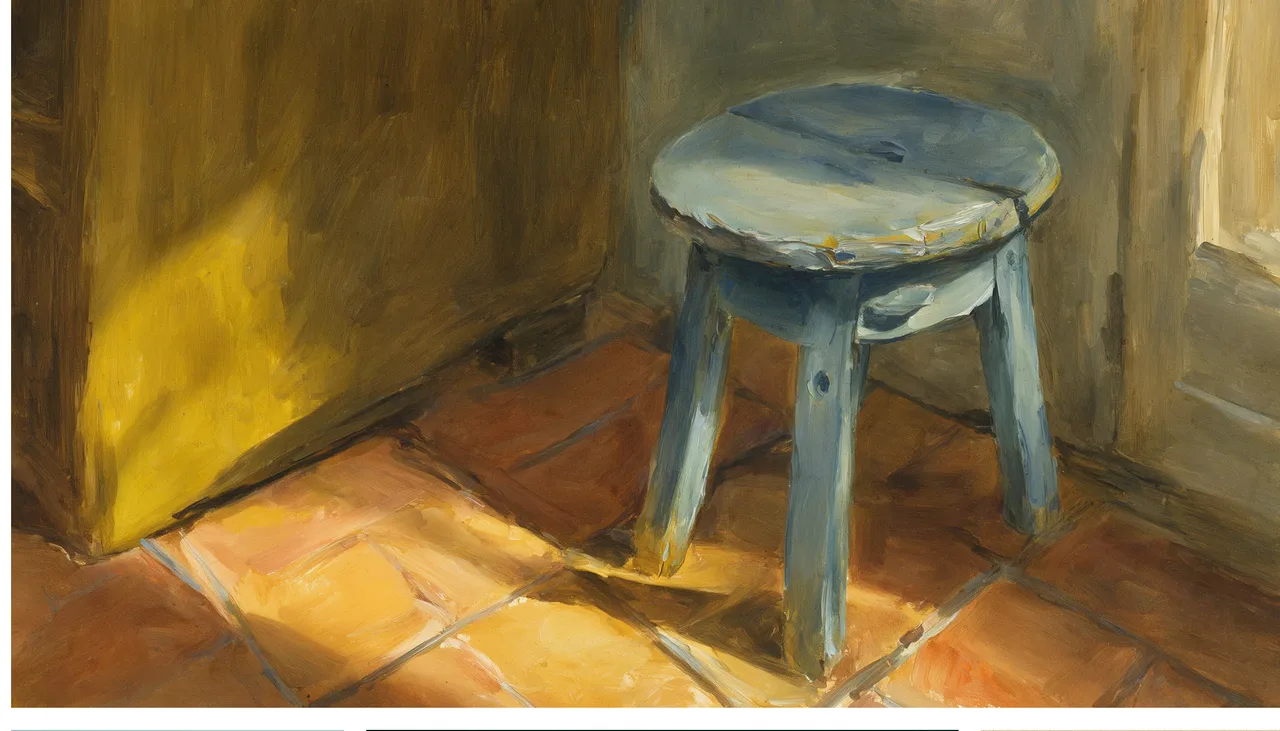
Prepare poster, social, packaging, and editorial concepts that combine imagery with short text in the audience's language.
Separate required words from visual direction and specify language, case, hierarchy, and placement.
Define whitespace, contrast, alignment, and safe areas for headlines, labels, or calls to action.
Verify spelling, translation, punctuation, logos, product facts, and legal copy outside the model.
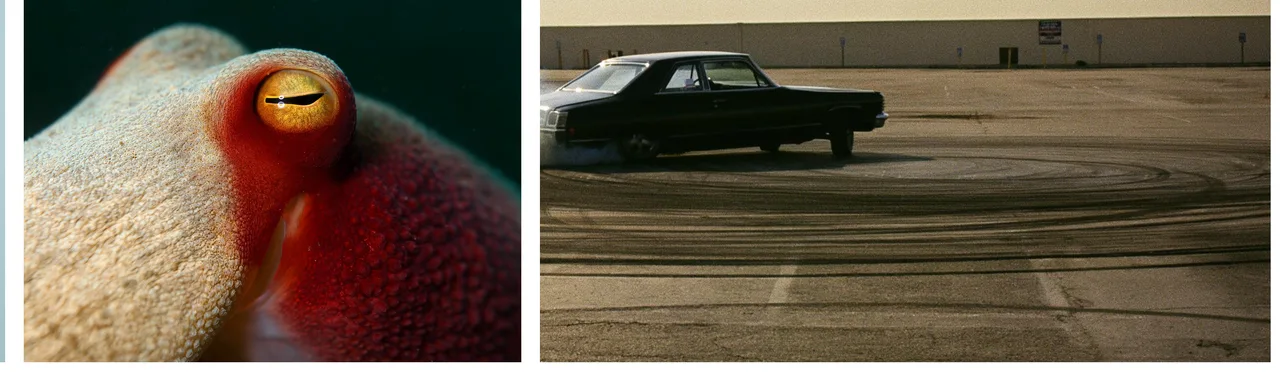
Define the subject, composition, style, lighting, required text, format, and what a successful result must preserve.
Prepare subject, product, material, layout, and style references with clear rights and a specific role for each asset.
Compare variations, refine the prompt, and verify visual text, product details, and asset rights before publishing.
FLUX 3 Image is the image synthesis and editing capability of FLUX 3, Black Forest Labs' unified multimodal foundation model trained jointly across images, video, and audio.
Not in AI Image Editor. BFL announced that FLUX 3 Image early access would open in the weeks following its July 23, 2026 FLUX 3 launch. This page will remain marked Coming soon until integration access and production details are available.
BFL has confirmed both image synthesis and editing, including generation guided by text and input references. The exact editing controls and reference limits have not yet been published.
BFL reports improved text generation over earlier FLUX versions, including high-accuracy text in multiple languages. Generated text should still be proofread before publication.
BFL has confirmed a variety of resolutions and aspect ratios but has not published the final production options. We will list exact settings when official API documentation is available.
Public API pricing and AI Image Editor credit costs have not been announced.
No. FLUX 3 is developed by Black Forest Labs. AI Image Editor is an independent service and is not affiliated with or endorsed by Black Forest Labs.
FLUX 3 Image generation will become available here after integration access, pricing, and production controls are confirmed.