
Up to 10 references
Describe what to create or change.
Preview
Compare image models, refine a generated asset, remove its background, or upscale the final image.
Open Nano Banana 2.1 in AI Image Editor.
Open GPT Image 2.5 in AI Image Editor.
Open FLUX 3 Image in AI Image Editor.
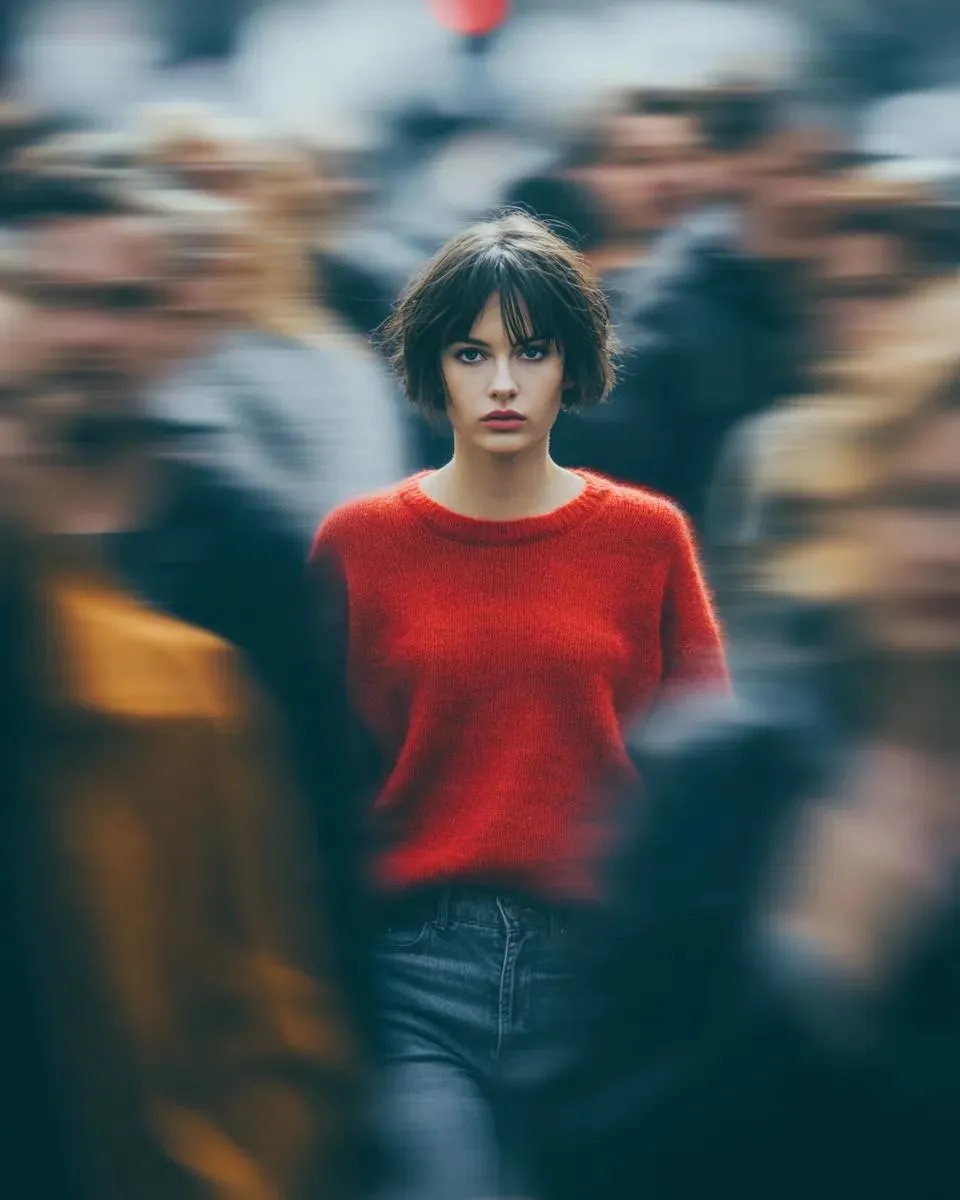
Open Seedream 5.0 Pro in AI Image Editor.
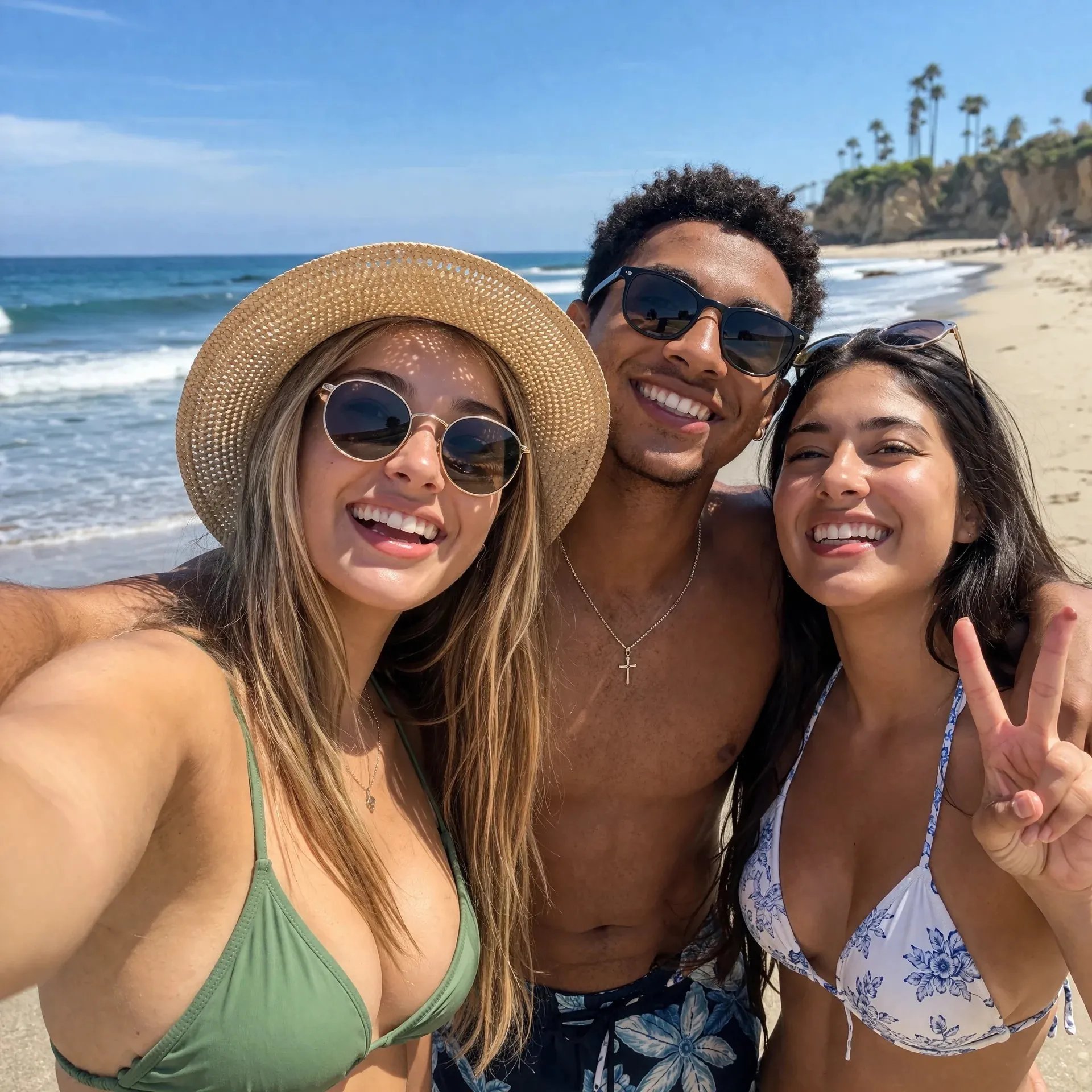
Open GPT image 2 in AI Image Editor.
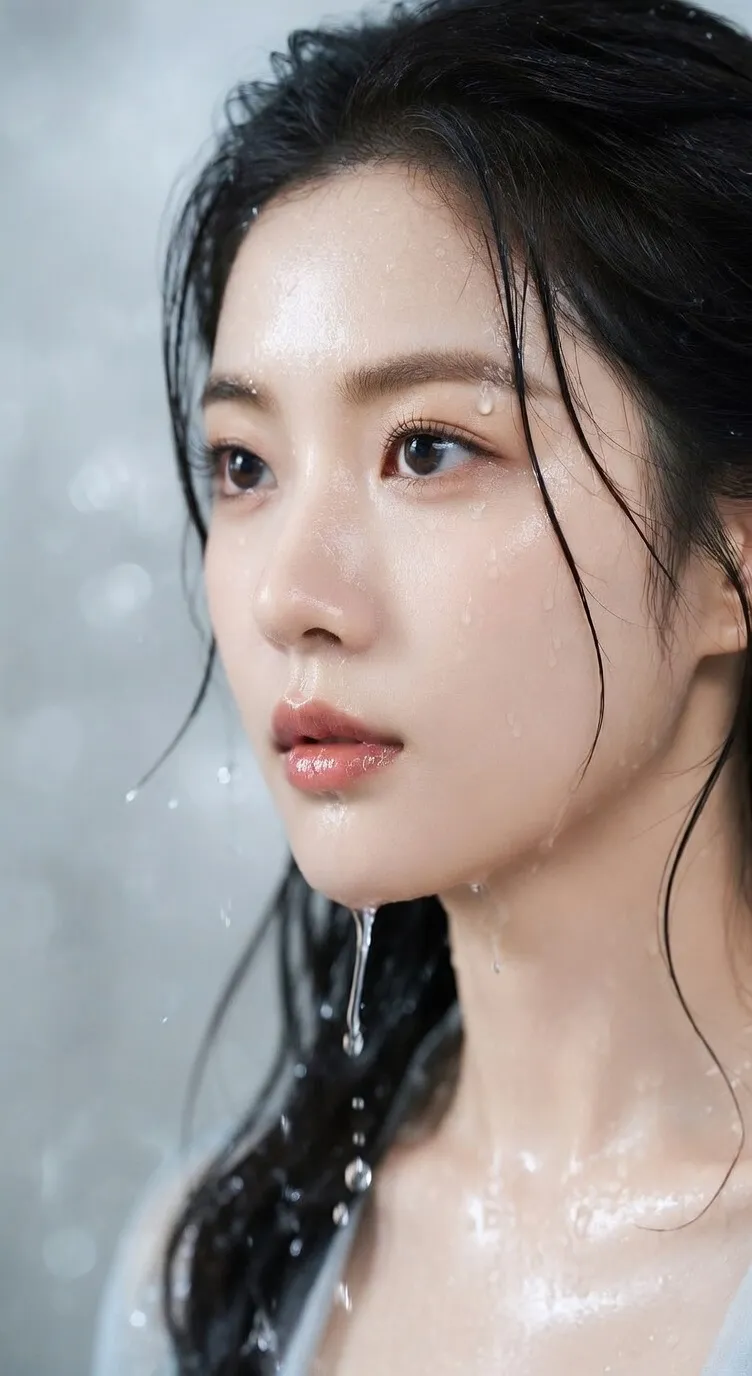
Open Seedream 5 Lite in AI Image Editor.
Seedream 5.0 Flash is ByteDance’s Seedream 5.0 model for fast, cost-conscious image creation. Generate from a written brief or use several reference images to guide an edit. Explore lighting, composition and color for product campaigns, social graphics or scene concepts, then refine a chosen version. Here, 1K, 1.5K and 2K each cost 8 credits per image, with no additional reference-image charge.
Describe what to create or change.
Eight ratios, from portrait to ultrawide.
Download as PNG or JPEG.
Use Flash for the parts of a project that need repeated attempts. Establish a direction, then narrow each edit with a clear subject, location and description of what should stay.
Flash prioritizes generation speed and cost, making it an option for trying product lighting, ad layouts, illustration moods and social covers before choosing a final direction. Keep the subject description fixed and change one viewpoint or light source at a time. Actual waiting time depends on the task and service load.
Upload a product photo, portrait or existing design and describe the area to change, the desired result and the elements to preserve. Separate subject and setting instructions when replacing a background, changing colors or swapping props. For example: “Keep the bottle shape and label; place it on pale stone in soft window light.”
Combine product, setting and style references by naming their roles: image 1 for the product shape, image 2 for lighting and image 3 for color. Start with only the images you need, up to 10. Conflicting angles or styles can make the brief ambiguous; references guide the result but still require a consistency check.
Choose 1K, 1.5K or 2K and one of eight aspect ratios, all at 8 credits per image. Try square framing for product displays, portrait for mobile content and landscape for covers. Check subject placement and space for copy at the chosen ratio. Start at 2K if you expect to crop or refine the result.
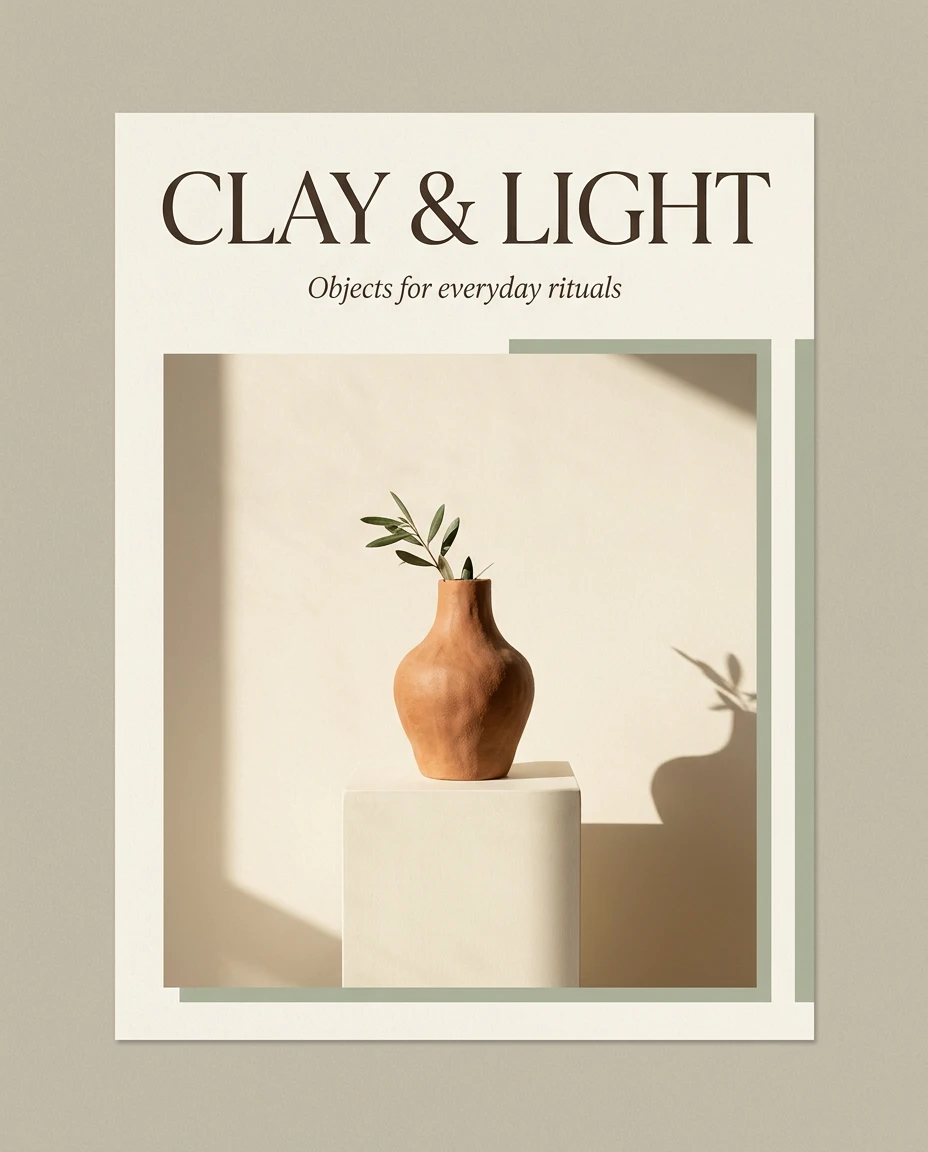
Flash supports native multilingual generation, including Chinese, English, Japanese, Korean and French. Put a short intended caption in quotation marks and specify its language, position and visual hierarchy. Add long passages, exact prices and precise brand lettering in a layout editor after choosing the image, and proofread every line.
Upload a result as the next reference, keep the composition you like, and adjust the background, palette or props separately. State what must stay and save versions for comparison. Repeated edits can alter bottle openings, packaging edges or small lettering, so compare the final image with the original product material.
Create product campaign images, architectural concepts and lifestyle visuals with Seedream 5.0 Flash. Explore light, materials and composition for ecommerce launches, brand campaigns and social content.
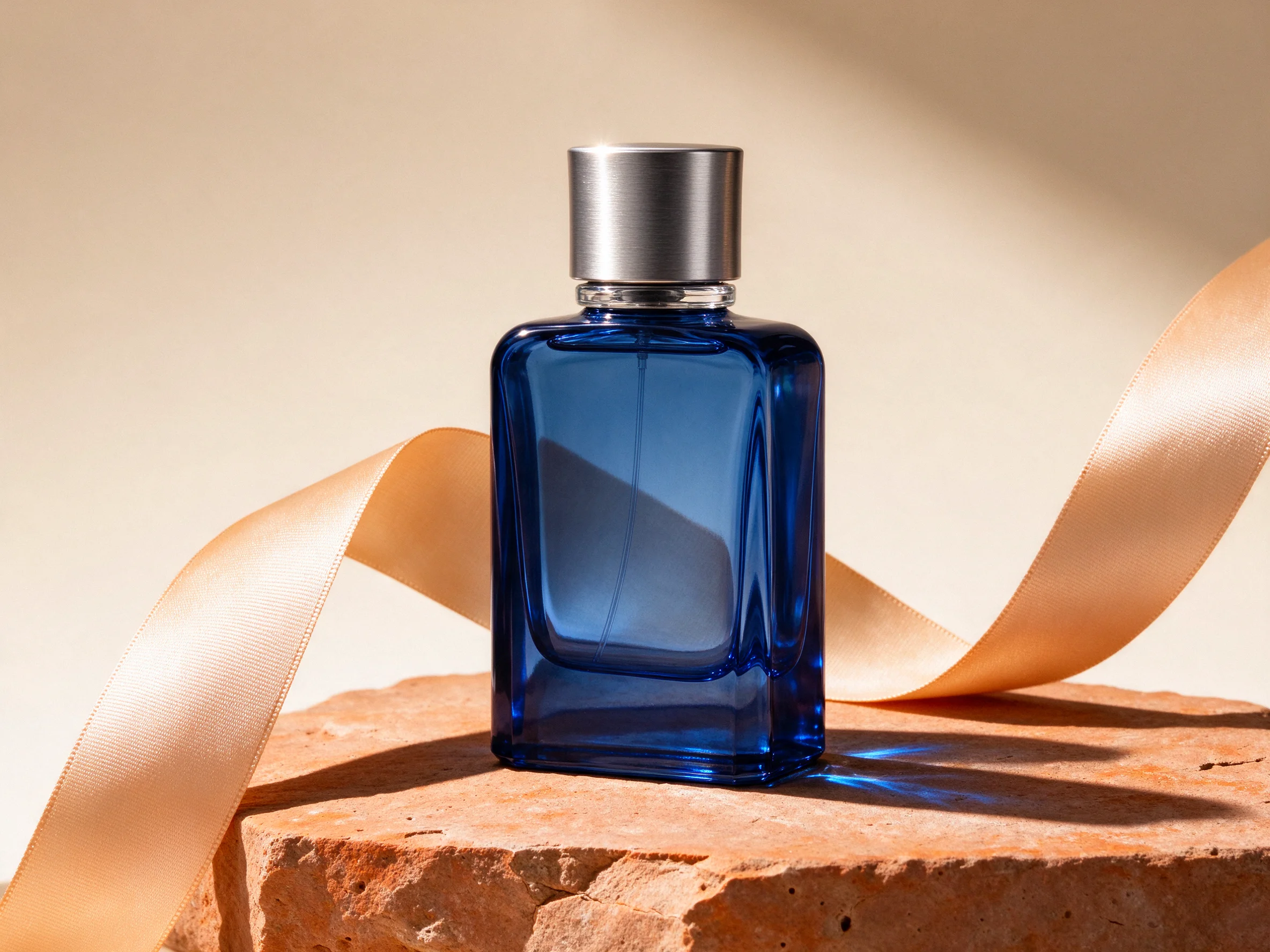
Develop visual styles for beauty launches, fragrance campaigns and product displays. Cobalt glass, brushed metal, apricot satin and terracotta use contrasting colors and textures to highlight a product. Upload a real product photo, then adapt the setting, lighting and camera angle to your brand for different campaign directions.
Replace a vague request for a premium look with side sunlight, light passing through blue glass and a narrow highlight on the metal cap. Give the glass, metal and fabric distinct surface characteristics.
Try: “Keep the bottle outline, cap proportions and label from image 1; change only the setting to a cream backdrop and terracotta plinth.” Use the reference for appearance and the prompt for presentation.
On the next pass, change only hard sunlight to soft window light. Compare silhouette, reflections and shadows. Before using the image on a product page, inspect the bottle opening, label, edges and contact shadow at full size.
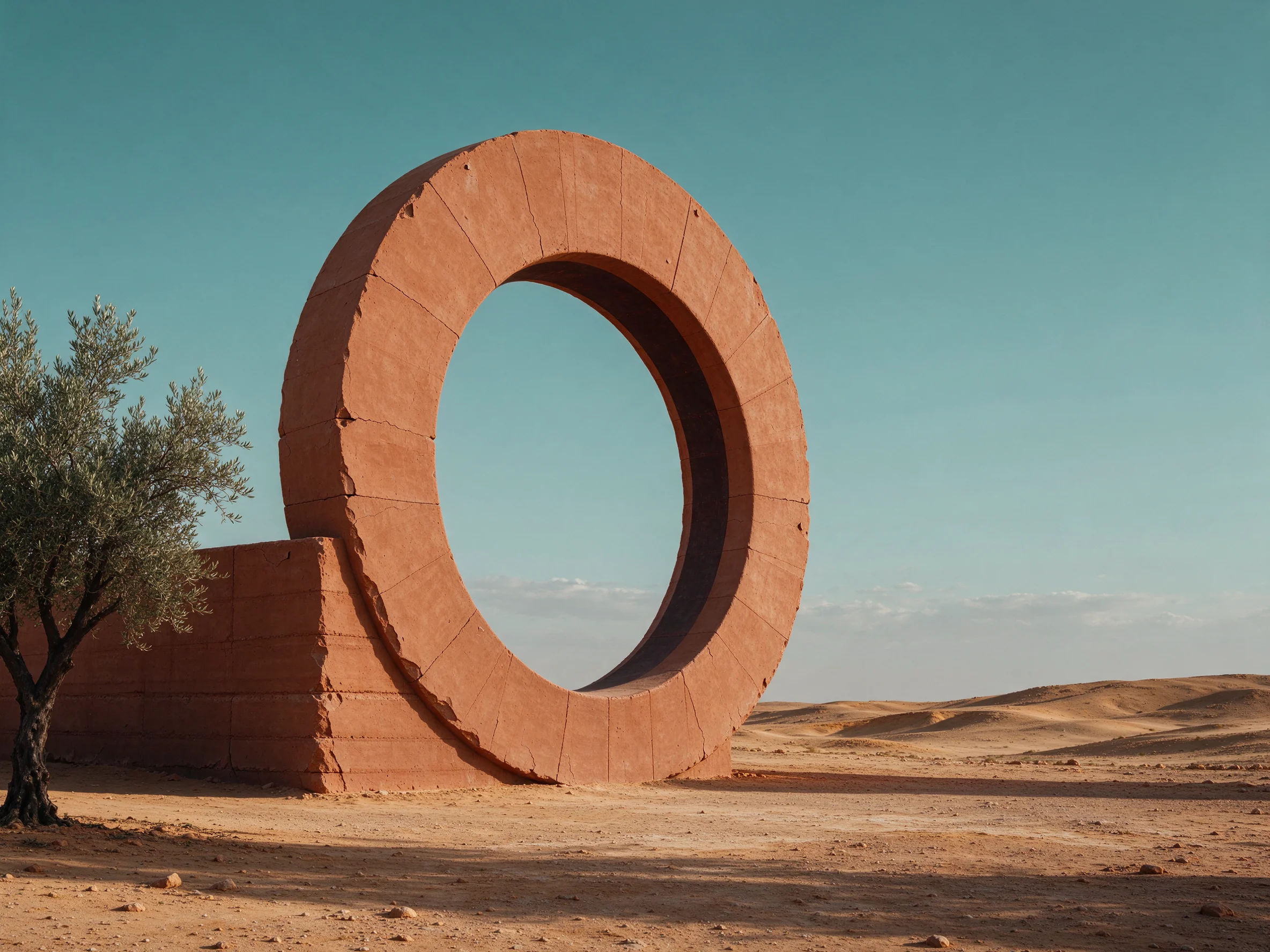
Build event visuals, travel covers and product backgrounds with architectural forms, landscape and open space. A terracotta arch, olive tree and turquoise sky can create a warm, minimal setting. Define foreground, middle ground and background, then specify camera angle and shadow direction to give the campaign a clear visual structure.
For example: flat sand in the foreground, a terracotta arch in the middle, a small olive tree on the left and a cloudless sky behind. Add an eye-level or low camera angle to clarify the spatial relationship.
If you will add type later, ask for a clean upper-right area without buildings or plants. Explore a landscape cover at 16:9; for 9:16, rearrange the subject instead of relying entirely on a crop.
Inspect the continuity of the arch, the direction of shadows and the scale of the tree. For a spatial proposal, use the image as a visual reference and provide actual dimensions and structural information separately.
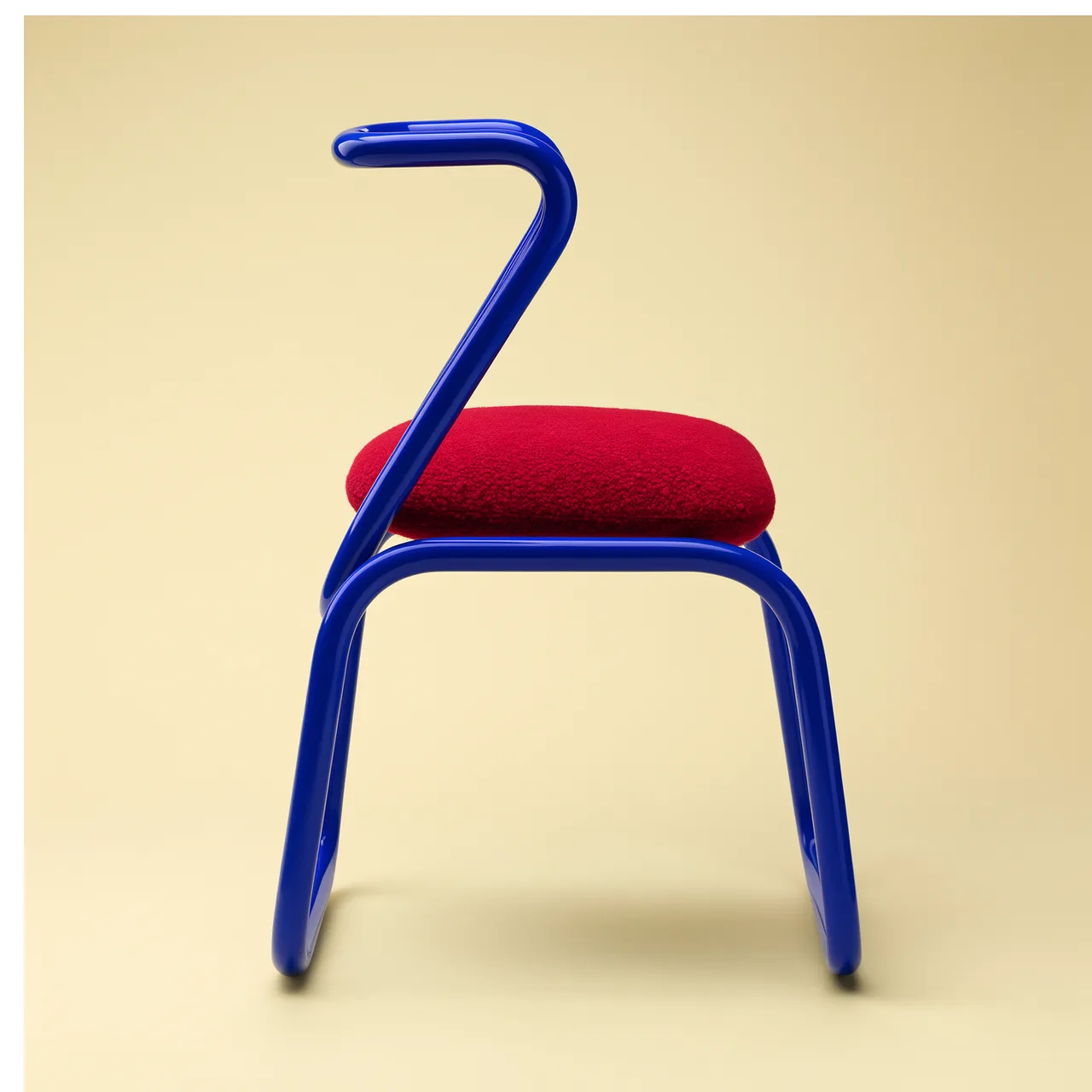
Coordinate colors and materials for lifestyle content, gift-set concepts and seasonal campaigns. An ivory cup, deep-blue notebook, amber candle and peach fabric can form a still life around a shared theme. Use multiple references for your objects, then unify the table, light and camera angle to carry the style across a series.
Specify which item is largest or closest and which objects only support the palette. Begin with a small set so the image has a clear focal point; add further props in later iterations.
Try: “Use image 1 for the cup shape and image 2 for the notebook material. Place everything on a light stone table with window light from the left.” Avoid copying every reference’s background and camera position at once.
Look at the cup’s contact with the table, the candle vessel, notebook thickness and shared shadow direction. For a series, reuse the palette and lighting description while replacing one subject at a time.

Choose text to image for a new concept or image to image to preserve a product or edit an existing scene. Upload up to 10 JPEG, PNG or WebP references. Select clear images with the whole subject visible and explain each reference’s role.
Organize the prompt around subject and purpose, composition and setting, light and materials, then what to keep or change. Choose the intended ratio, 1K, 1.5K or 2K, and output format. Lower resolution does not reduce the credit cost here.
Sign in, confirm the 8-credit cost and generate. Check the overall composition first, then inspect text, edges and product details. Use a satisfactory version as the next reference, resolve one issue per round and download the finished image.
Flash focuses on generation speed and cost, making it useful for exploring layouts, lighting and backgrounds repeatedly. Pro is oriented toward projects with greater demands on image detail and quality. Start with Flash to try several directions, then compare materials, lettering and subject fidelity when choosing a final image.
Seedream 5.0 Flash offers 1K, 1.5K and 2K, with no 4K tier. All three cost 8 credits per image, so consider 2K if you need room for cropping or detail review. A resolution tier is not a fixed square pixel size: dimensions vary with aspect ratio. Choose 1:1, 4:3, 3:4, 16:9, 9:16, 2:3, 3:2 or 21:9, with PNG or JPEG output.
Use a clear, unobstructed subject image and identify each reference by upload order. Keep the product shape from image 1 while borrowing only the light from image 2, for example. Name critical details such as labels, caps or fabric patterns that should remain. You can upload up to 10 images, but more is not automatically better; conflicting angles and backgrounds add ambiguity.
Choose image to image, upload your image and describe the area and content to change. Specify the subject, proportions, materials or text to preserve. For a product background edit, keep the bottle, label and camera angle while changing the setting and light. Each edit produces one image for scene changes, color adjustments, prop replacement or composition refinement.
Flash supports native multilingual generation for short headings, labels and poster copy. Quote the exact wording and specify language, position, color and hierarchy. Avoid crowding the image with text and proofread the result character by character. Long copy, exact prices, contact details and brand marks are better added during layout after the visual is approved.
1K, 1.5K and 2K each cost 8 credits per image. Add up to 10 reference images without an additional reference charge. Each task produces one image; regenerating or continuing an edit is billed as a new task. Choose your aspect ratio and resolution to see the cost in the generator.
English is not required. The prompt limit here is 5,000 characters, but extra length does not necessarily help. State the subject and purpose, then composition, light and materials. For edits, distinguish what should remain from what should change this round. Remove conflicting secondary requests and keep descriptions that help you judge the result.
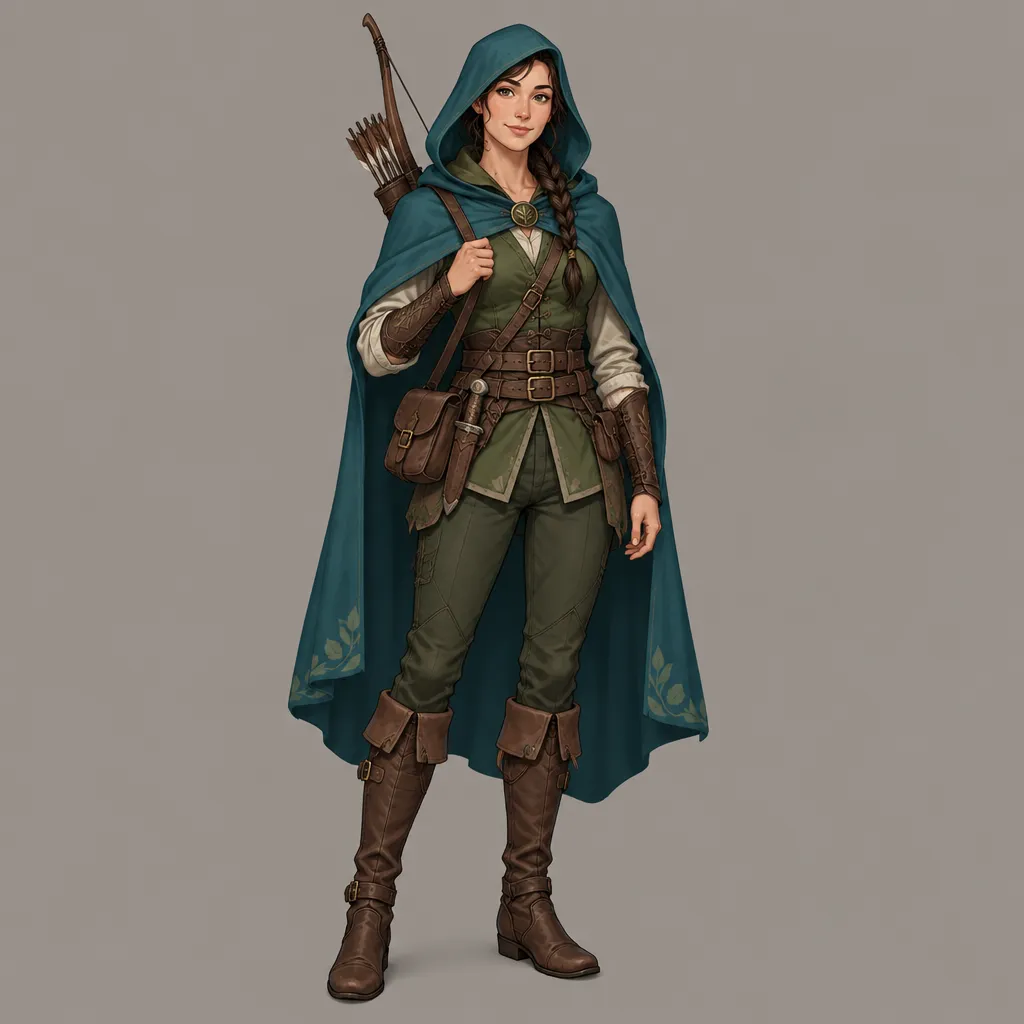
Create product visuals, social covers, ad concepts, illustrations, architectural concepts and lifestyle images. Text to image starts from a written theme or brief; image to image lets you develop an existing product photo or scene. For a series, reuse palette, lighting and composition instructions while changing subjects and props.
Choose a clear brief, review the first image, then refine one detail at a time.