
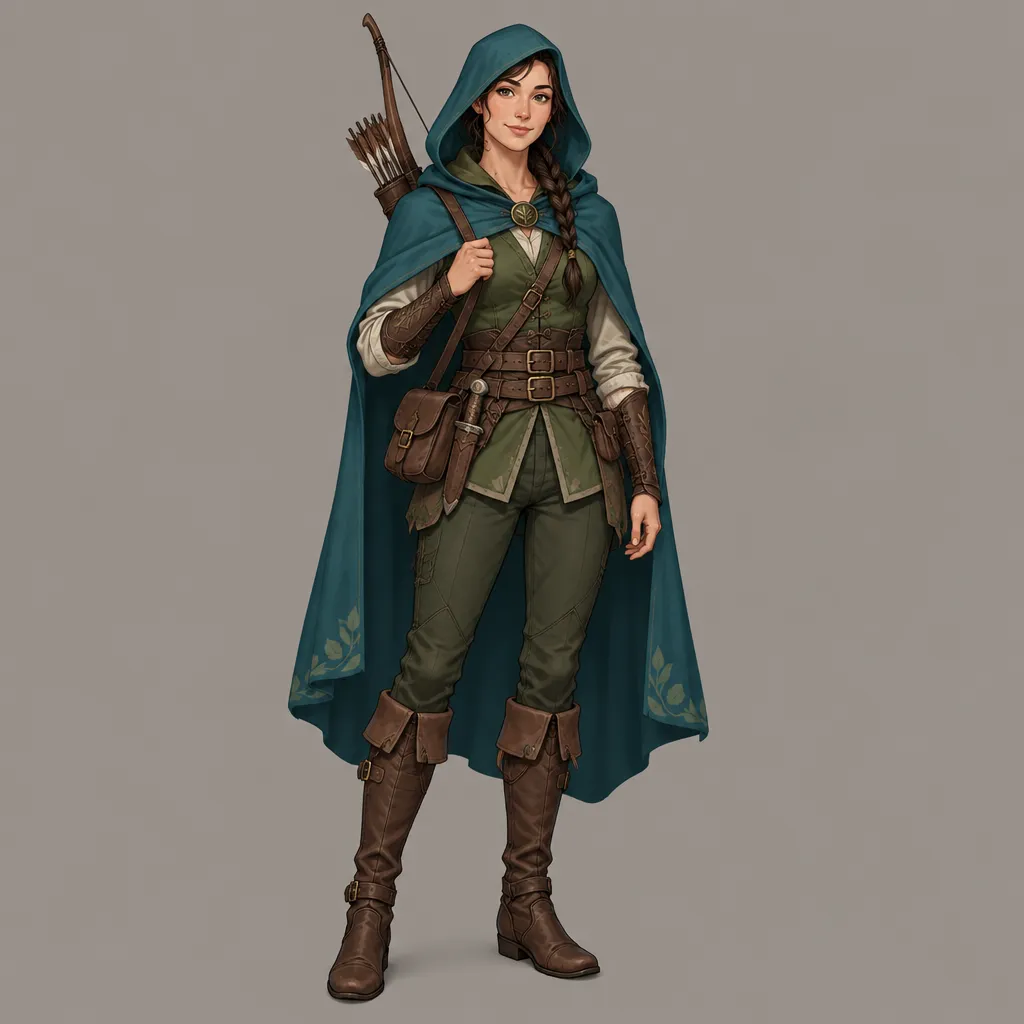
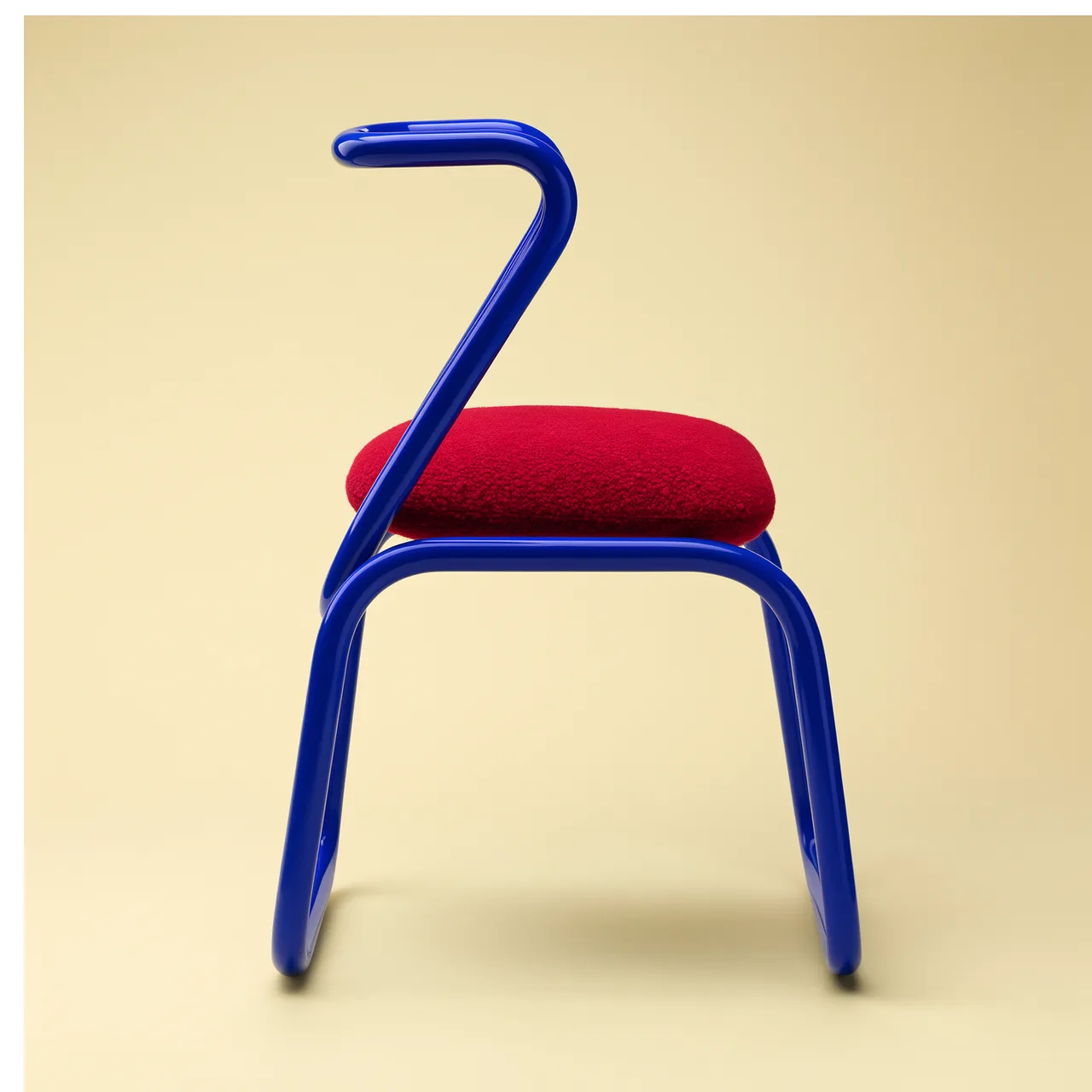
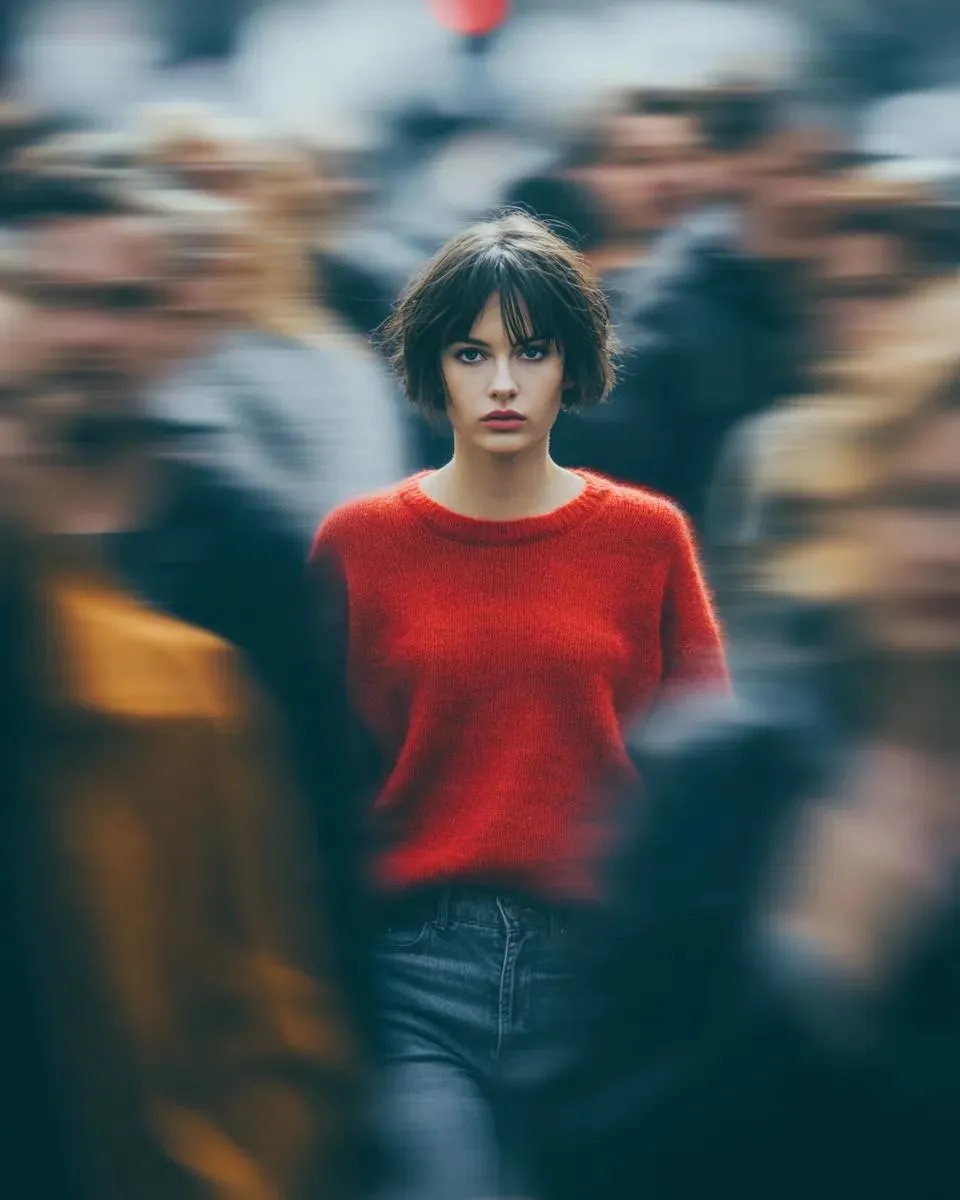
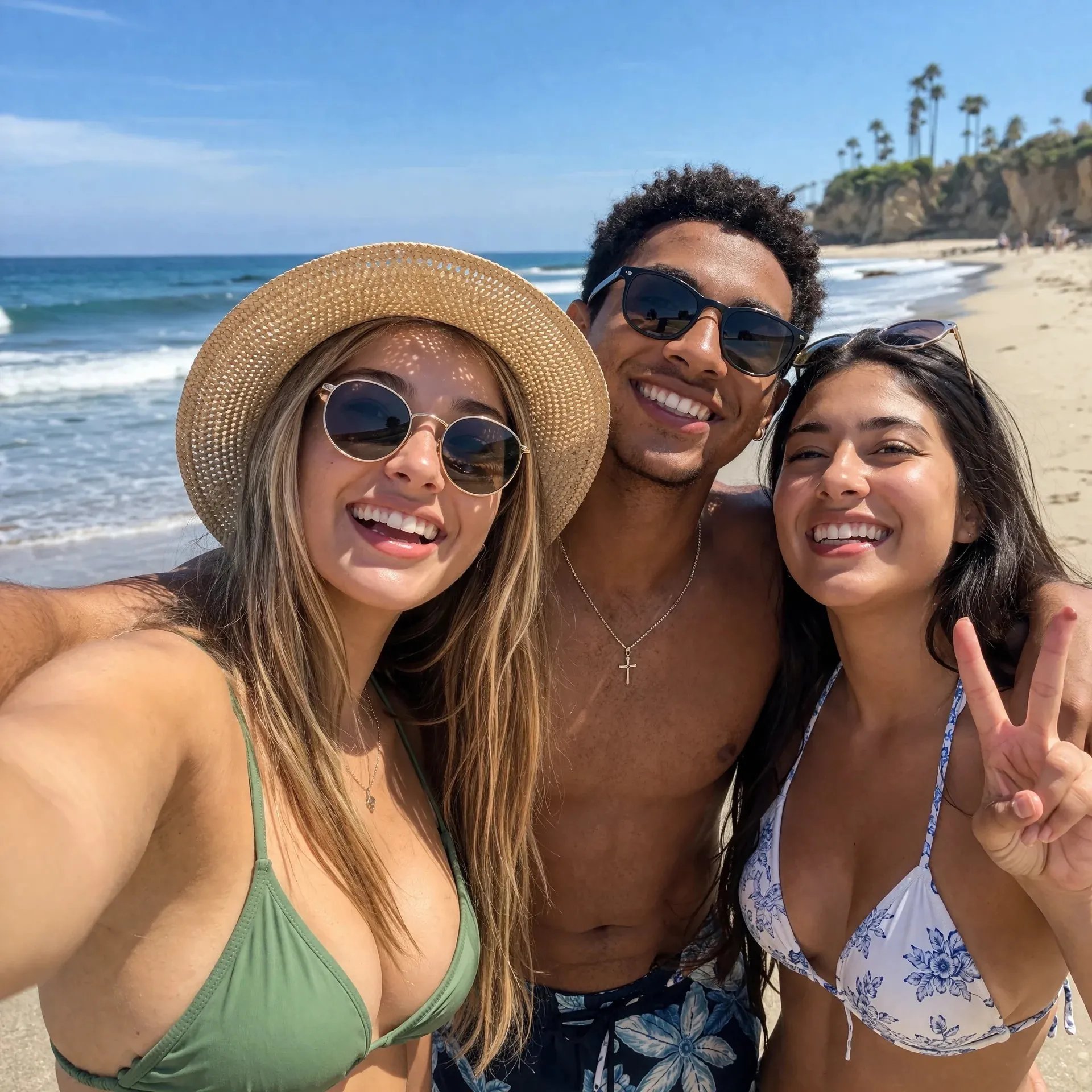
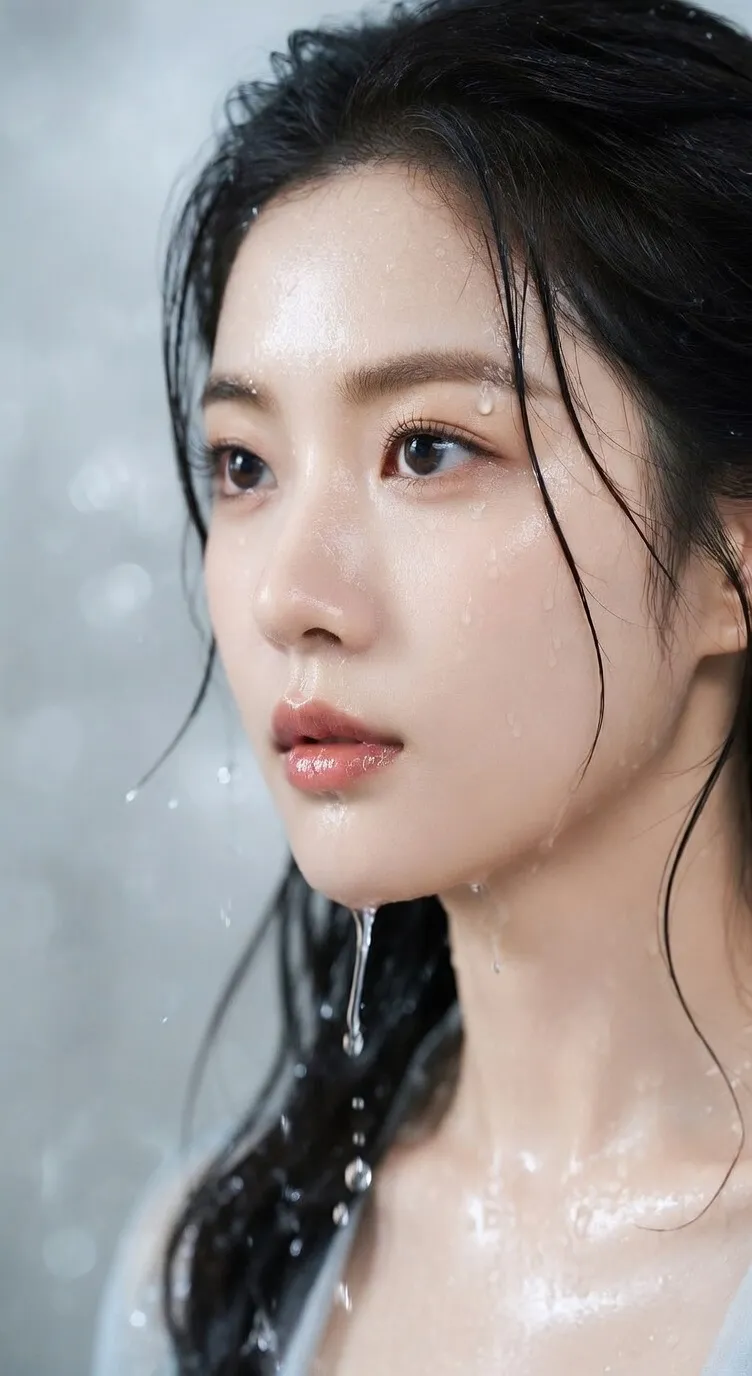
A brief or images
Describe what to create and which details to preserve.
Preview
Try the same brief with another model when you want a different visual treatment or editing approach.
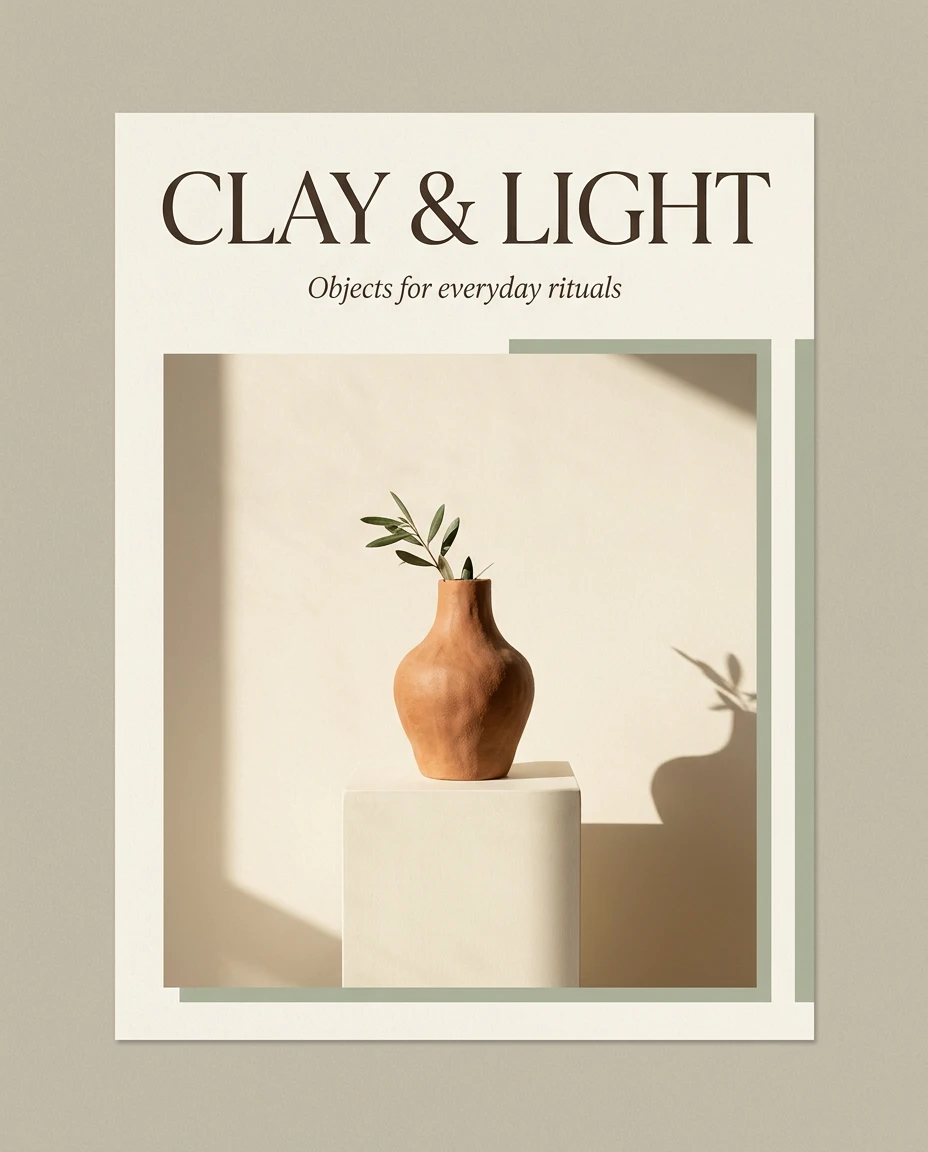
Nano Banana 2.1 is Google’s October 2026 update to Nano Banana 2. Google reports better visual design, text rendering and subject consistency. Use it here to turn a brief into a poster, move a product into a new setting or develop a wide scene.
Describe what to create and which details to preserve.
From square assets to 4:1 and 8:1 panoramas.
Inspect the result in your generation history before downloading.
Set the creative direction explicitly. References guide the result; they do not guarantee an unchanged subject.
Quote the exact headline, describe its position and leave room around it. Keep copy short, then proofread every word in the result.
Use one image for the product, another for lighting or palette. Explain which shapes and materials must remain recognizable.
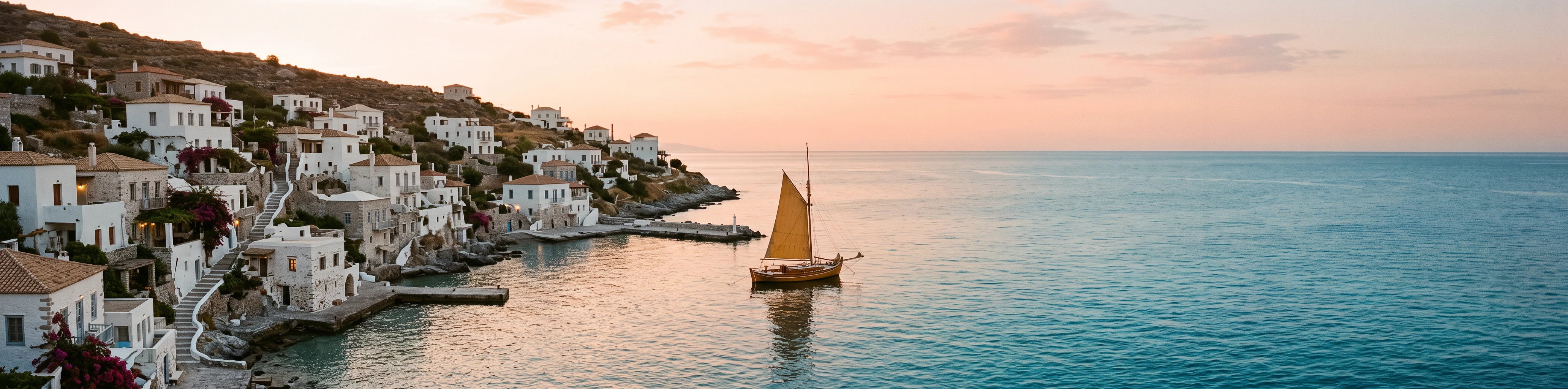
Try 4:1 or 8:1 for a banner. Google reports fixes for panoramic tiling artifacts at 2K and 4K; inspect the full width for seams.
Start at 1K while exploring. Move to 2K or 4K when the final placement needs more detail, and check the credit cost before generating.
Specify the shape, proportions and materials to preserve, then use the previous result as a reference. Check for changes in the subject's appearance after each revision.
Resolution and reference image count affect the credit cost. Check the total on the generate button before choosing the settings for this round.
Google highlights visual design, in-image text and subject consistency as key improvements. Multiple references and high-resolution output add flexibility for detailed composition and ongoing edits.
Improved text rendering and prompt adherence help text, imagery and layout work together. The model can respond to instructions about wording, element placement and visual style in one composition.
Google reports better text rendering, helping make embedded titles and supporting text easier to read.
Better adherence to combined instructions for subject, text, layout and style helps the result reflect the full design brief.
Up to 14 reference images can supply subject, style and detail in the same request. Stronger subject consistency helps preserve recognizable features as an image is revised.
Bring together visual information about shape, palette and material to guide image generation and editing.
Google reports better subject consistency across edits, helping reduce changes to identity and appearance during refinement.
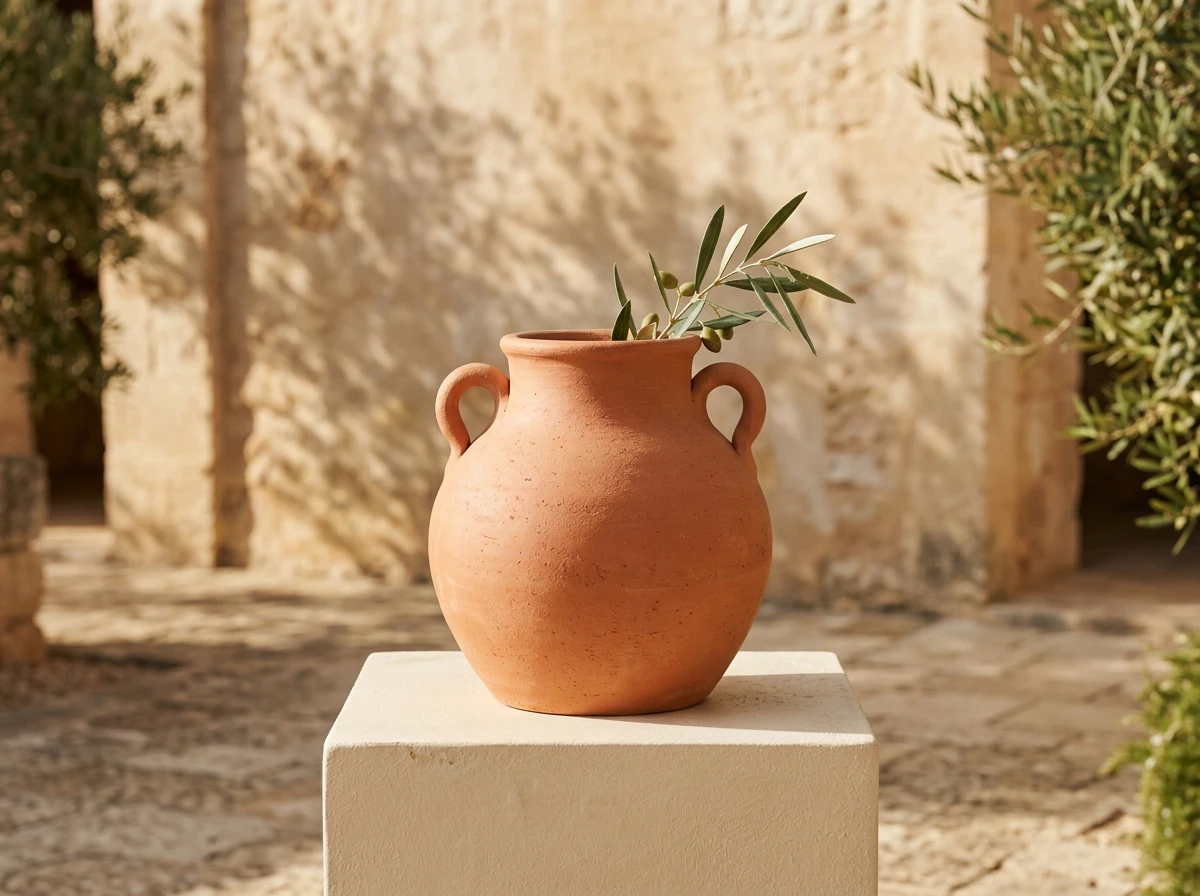
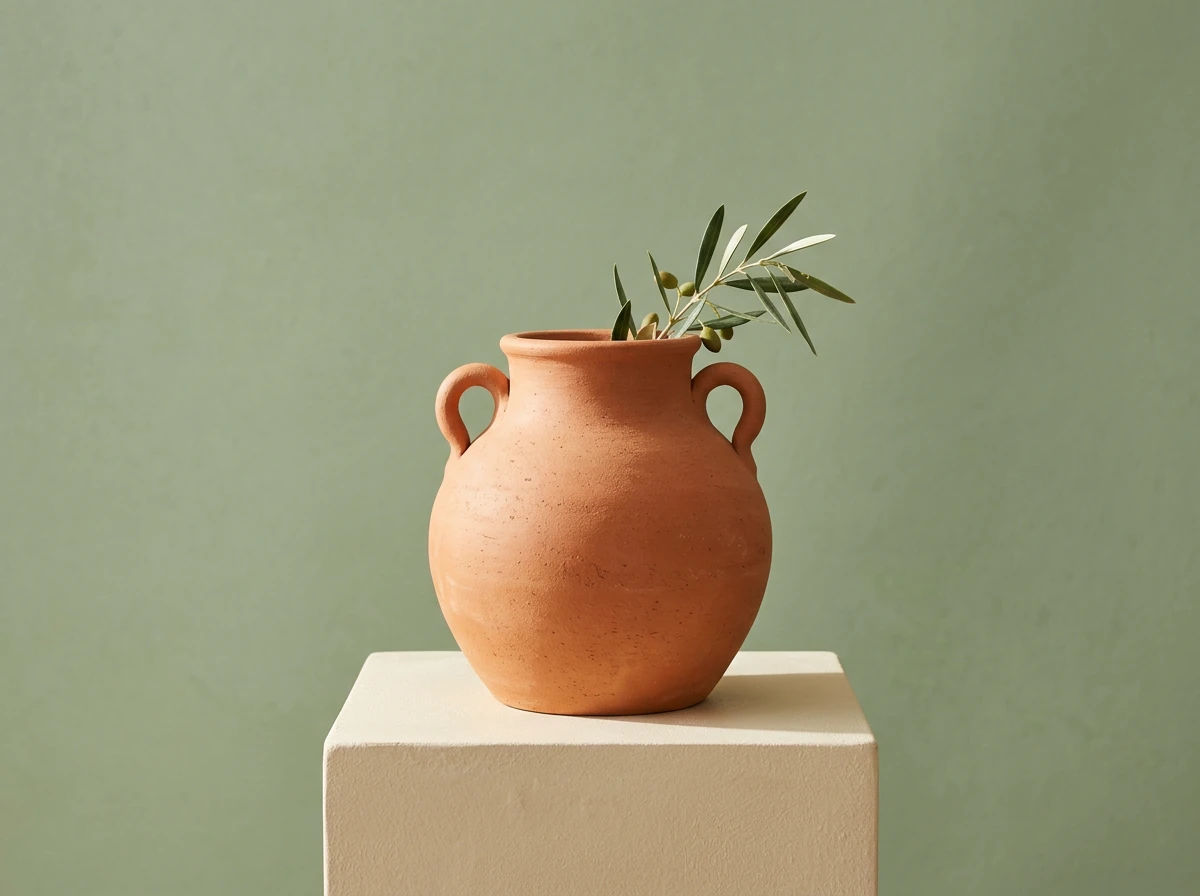
Choose 1K, 2K or 4K output and 14 aspect ratios or auto. Support for wide ratios such as 4:1 and 8:1 helps match different display sizes and levels of detail.
Match output detail to the intended size, with 1K for exploration and 2K or 4K for more detailed results.
Google reports fixes for tiling artifacts in 2K and 4K panoramas, improving visual continuity across wide frames.
Use text to image for a new composition. Choose image to image to upload JPEG, PNG or WebP references, up to 14 in total.
Describe the subject, layout, lighting and exact text. For edits, say what must stay. Choose a ratio and 1K, 2K or 4K.
Sign in, check the displayed credits and generate. Review text and subject details; reuse a good result as a reference for the next edit.
Google describes improvements to visual quality, text rendering, prompt following and consistency across edits. The reference limit remains 14. Compare your own brief before switching a production task.
Text-to-image and reference-image editing, 14 aspect ratios plus auto, and 1K, 2K or 4K. This page defaults to 1K and returns one image per task.
This generator currently uses prompts and reference images. Search tools and a separate mask upload are not exposed here. Describe the area to change in your prompt and review the whole result.
The generator shows the cost before submission. Resolution and the number of reference images affect the total. Sign in with sufficient credits to generate.
No. Check spelling, punctuation, numbers and line breaks at the intended viewing size. Supply the exact wording and simplify dense text when it is misrendered.
Google states that generated images include the invisible SynthID watermark. AI Image Editor is an independent workspace, not Google’s official Gemini app.
Start with a focused prompt. Add references when a product or subject needs to stay recognizable.