
Flare
A practical default for concept rounds, social assets, visual prototypes, and other latency-sensitive work.
Preview
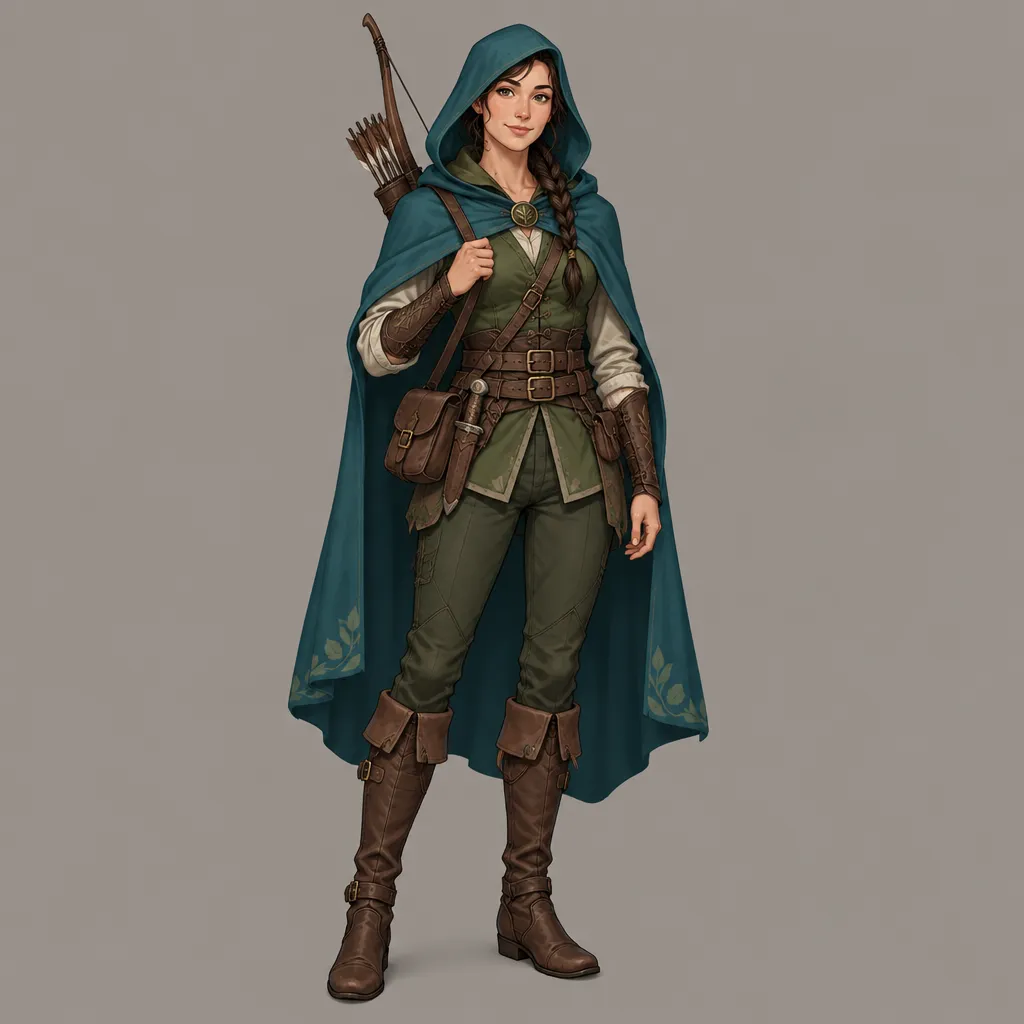
Compare image models when you need a different balance of speed, edit control, style, or output cost.
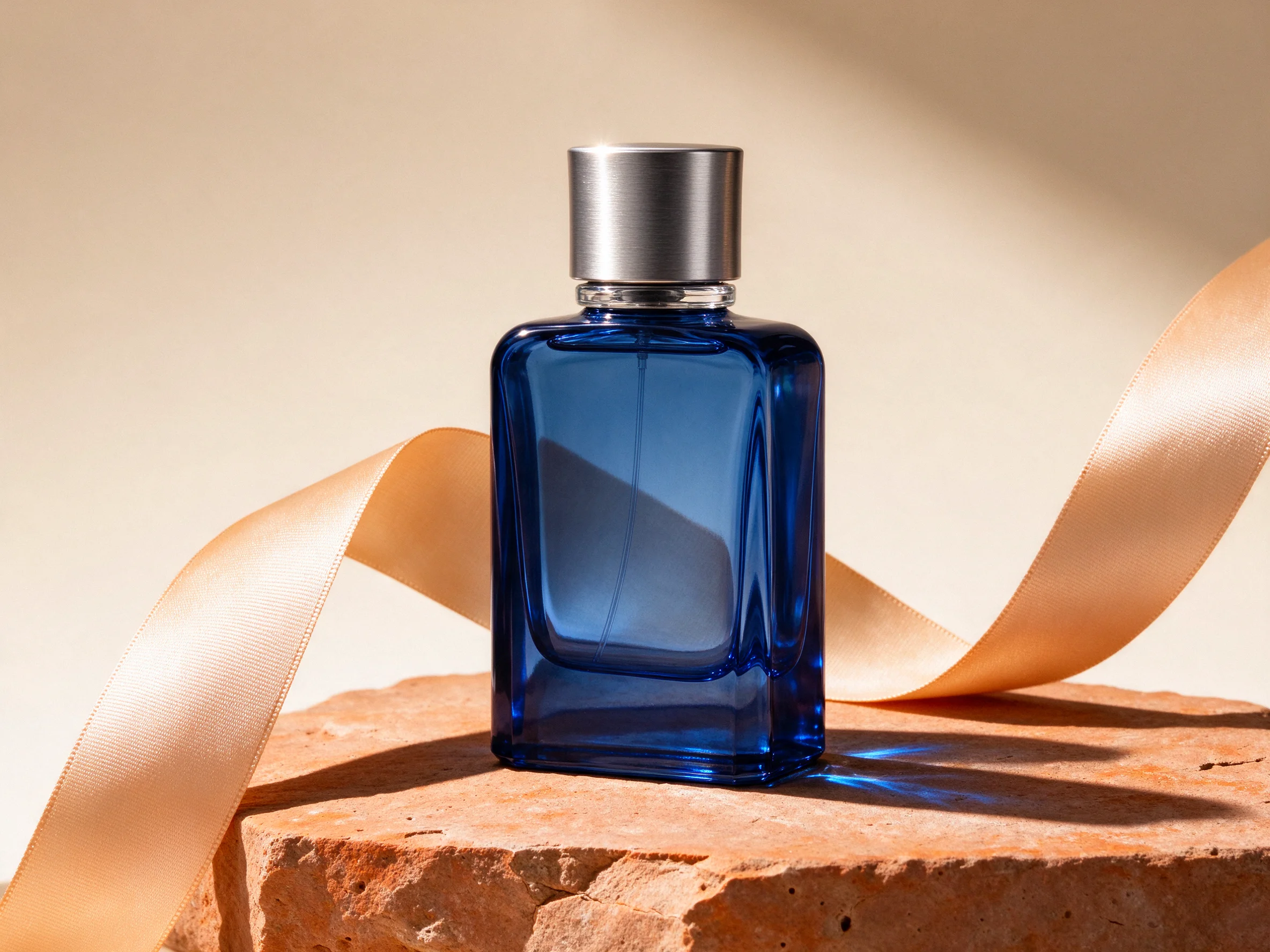
Open Seedream 5.0 Flash in AI Image Editor.

Open Nano Banana 2.1 in AI Image Editor.
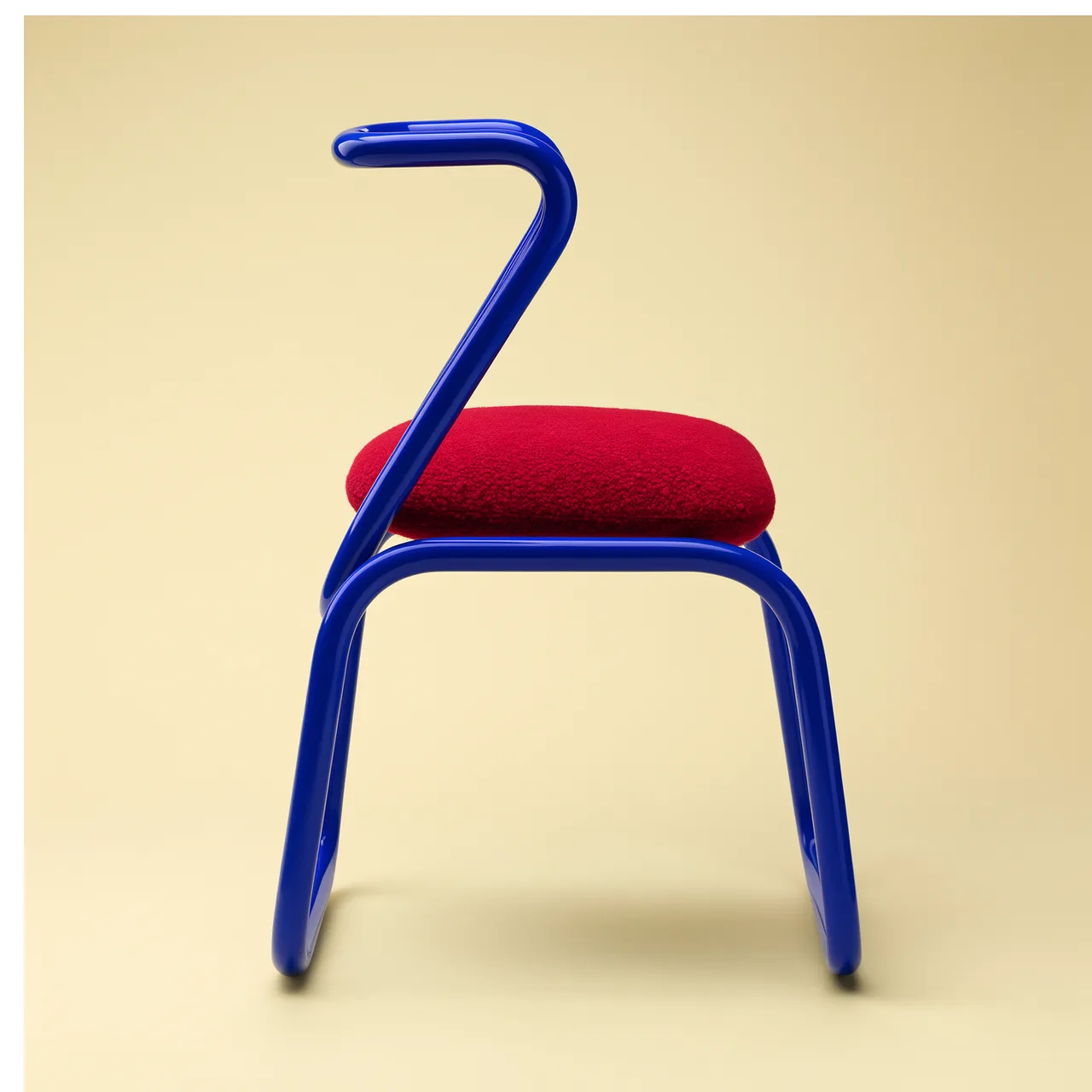
Open FLUX 3 Image in AI Image Editor.
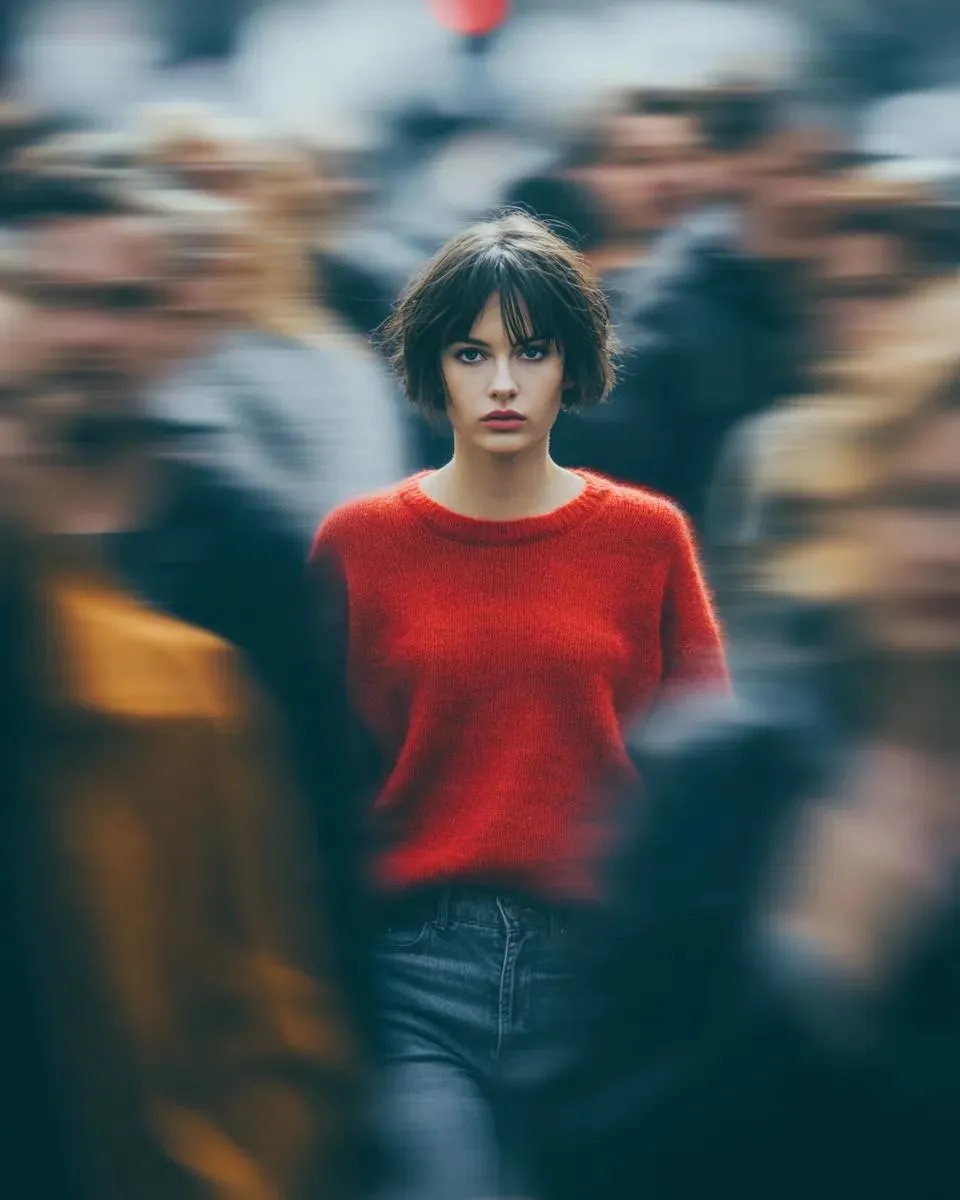
Open Seedream 5.0 Pro in AI Image Editor.
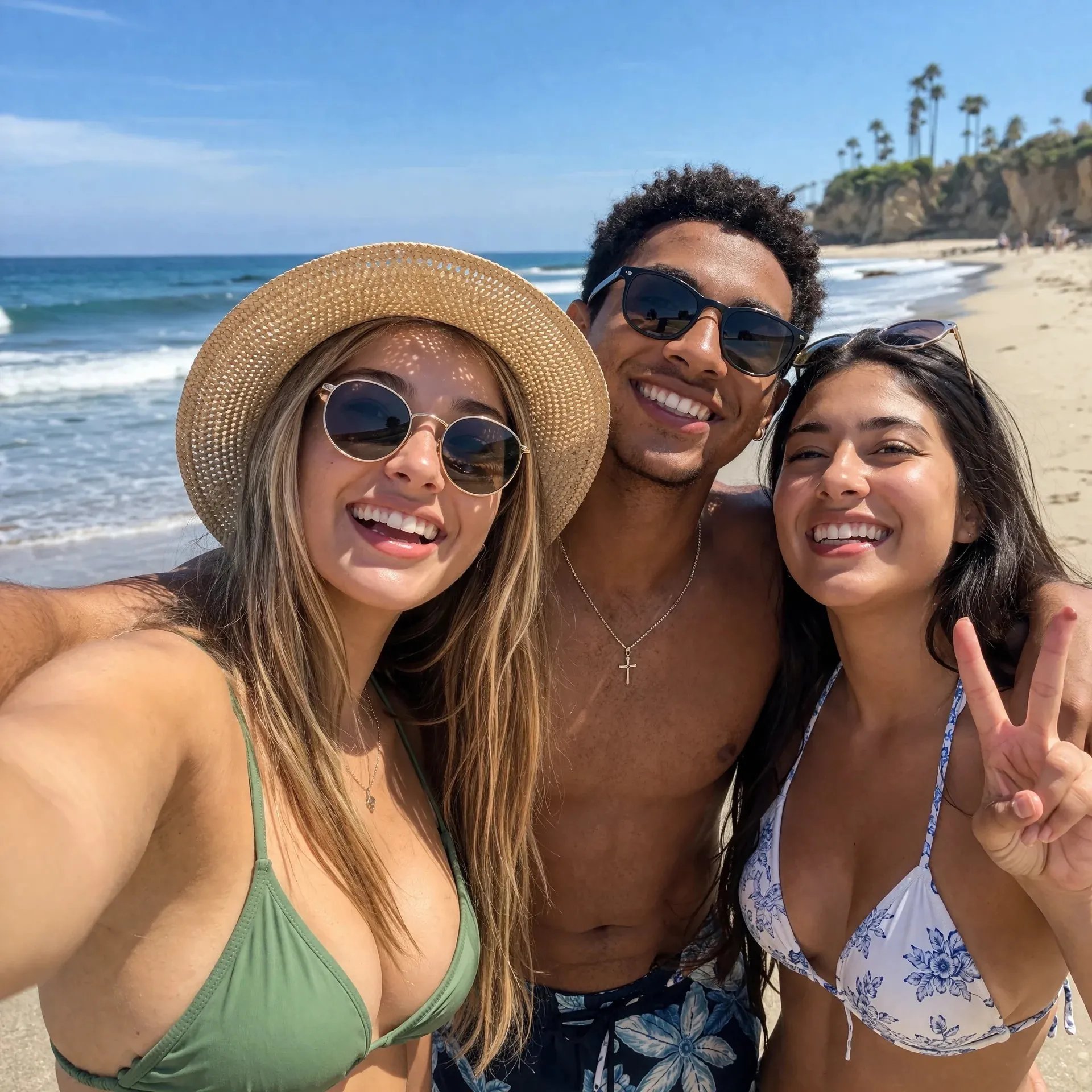
Open GPT image 2 in AI Image Editor.

Open Seedream 5 Lite in AI Image Editor.
This workspace exposes both GPT Image 2.5 API models. Flare is tuned for fast, high-quality everyday generation, while Sunburst is intended for jobs where the details surrounding an edit need closer control. Both can start from text or images.
A practical default for concept rounds, social assets, visual prototypes, and other latency-sensitive work.
Choose it when a product, person, layout, or surrounding scene must remain more controlled through an edit.
Each submission returns one result to your generation history for review and download.
GPT Image 2.5 adds useful control at each stage: define the deliverable, assign roles to references, limit the edit area, and select output settings before the request runs.
Use a portrait or product reference to explore a different setting, composition, or visual treatment while asking the model to retain recognizable details.
Upload up to 16 JPEG, PNG, or WebP files and state which image supplies the subject, lighting, palette, pose, layout, or material cues.
Add a same-size PNG mask to the first reference. Transparent mask pixels mark the region to revise; opaque pixels identify what should stay protected.
Select transparent background for cutouts, stickers, interface pieces, or sprites, then inspect the downloaded PNG for halos and stray opaque pixels.
Select from 15 aspect ratios, automatic sizing, or valid custom pixel dimensions. Ratio mode also offers 1K, 2K, and 4K resolution tiers.
Move from Low through Maximum quality when dense text, small product details, or final-publish polish justify the added credits.
Treat Flare and Sunburst as different production paths rather than a simple quality toggle. The right option depends on whether speed or edit precision carries more risk for the asset.
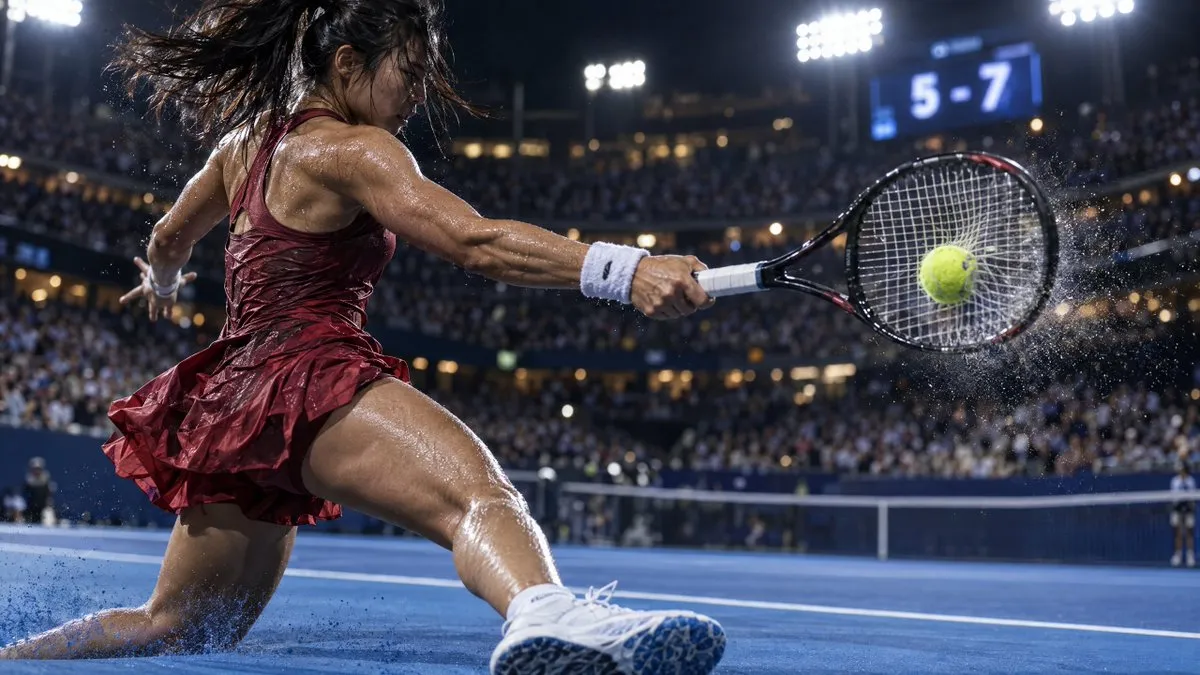
Use Flare to explore action-led ads, sports covers, social posts, or launch visuals when quick iteration matters.
Name the asset type and publishing context first, then describe the visible subject, hierarchy, lighting, palette, copy, and exclusions.
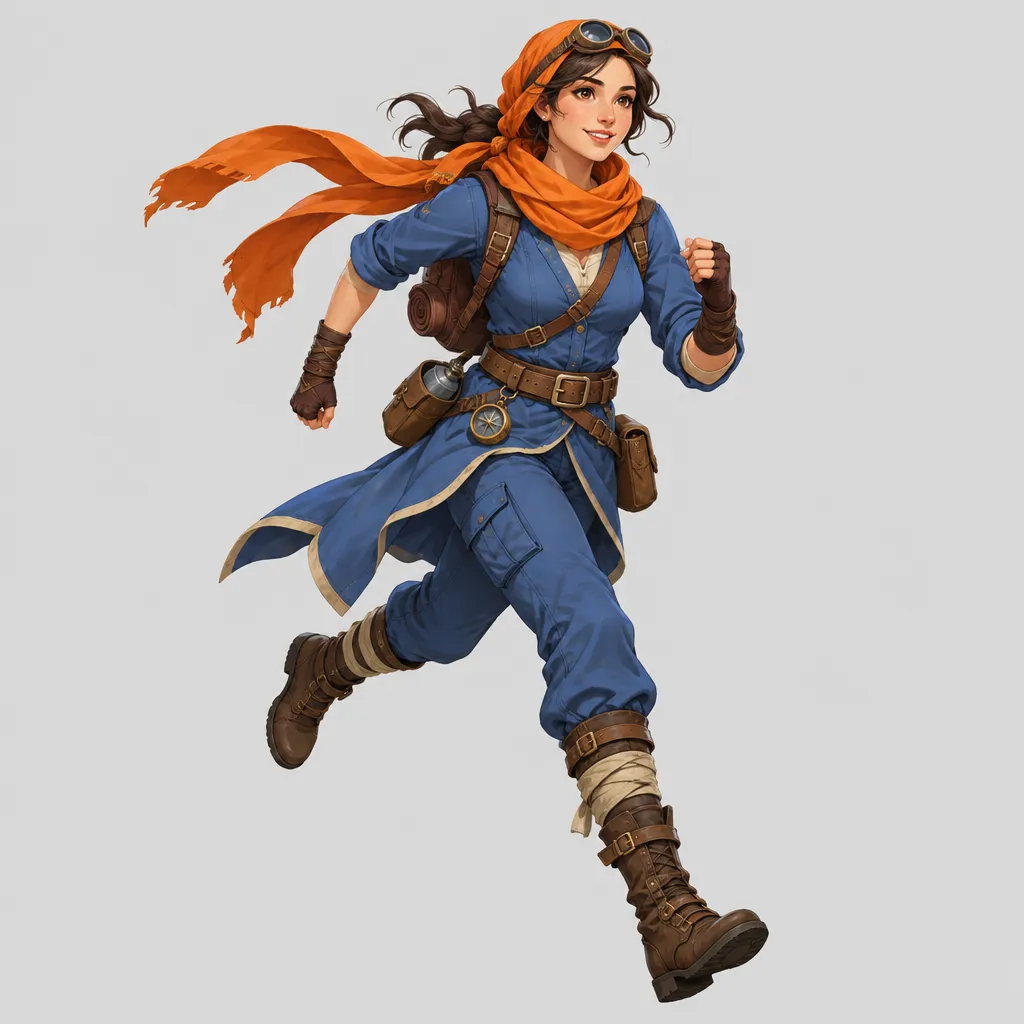
Use Sunburst when changing a pose, costume detail, or setting while the character’s face, proportions, palette, and design language need careful preservation.
List the face, silhouette, costume, colors, scale, camera angle, and other elements that must survive the requested change.
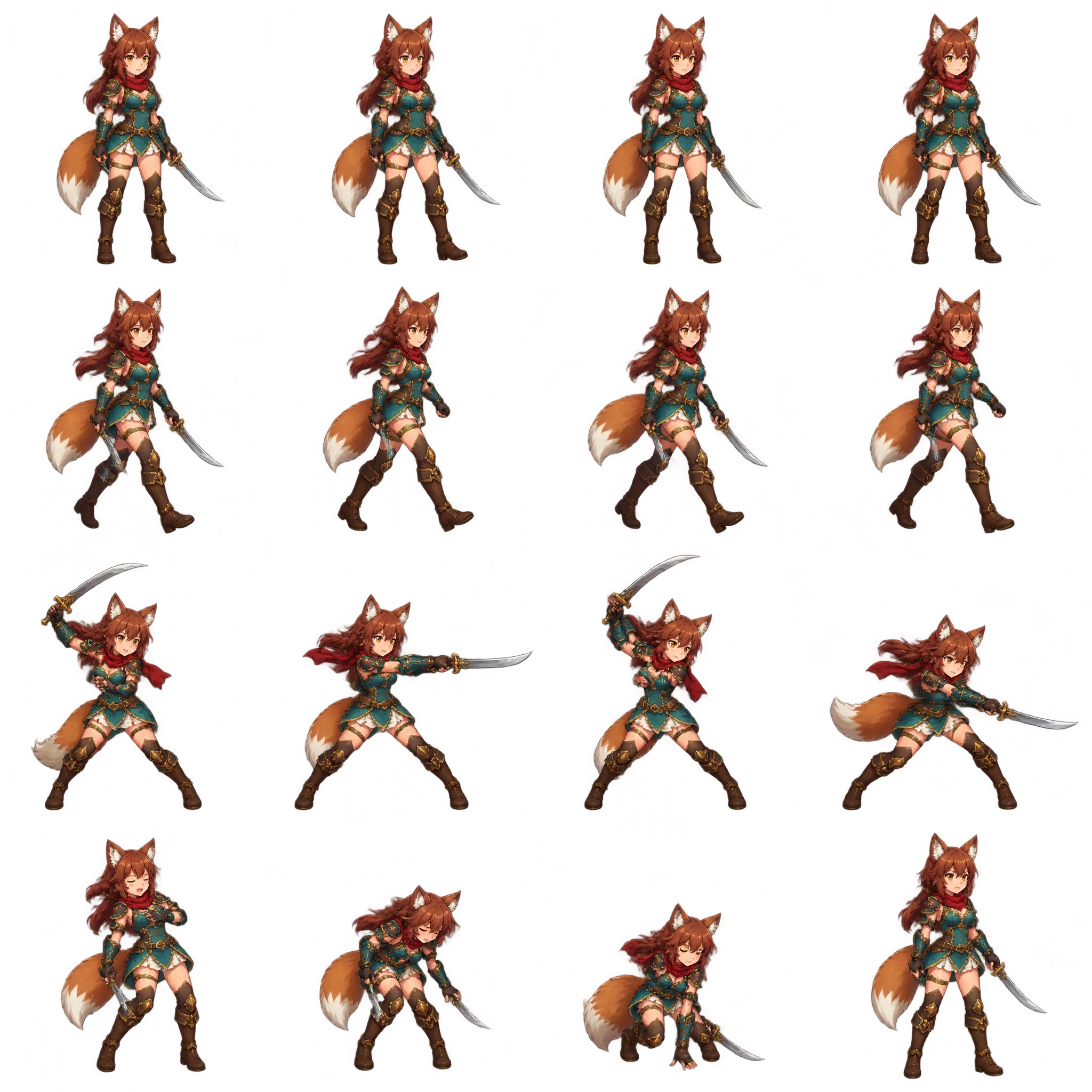
Generate a grid of related poses while keeping the character’s costume, proportions, camera, and rendering style aligned from cell to cell.
Review the face, hands, accessories, weapon, spacing, and action sequence before separating the sheet into individual frames.
Start with Flare when turnaround matters most. Switch to Sunburst when unintended changes to identity, layout, typography, or product detail would be expensive to correct.
Name the deliverable, assign a role to each reference, quote required on-image text, and spell out both what should change and what must remain untouched.
Set quality, ratio or dimensions, resolution, and background. Check the credit estimate, generate, then inspect text, anatomy, identity, edges, and transparency before use.
Flare is the faster default for everyday creation and high-volume iteration. Sunburst is aimed at detailed creative work where tighter editing control matters more than turnaround time.
Image-to-image mode accepts up to 16 JPEG, PNG, or WebP references. Number them in the prompt and explain the role of each file instead of expecting the model to infer your intent.
The optional mask must be a PNG with the same dimensions as the first reference. Transparent mask pixels indicate where edits are allowed; opaque pixels indicate the area to preserve.
Choose Transparent in the Background control. Also describe the intended cutout and edge treatment in the prompt, then verify the downloaded PNG alpha channel before production use.
You can use automatic sizing, one of 15 ratios, or valid custom dimensions. Ratio mode supports 1K, 2K, and 4K tiers, and quality ranges from Low to Maximum. The button shows the current credit estimate.
No. References and preservation instructions improve control but do not guarantee an exact match. Review faces, hands, spelling, logos, geometry, claims, and rights before publishing.
Pick the production path, define what may change, and generate one image with controls that match its destination.