
1K / 1.5K / 2K
Seedream 5.5 Image Generator and Editor
Preview
Compare your next option
Choose another model or continue refining the asset in a related tool.
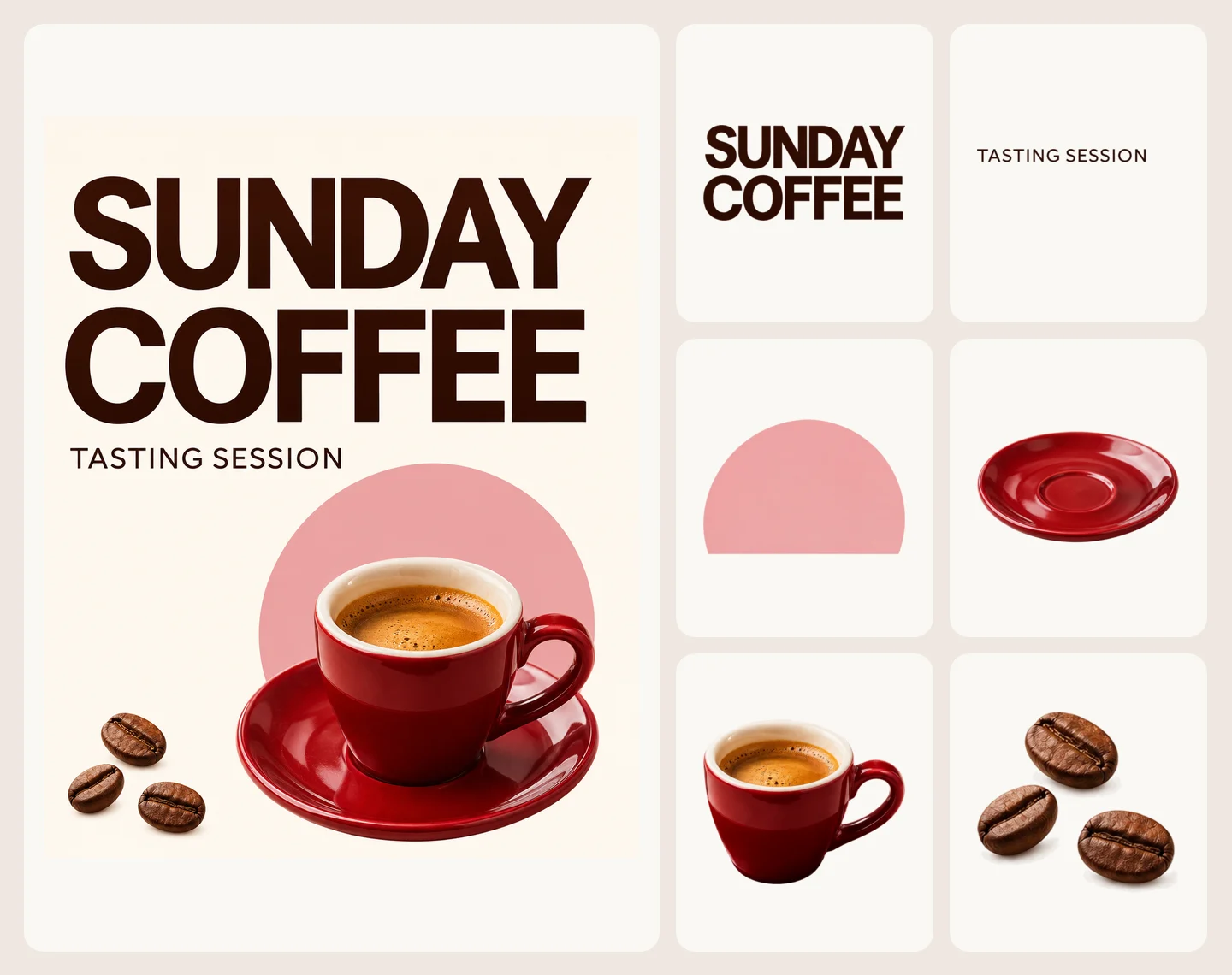
Seedream 5.5 Layerize
Open Seedream 5.5 Layerize in AI Image Editor.
GPT Image 2.6
Open GPT Image 2.6 in AI Image Editor.
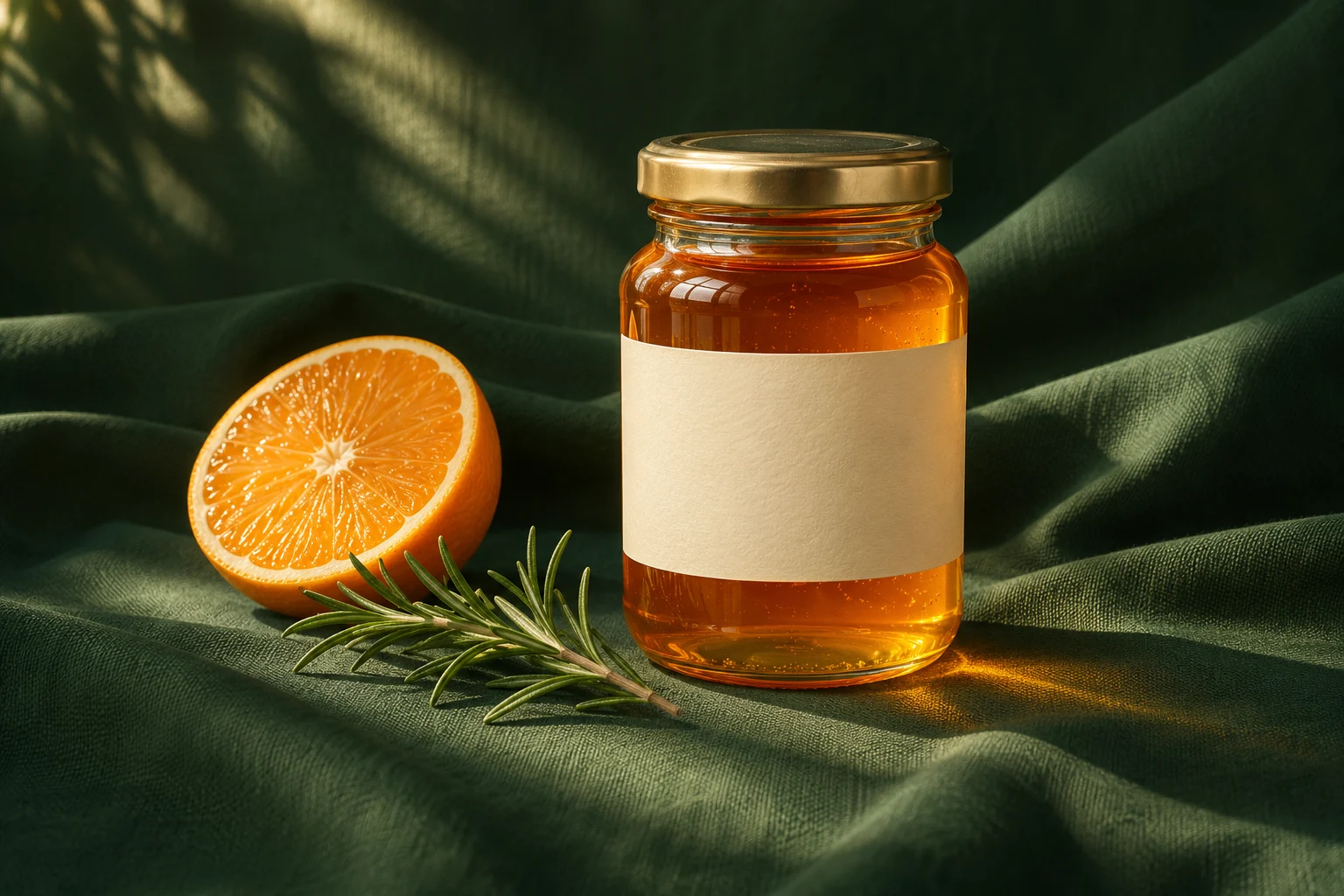
Grok Imagine Image 2.0
Open Grok Imagine Image 2.0 in AI Image Editor.
Qwen Image 3.0
Open Qwen Image 3.0 in AI Image Editor.
Midjourney V8.2
Open Midjourney V8.2 in AI Image Editor.
Nano Banana 2 Lite
Open Nano Banana 2 Lite in AI Image Editor.
Seedream 5.0 Flash
Open Seedream 5.0 Flash in AI Image Editor.
Nano Banana 2.1
Open Nano Banana 2.1 in AI Image Editor.
Choose what to generate and what to keep
Use Seedream 5.5 on AI Image Editor to make a new composition, revise an existing image, or create a standalone asset for a layout. For an edit, tell the model what to change and which details in the reference should stay.
10
PNG / JPEG
Match the settings to the job
Give each reference a purpose
Use one image for the subject and add others only when they explain a different detail, such as a material or a camera angle. Each request returns one image.
Set the size for your layout
Choose an aspect ratio and 1K, 1.5K or 2K. For an exact canvas size, switch to Custom pixels. It accepts 921,600–4,624,220 total pixels and ratios from 1:16 to 16:1, with each side at least 15 pixels.
Prepare an asset for compositing
Set Background to Transparent for a PNG with an alpha channel. Use JPEG for an opaque image when you need that format.
SceneFlare example
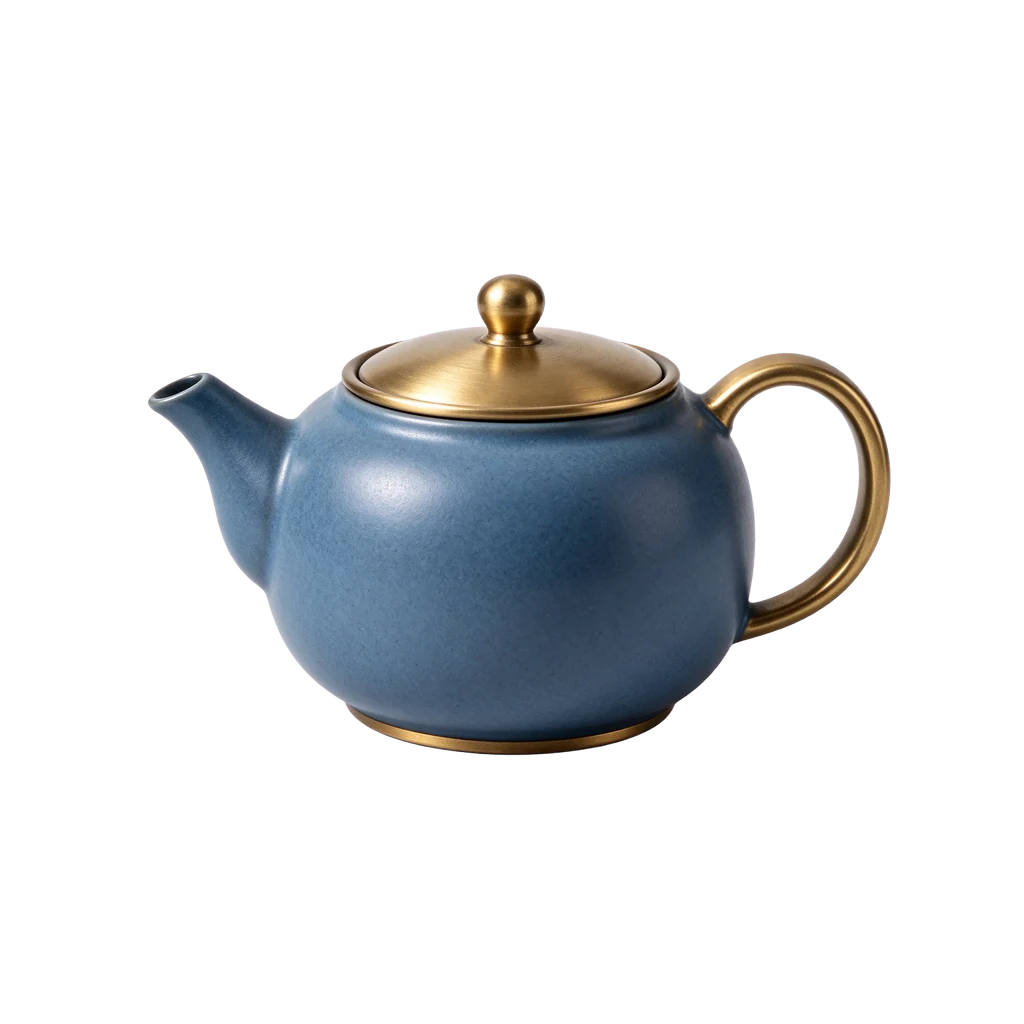
A ceramic teapot with a transparent background
We generated the blue teapot on November 13, 2026 with no reference image. The downloadable result was a 1024 × 1024 PNG with transparency and cost 4 SceneFlare credits.
Recreate the setup
Use text-to-image with 1:1, 1K and Transparent. Describe a centered matte blue ceramic teapot with a brushed brass lid and handle.
Check the edges in context
Place the PNG over a light background and a dark one. Inspect the thin gap under the handle and the outline of the lid before placing it in a layout.
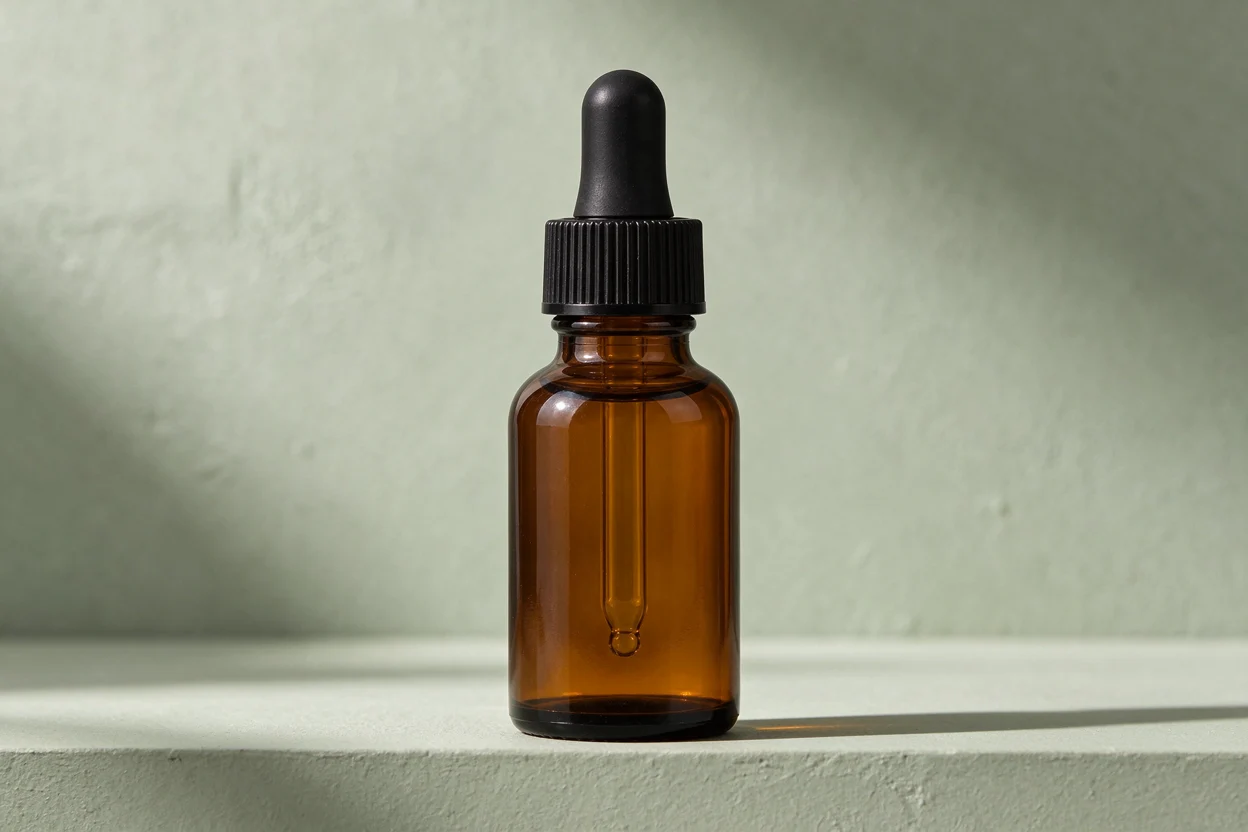
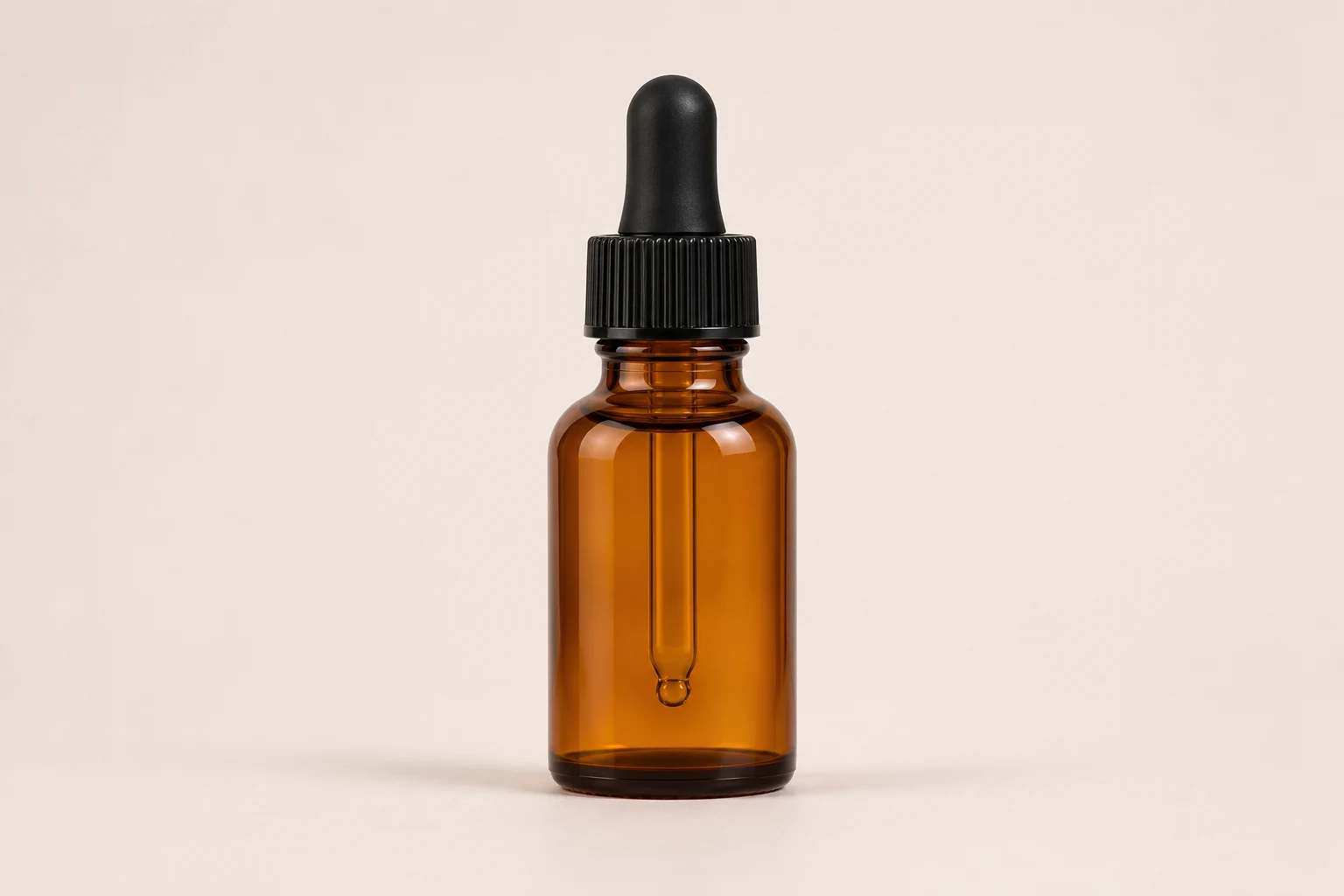
An amber bottle on two backgrounds
We used the off-white product image as a reference and asked Seedream 5.5 to replace the background with sage-green plaster. Drag the divider to compare the bottle silhouette, the cap and the angle.
Create or edit an image
01
Pick the starting point
Choose Text to image for a new composition. For an edit, choose Image to image and add the original image first.
02
Write the change clearly
Name the subject, lighting and framing. For edits, try a specific instruction such as “Change the backdrop to pale stone. Keep the shape, handle and camera angle.”
03
Check the quote and download
Select the dimensions and background, sign in, and review the credit quote. Download the image and compare it with the brief or source before using it.
Seedream 5.5 questions
What does one generation cost?
Without reference images, 1K and 1.5K cost 4 credits and 2K costs 7. Each input image changes the quote. Custom output uses the higher tier above 2,610,000 pixels.
Can I get a transparent JPEG?
Choose Transparent to get a PNG with transparency. Select an opaque background if your workflow requires JPEG.
Can I move individual elements after downloading?
This generator returns one flattened image. To separate an existing design into movable elements, choose Seedream 5.5 Layerize in the model menu.