
3–15 s
First/last-frame generation is limited to 10 seconds.
Preview
Choose another model or continue refining the asset in a related tool.
Open Seedance 2.5 Flash in AI Image Editor.
Open Gemini Omni 1.1 Flash in AI Image Editor.
Open Kling 4.0 Flash in AI Image Editor.
Open Seedance 2.0 Mini in AI Image Editor.
Open MiniMax H3 Max in AI Image Editor.
Open MiniMax H3 Max Turbo in AI Image Editor.
Open Grok Imagine Video 1.5 in AI Image Editor.
Open Grok Imagine Video 1.5 Lite in AI Image Editor.
Build a short video from text, first-frame images or visual references with Gemini Omni 1.2 Flash. It also edits, extends and upscales existing clips. Explore a shot at 360p, then raise resolution for the version you keep. Two-frame animation remains limited to 10 seconds; extending a video adds new seconds after the source.
First/last-frame generation is limited to 10 seconds.
Explore at 360p, then upscale the clip you choose.
Generate, edit, extend or upscale video.
For a café product clip, describe the cup staying fixed while coffee pours and steam rises. When extending, continue the same action instead of restarting the pour.
Upscaling accepts one MP4 up to 15 seconds at supported 360p, 720p or 1080p dimensions. The target must be higher. Extension accepts a source up to 30 seconds and appends 3–10 seconds. Audio-file references are not supported.
Watch the full clip before downloading. Check subject continuity, object contact, camera movement and any generated audio. Review the beginning and ending frames before using it in a sequence.
Pick the mode that gives you control over the part of the shot that matters.
Picture a teal tram rounding a corner at blue hour. Give the camera a starting position and describe when it should begin following the tram.
Ask for the sound of wheels on rails and a short bell as the tram turns.

Use a backpack photo as the opening frame for a product shot. Ask the camera to move slowly toward the side and specify which details to preserve, such as the fabric, straps, and buckle.
Add a second image to set the last frame. To guide the product’s appearance while giving the model freedom to compose the shot, choose reference-to-video.
Upload one MP4 up to 15 seconds. Say what to change, such as the lighting, and what to preserve. Reference images can help show the intended change.
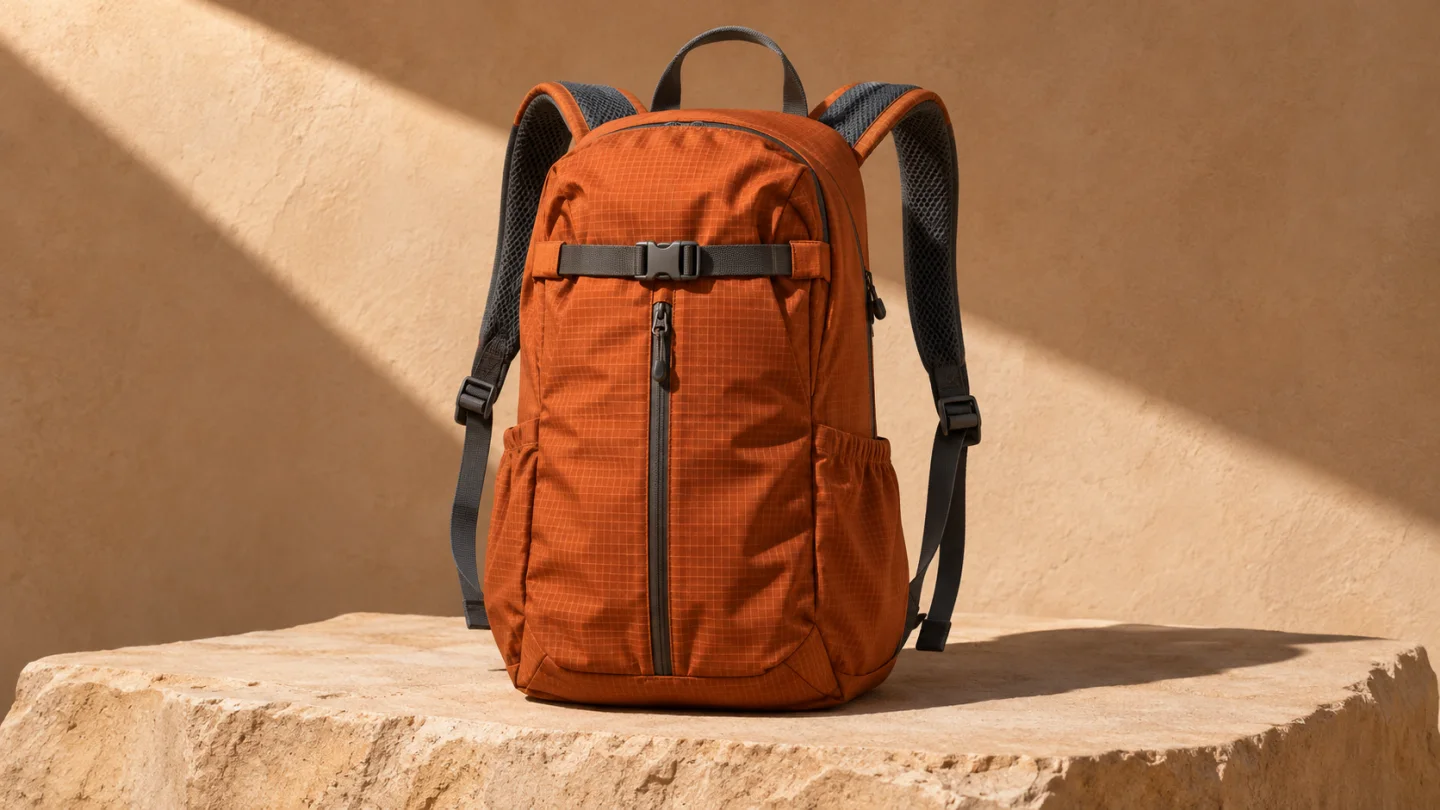
Choose a mode first. Use clear source media you have permission to use, identify each reference’s role, and state what should remain unchanged.
Select the smallest useful resolution, duration or image count for the first attempt. Review the displayed credits before submitting. Change one setting at a time when comparing versions.
Watch the full clip before downloading. Check subject continuity, object contact, camera movement and any generated audio. Review the beginning and ending frames before using it in a sequence.
Upscaling accepts one MP4 up to 15 seconds at supported 360p, 720p or 1080p dimensions. The target must be higher. Extension accepts a source up to 30 seconds and appends 3–10 seconds. Audio-file references are not supported.
The generator displays the site’s credit price for the selected settings. Resolution, duration, output count and reference inputs can affect it. Provider dollar estimates are not the site’s selling price. Review credits before submitting; generating another version is a new paid request.
The examples are from SceneFlare. The linked generation record documents the separate model test.
For a café product clip, describe the cup staying fixed while coffee pours and steam rises. When extending, continue the same action instead of restarting the pour.
Clip durationFirst/last-frame generation is limited to 10 seconds.
Output resolutionExplore at 360p, then upscale the clip you choose.
Creation modesGenerate, edit, extend or upscale video.
TipReview where the extended clip meets the source.