
One clear next step
Lead with the purpose, then explain when, where and how to respond.
Preview
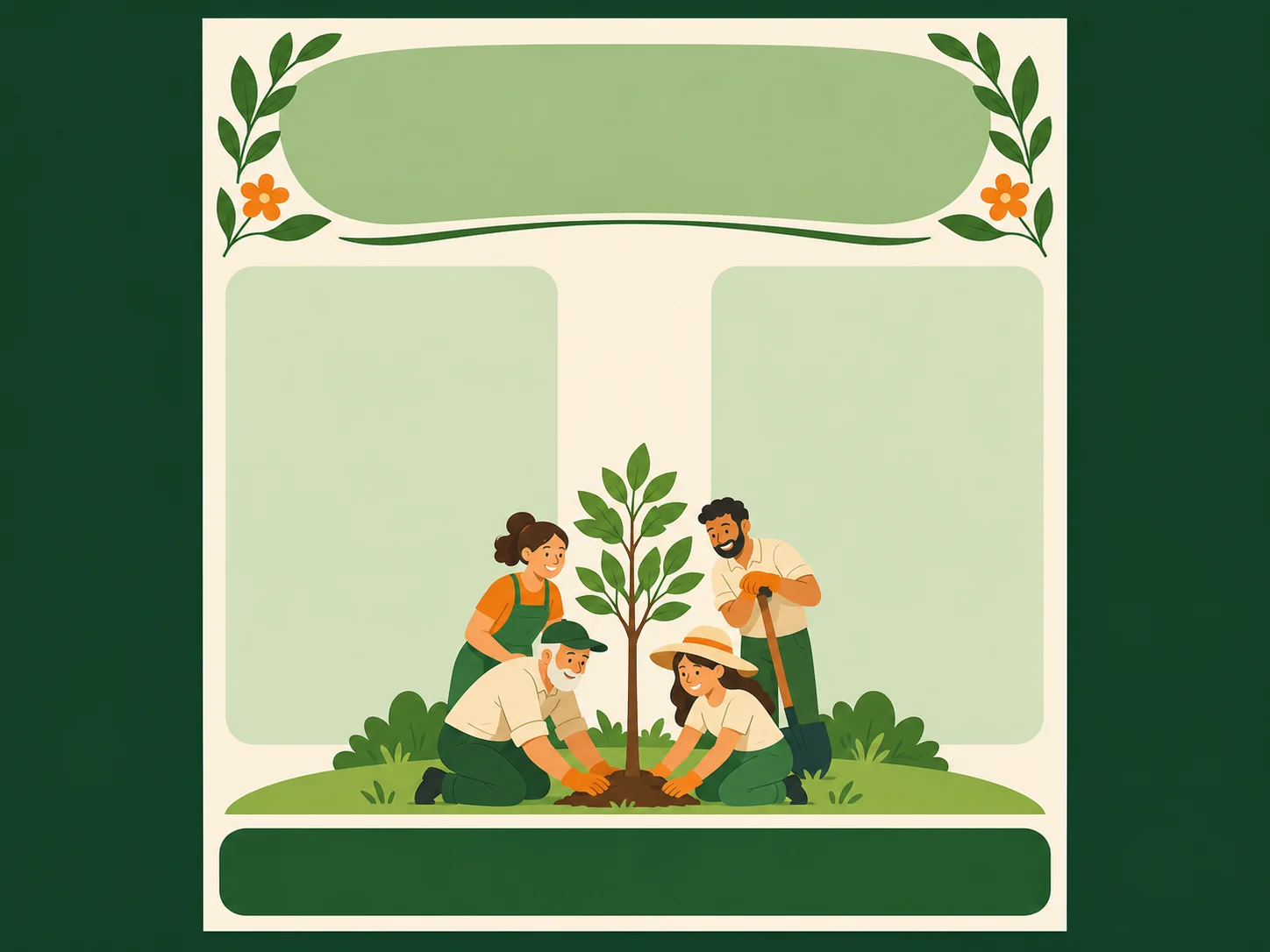
Flyer layout concept; not a verified model output or a print-ready document.
Explore image models and their settings for your flyer draft.
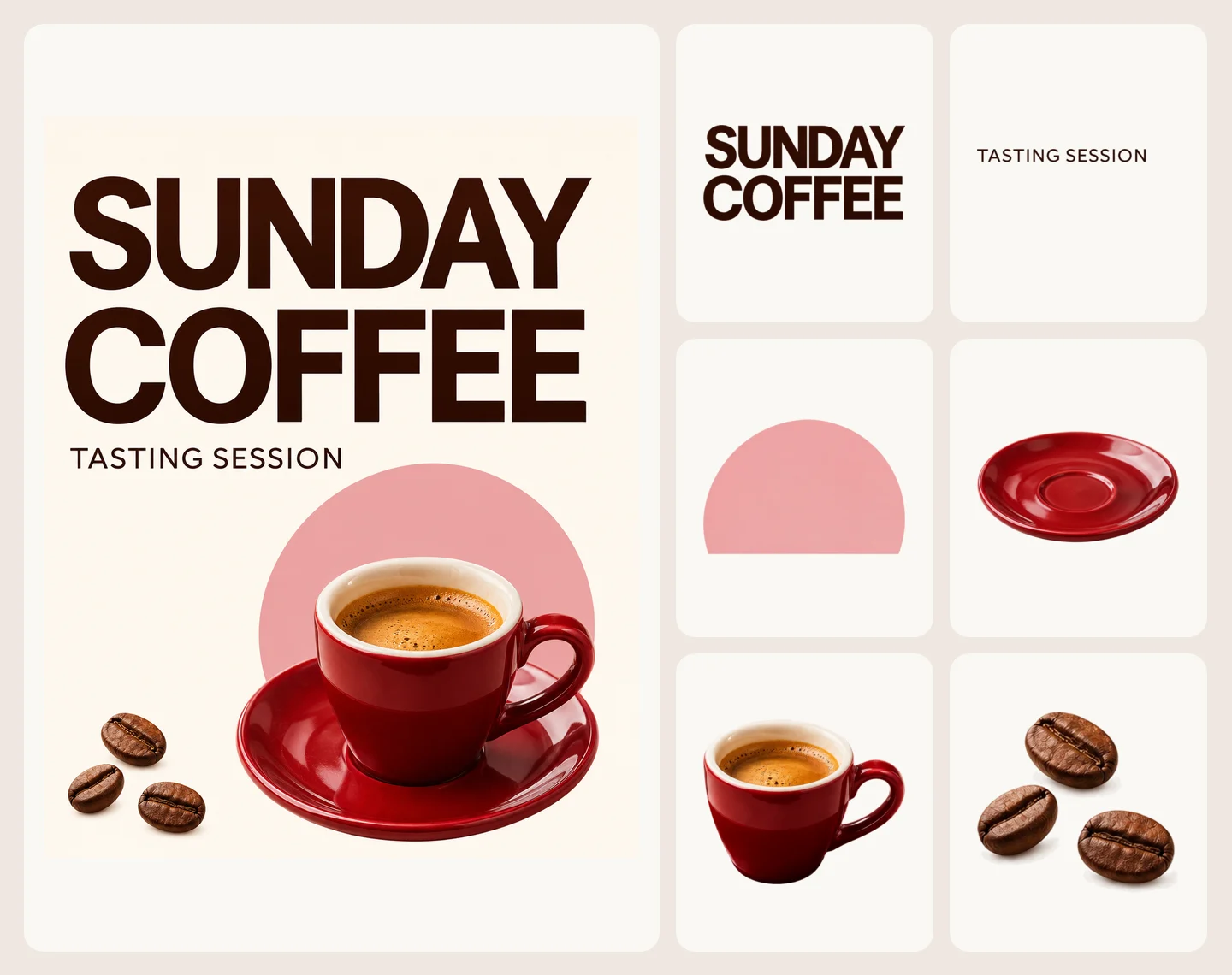
Open Seedream 5.5 Layerize in AI Image Editor.

Open GPT Image 2.6 in AI Image Editor.

Open Grok Imagine Image 2.0 in AI Image Editor.
Open Qwen Image 3.0 in AI Image Editor.

Open Midjourney V8.2 in AI Image Editor.

Open Nano Banana 2 Lite in AI Image Editor.
Open Seedream 5.5 in AI Image Editor.

Open Seedream 5.0 Flash in AI Image Editor.
Design a flyer someone can take home and act on. Describe the event, offer or class, then plan a clear headline, short information columns and a contact area. Create the visual draft here; add exact wording and prepare Letter, A4 or half-sheet dimensions in a layout editor.
Lead with the purpose, then explain when, where and how to respond.
Choose a full sheet or half sheet before arranging the content.
Leave room for an address, signup link, QR code or tear-off tabs.
A handout must carry practical details at a readable size. Build the layout around what the reader needs to keep.
Choose a suitable portrait or landscape ratio in the generator, then fit the image to exact paper dimensions in a layout editor. Allow for your printer’s margins.
Start from text alone, or switch to image-to-image to upload a logo, venue photo or product image. Check likeness and place an exact approved logo separately if needed.
Describe a large title zone, smaller subheadings and one or two information columns. Add the final schedule, offer conditions and address as editable text afterward.
Reserve a quiet box for a tested QR code or a lower band for tear-off strips. Add the working code, contact text and any cut marks in your layout file.
Decide whether the flyer should prompt a visit, a sign-up or a call. Give that action its own space near the information readers need to follow through.
Print a proof at the intended size. Read the smallest type in normal light and scan the final QR code from the paper, if you use one.
Illustrative layout briefs, not measured generation results. Final text, working links and print settings are prepared separately.
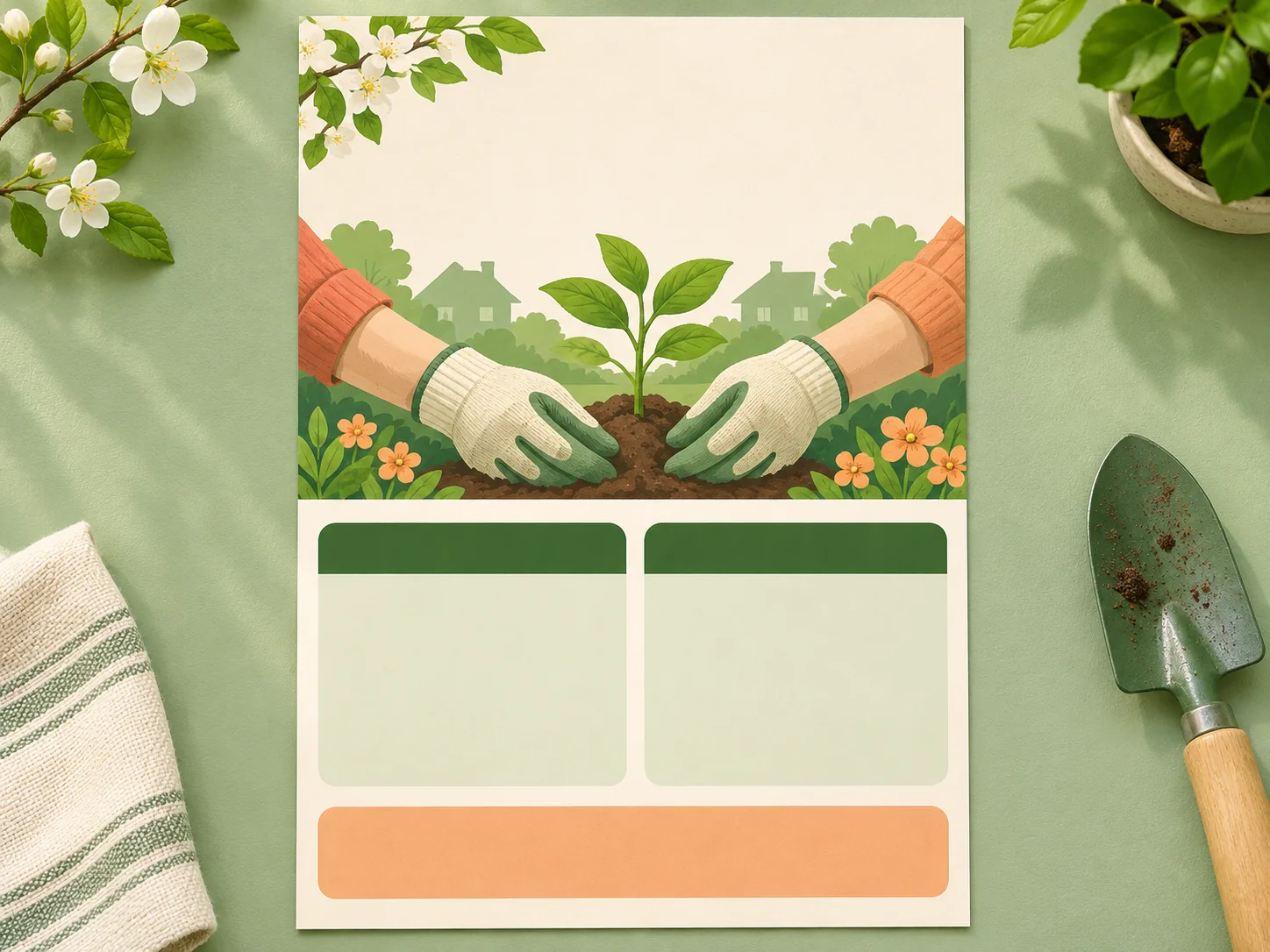
A take-home sheet for volunteers or a neighborhood meeting, with two short columns and a clear way to reply.
Choose one action, such as signing up for a shift or contacting the organizer.
Keep the date, location and eligibility together. Add a verified contact address.
Print one copy and read the smallest text. Keep tear-off information useful after it is detached.
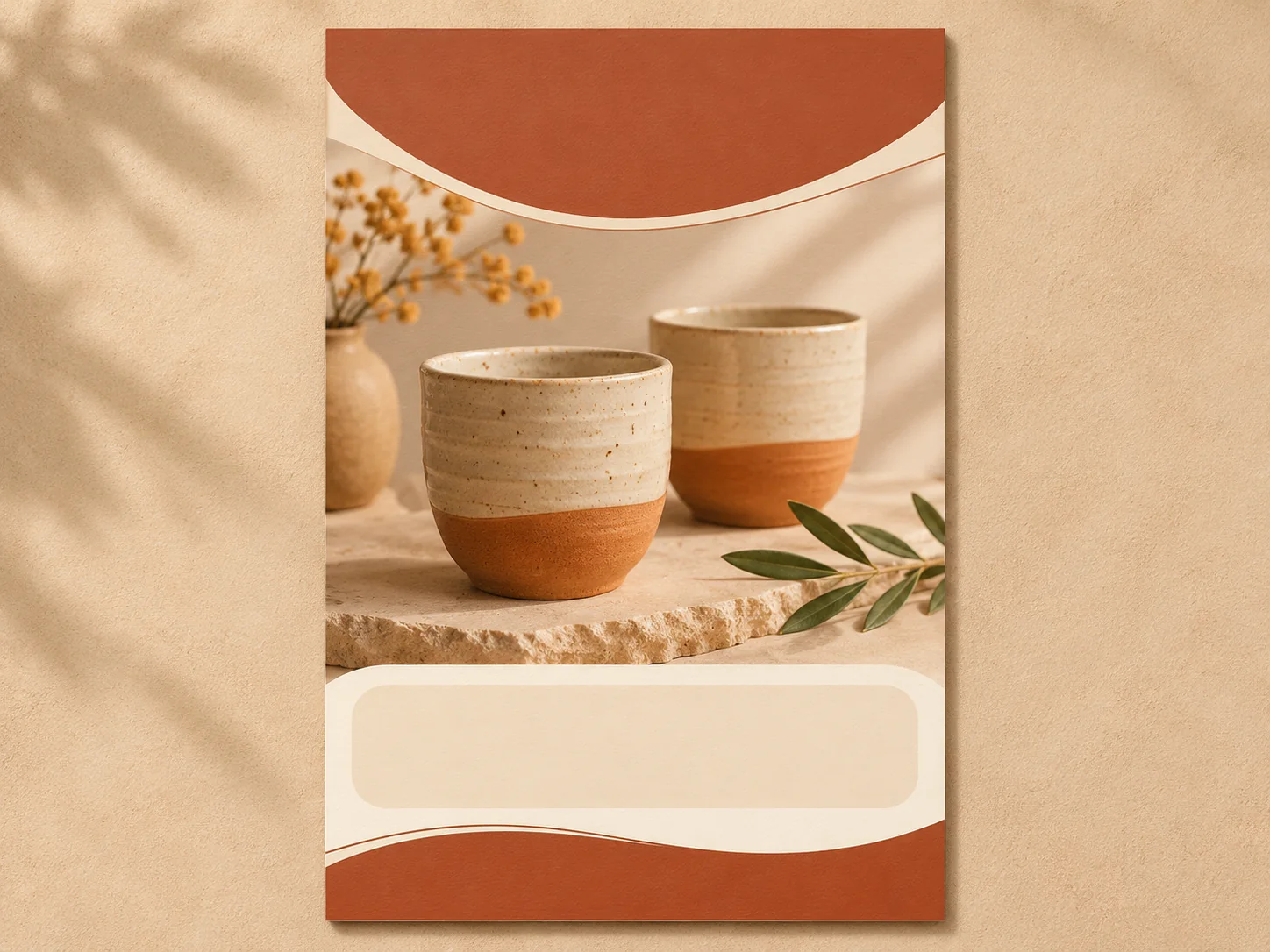
A compact handout pairs a product or venue visual with the offer or course details readers need to keep.
Describe a product illustration, or switch modes to supply your own product or venue image.
Add the opening hours, price conditions or class schedule in a layout editor. Check every date and number.
Insert your real QR code or signup URL. Test it from a printed proof before distributing copies.
Choose recruitment, a promotion, a class or a community notice. Decide on Letter, A4 or half-sheet paper and a single reader action.
Use a prompt example and adjust the columns, headline area and contact space. For a reference image, switch to image-to-image and upload it.
Download the visual draft, add exact text and a working QR code in a layout editor, then set the paper size. Check resolution, margins and one printed proof.
No. The page starts in text-to-image mode. To use a logo, venue photo or product image as a reference, switch to image-to-image and upload it. Generated branding may change; add the approved logo separately when exact reproduction matters.
The generator offers image aspect ratios, not paper-size presets. Choose a suitable ratio, such as 3:4 for a portrait draft, then crop or fit it to A4, Letter or a half sheet in a layout editor. Check the image resolution at the finished size.
Reserve blank space in the artwork. Add a QR code that points to your real destination and repeat the correct contact details on each tab in a layout editor. The generator does not validate QR codes or supply precise cutting guides; test a printed copy.
It is an image draft, not a press-ready PDF or editable page-layout file. Add final text, set margins and any required bleed, and follow your printer’s resolution and color requirements. Proof it before printing a batch.
Use this page for handouts that carry schedules, offer details and contact information. For a wall display or large-format visual read from a distance, explore the AI Poster Generator linked above.
Plan the reading order, reserve the contact area and create a flyer draft to finish for your chosen paper size.
PurposeRecruit, invite or inform
LayoutHeadline, details, contact
PaperLetter, A4 or half sheet
Before sharingRead, scan and check