
Choose a clear composition
Retro 3D Photo Filter: PS2-Style AI Game Stills
Preview
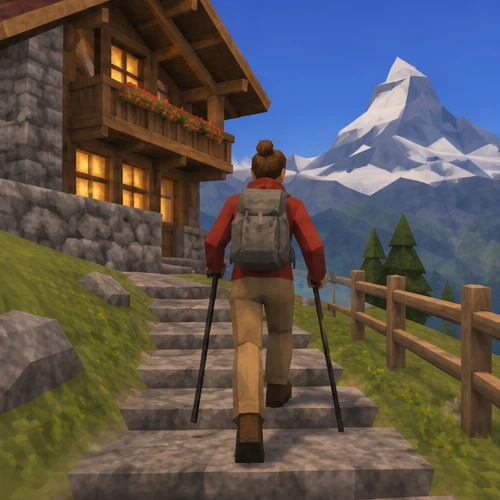
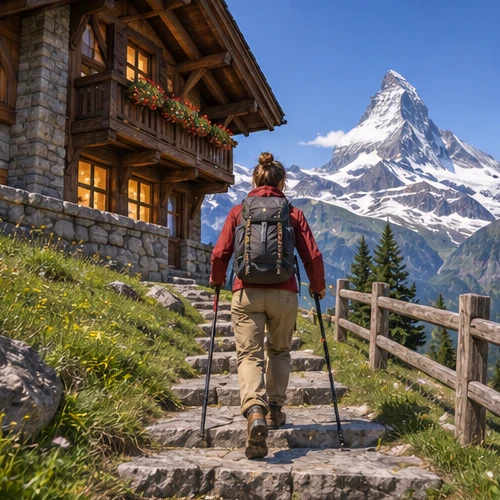
Related image tools
For broader edits, explore the image editor.

Seedream 5.5 Layerize
Open Seedream 5.5 Layerize in AI Image Editor.
GPT Image 2.6
Open GPT Image 2.6 in AI Image Editor.

Grok Imagine Image 2.0
Open Grok Imagine Image 2.0 in AI Image Editor.

Qwen Image 3.0
Open Qwen Image 3.0 in AI Image Editor.
Midjourney V8.2
Open Midjourney V8.2 in AI Image Editor.

Nano Banana 2 Lite
Open Nano Banana 2 Lite in AI Image Editor.

Seedream 5.5
Open Seedream 5.5 in AI Image Editor.
Seedream 5.0 Flash
Open Seedream 5.0 Flash in AI Image Editor.
Retro 3D Photo Filter
Turn a familiar scene into a low-poly game frame
Early examples of the AI PS2 filter rebuilt people and locations as game geometry. Look for angular cheeks, chunky clothing folds and backgrounds that share the same coarse rendering. This tool makes one still inspired by that look, without using a game’s assets.
Low-poly game characterLow-poly street or landscape
Simplify the geometry
Review recognizable details
What makes it look like a game
Choose a clear composition
Upload a photo with an easy-to-read subject and distinct foreground and background. Keep the camera angle and key landmarks.
Simplify the geometry
Ask for visible polygon faces on the terrain, clothing or buildings. Use coarse textures and soft baked shadows.
Review recognizable details
Compare the silhouette, major objects and horizon with the photo before saving. Look for unplanned logos or game interface elements.
Ways to use this tool
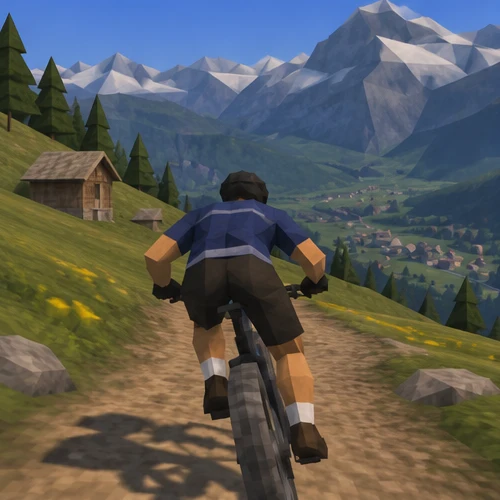
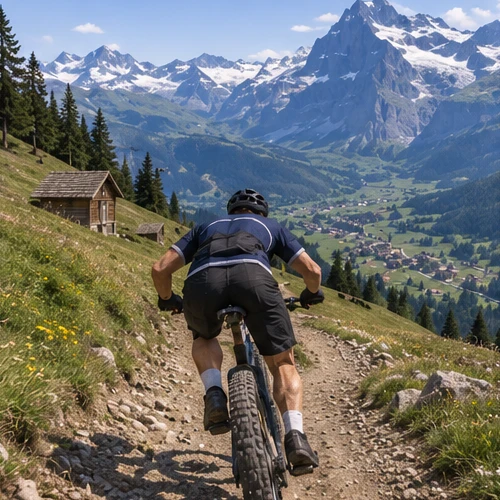
An alpine trail level
Keep the rider and distant peaks in place. Rebuild the trail with chunky polygon shapes, simple grass textures and the original daylight.
Simplify the geometry
Ask for visible polygon faces on the terrain, clothing or buildings. Use coarse textures and soft baked shadows.
Review recognizable details
Compare the silhouette, major objects and horizon with the photo before saving. Look for unplanned logos or game interface elements.
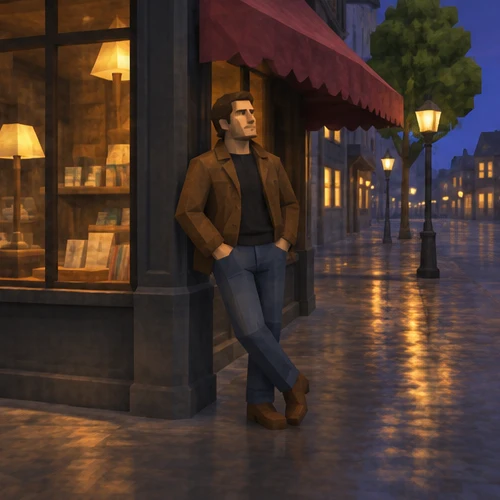
A rainy street level
Keep the person, awning and corner perspective. Rebuild them as a low-poly game scene with simplified wet pavement reflections.
Simplify the geometry
Ask for visible polygon faces on the terrain, clothing or buildings. Use coarse textures and soft baked shadows.
Review recognizable details
Compare the silhouette, major objects and horizon with the photo before saving. Look for unplanned logos or game interface elements.
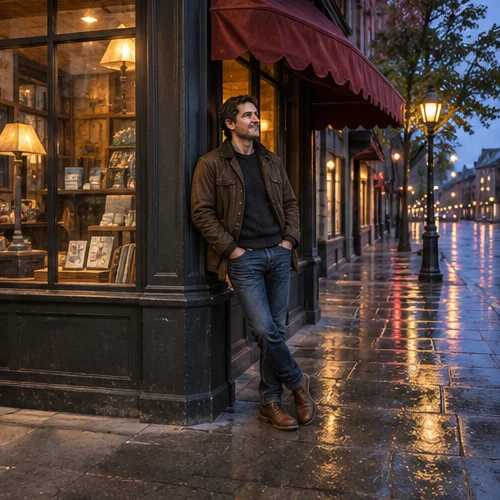
How to give a photo a retro 3D look
01
Upload a photo with strong shapes
Choose a clear portrait or a scene with a subject in front of a recognizable background. A distinct pose or street corner makes the transformation easier to compare.
02
Add optional style notes
The tool automatically rebuilds portraits or scenes into angular early-2000s 3D game geometry with coarse textures. Add optional instructions only if you want specific camera or surface details.
03
Compare the geometry
Check the jaw or building edges, the texture on clothes and walls, and the perspective. If the face still looks photographic, ask for larger planes instead of more noise.
Questions before you start
Is this the official PlayStation filter?
No. It is an AI photo edit inspired by the PS2-style trend. It does not use PlayStation branding or assets from a specific game.
What is the difference between low-poly 3D and pixel art?
Low-poly 3D uses angular shapes with depth and shading. Pixel art builds a flat image out of a pixel grid. Both can look retro, but this tool recreates the first.
Can I export a game model or video?
The output is one flat image. It does not contain an editable 3D mesh, game level or animated clip.
Retro 3D Photo Filter: PS2-Style AI Game Stills
Turn a portrait or street photo into a low-poly 3D game still. Keep the pose and camera angle while simplifying the geometry, textures and lighting.