



Old → New text
Specify exact before-and-after characters instead of rewriting the whole sign.
Preview
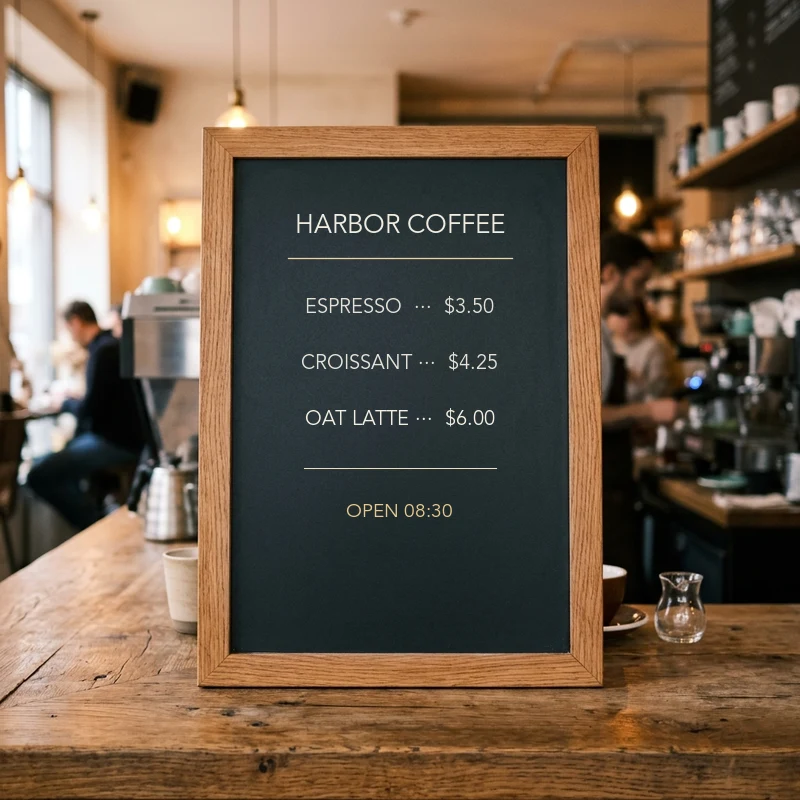
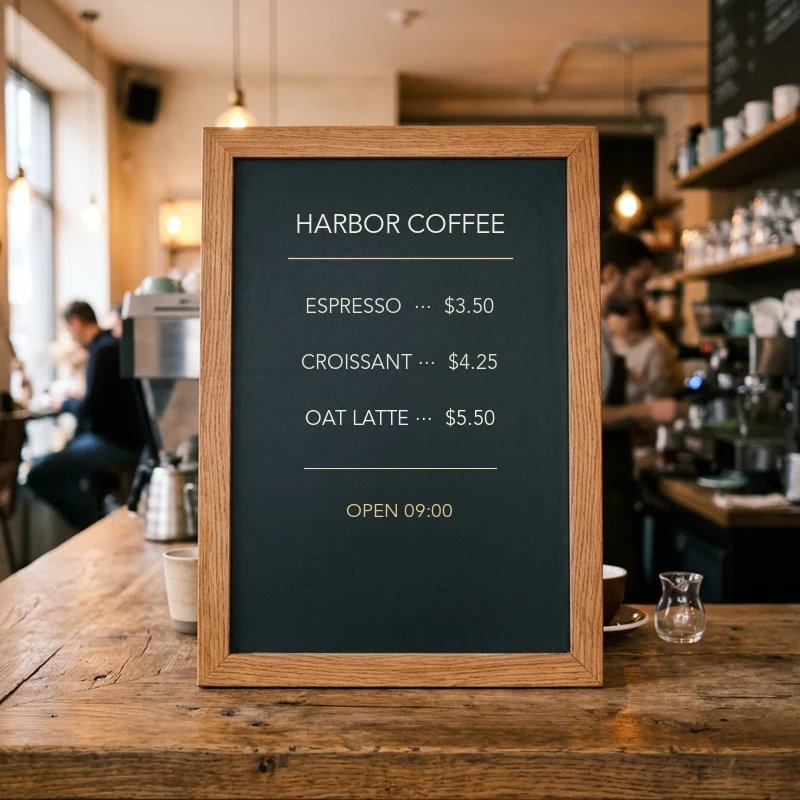
Add new headlines to blank margins or erase unwanted captions cleanly.
Upload a menu, sign, or poster, enter the exact current text and replacement wording, match the material style, and verify digits or Chinese characters side by side.
Specify exact before-and-after characters instead of rewriting the whole sign.
Built for menu prices, dates, hall numbers, and Chinese or Latin lines.
Leaves neighboring dishes, headings, frames, and paper grain unaltered.
Update outdated prices, event halls, or seasonal menu rows without warping adjacent lines or surface grain.
Type the exact existing words and new text so only that specific string changes inside the image.
Choose Match original, Clean sans, Editorial serif, or Painted sign so replacement strokes belong naturally on the surface.
Adjacent dish names, rules, prices, and oak frames stay sharp and untouched in their original coordinates.
Toggle the brush mask whenever similar words appear twice so only the highlighted row is edited.
Instructs exact character-for-character rendering for currency symbols, decimal prices, dates, and Chinese menu items.
Automatically matches your uploaded photo proportions and keeps framing, shadows, and lighting unchanged.
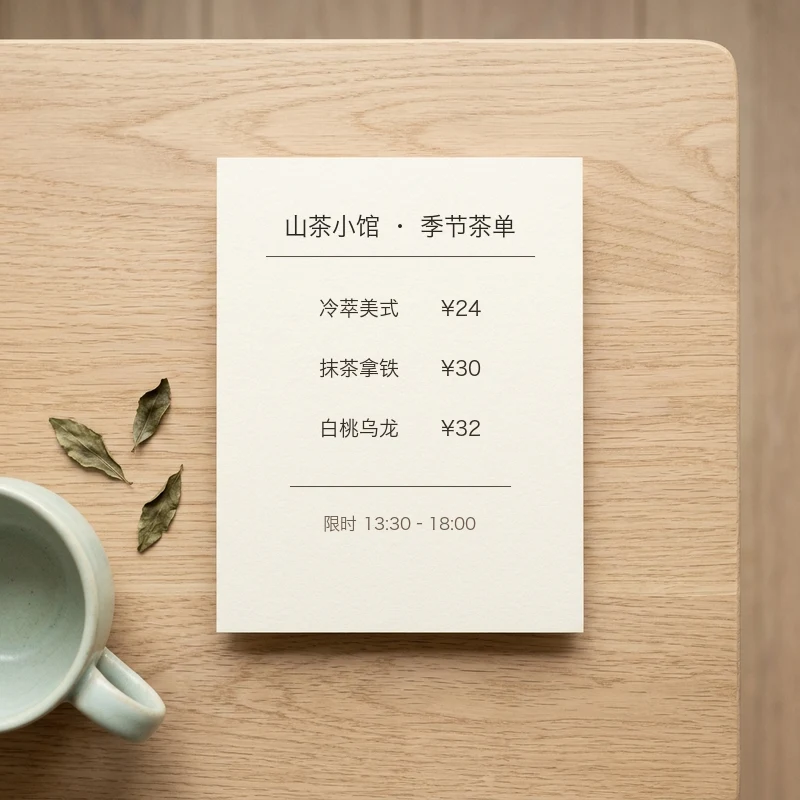
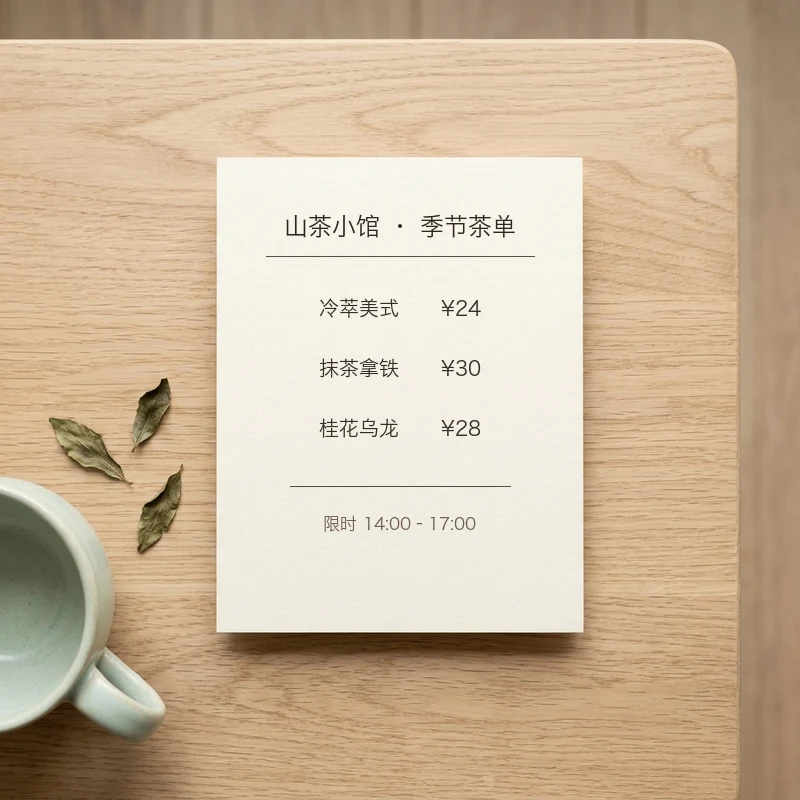
Updates “桂花乌龙 ¥28” to “白桃乌龙 ¥32” and “限时 14:00–17:00” to “限时 13:30–18:00” while keeping upper items untouched.
Inspect “白桃乌龙”, “¥32”, and “13:30–18:00” character by character against the ivory cotton paper grain.
Confirm “山茶小馆 · 季节茶单”, “冷萃美式 ¥24”, and “抹茶拿铁 ¥30” remain identical pixel for pixel.
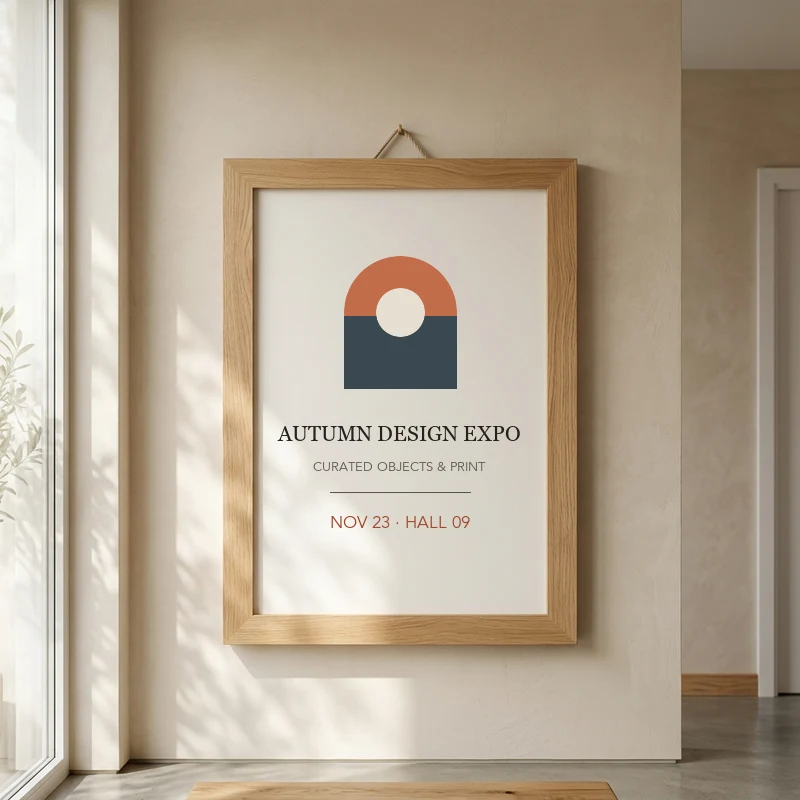
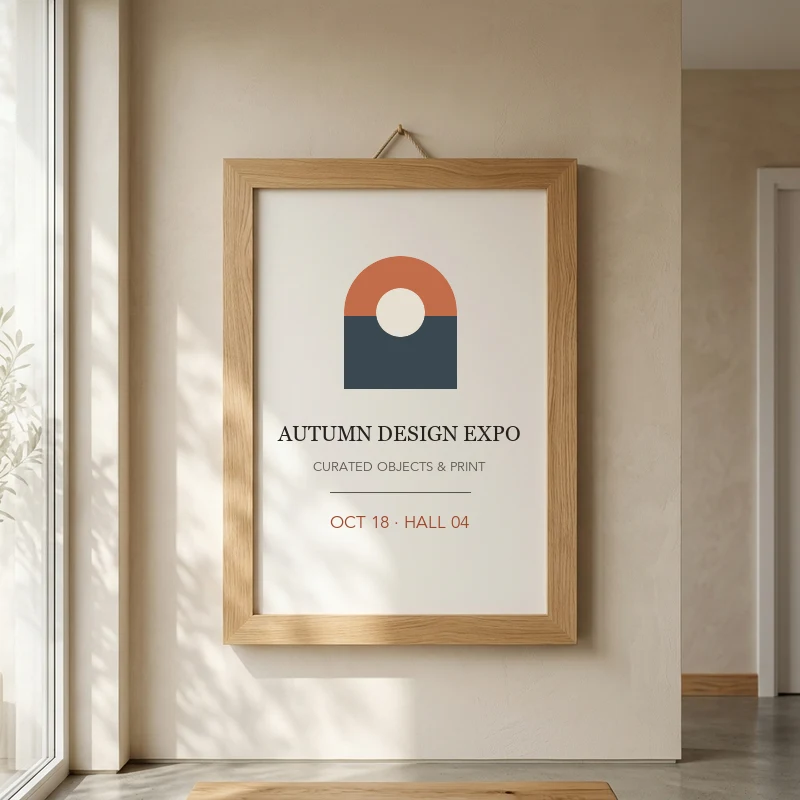
Replaces only “OCT 18 · HALL 04” with “NOV 23 · HALL 09” while preserving the title, artwork, and window shadows.
Check letter spacing, middle dot alignment, and numerals on “NOV 23 · HALL 09”.
Verify “AUTUMN DESIGN EXPO”, the geometric arch, and diagonal sunlit leaf shadows stay untouched.
Choose a menu, chalkboard, poster, label, or sign with readable lettering.
Copy the exact current words and replacement text, pick a style match, and brush only if needed.
Inspect every letter, numeral, and punctuation mark beside the original to confirm neighbors stayed intact.
Edit Text in Image targets and replaces existing words inside the photo in place while keeping surrounding lines intact, whereas Add Text places new wording into open space.
Yes. Always zoom in on the before-and-after view to inspect every digit, currency sign, and Chinese or Latin glyph before downloading.
Enter the exact old and new text, match the surface style, and update photos cleanly.