
Choose a source photo
Jewelry Product Photography AI
Preview
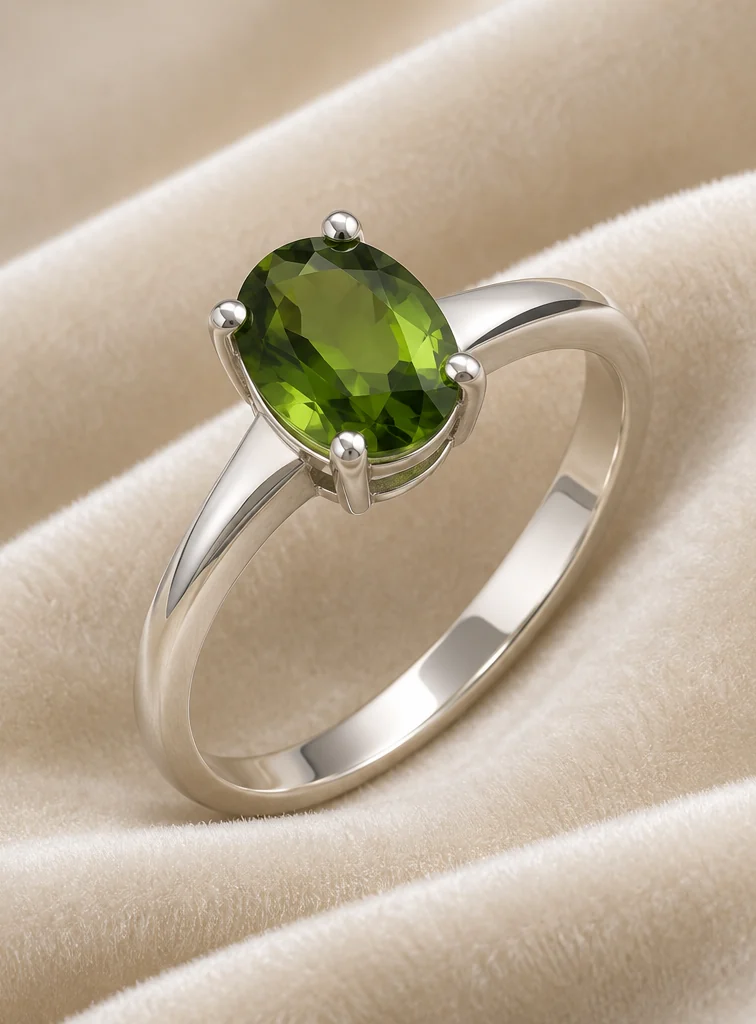
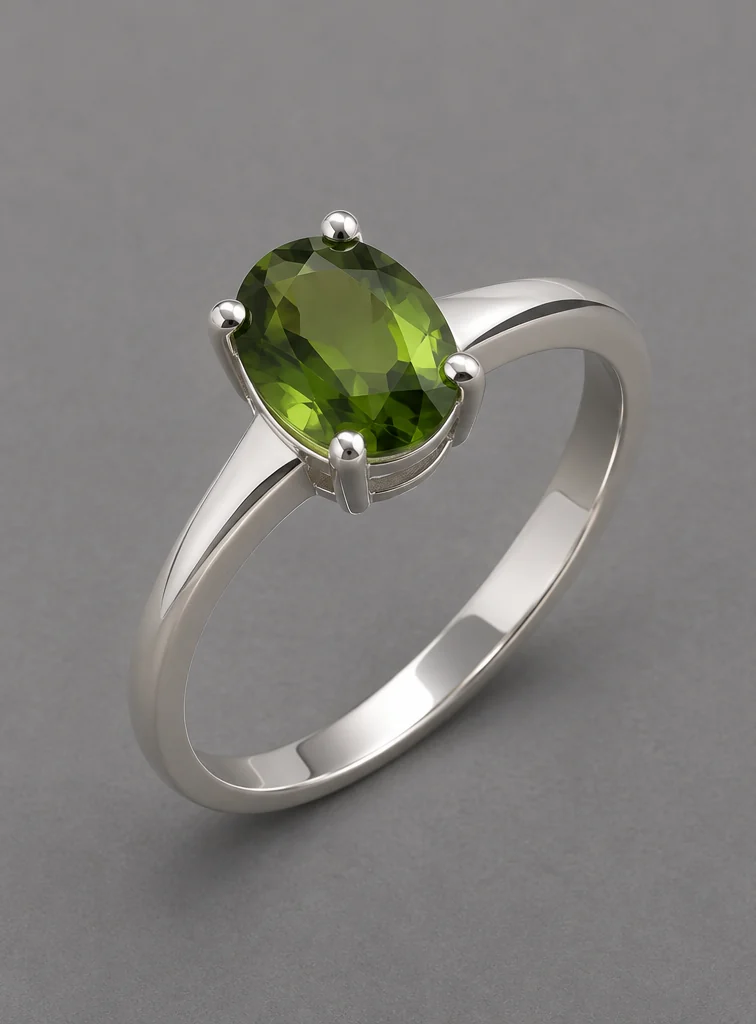
Images illustrate the workflow and are not verified results from this tool.
Related image tools
For product styling, explore the product photo tools.

Seedream 5.5 Layerize
Open Seedream 5.5 Layerize in AI Image Editor.
GPT Image 2.6
Open GPT Image 2.6 in AI Image Editor.
Grok Imagine Image 2.0
Open Grok Imagine Image 2.0 in AI Image Editor.

Qwen Image 3.0
Open Qwen Image 3.0 in AI Image Editor.

Midjourney V8.2
Open Midjourney V8.2 in AI Image Editor.

Nano Banana 2 Lite
Open Nano Banana 2 Lite in AI Image Editor.
Seedream 5.5
Open Seedream 5.5 in AI Image Editor.
Seedream 5.0 Flash
Open Seedream 5.0 Flash in AI Image Editor.
Jewelry Product Photography AI
Upload a ring, necklace, or earring photo and describe a clean product setting such as white, velvet, or a close-up on a hand. Inspect stones, metal reflections, and clasps carefully.
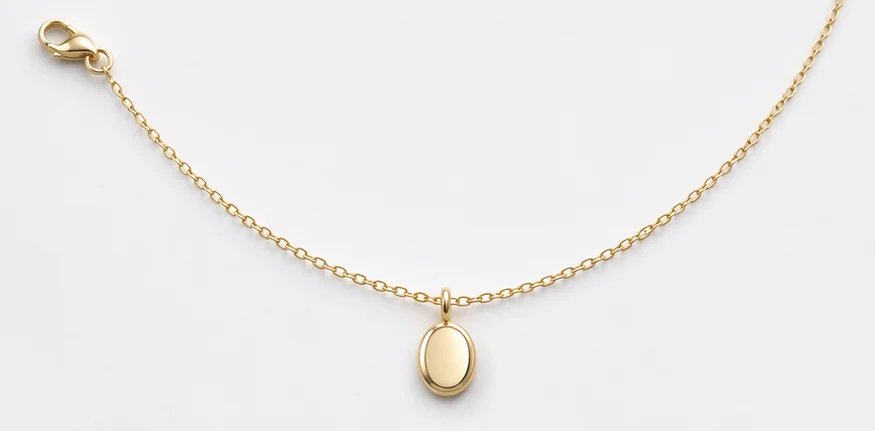
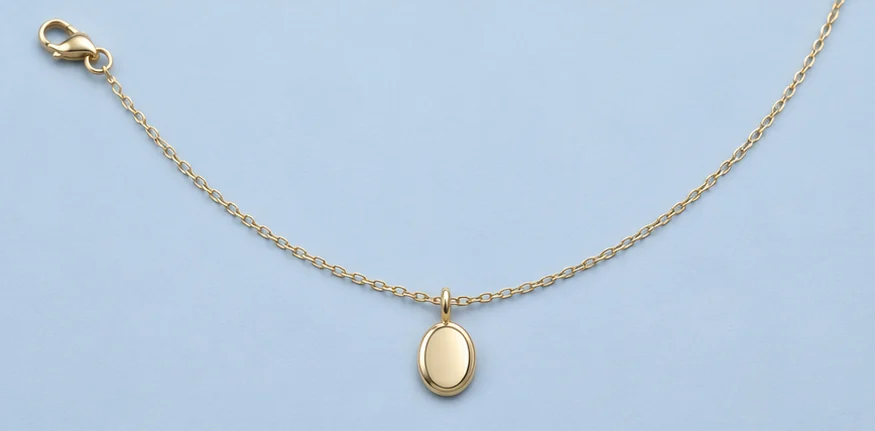
Silver ring on ivory velvetPendant and clasp on white
Silver ring on ivory velvet
Pendant and clasp on white
Choose a starting point
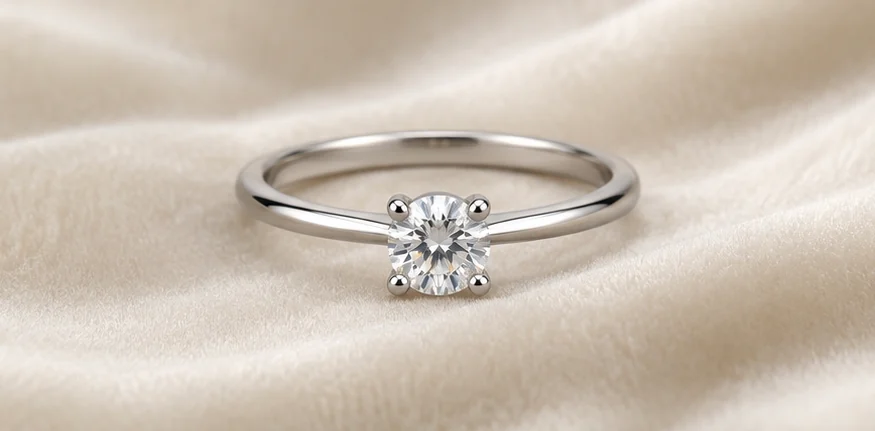
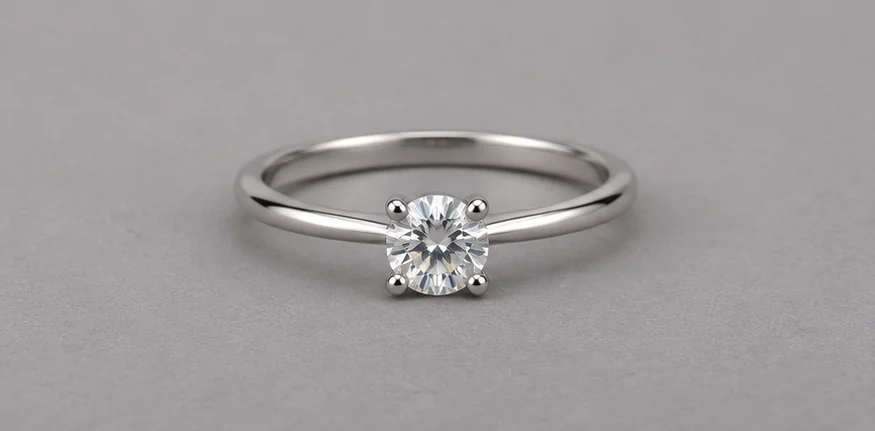
Silver ring on ivory velvet
A silver ring on matte ivory velvet; preserve the band shape and stone setting, with soft reflections.
Pendant and clasp on white
A pendant necklace on a clean white surface; keep the clasp and chain links visible.
Paired earrings on stone
Place both earrings on matte stone. Keep them at the same scale and leave enough space to see the shape and fastening of each one.
Ways to use this tool
Use the ring comparison to plan a feature image and the necklace comparison to plan a catalog image. The images illustrate lighting and background choices. They are not verified outputs from this tool.
Give a ring a softer feature image
Use an ivory velvet backdrop for a collection banner or a secondary listing image. Soft light helps show the polished band and the edge of the setting.
Specify the surface and light
Start with a clear view of the setting. Ask for matte ivory velvet and soft side lighting while retaining the band profile and stone settings.
Check the prongs and stone
Compare the prong count, stone shape and metal color with the source. Keep the original listing photo if an important detail changes.
Show a necklace and its clasp on white
Use a white background for a catalog view that shows how the necklace is assembled. A full view is useful when the clasp style matters to buyers.
Keep the full chain in frame
Start with the necklace laid out so the pendant, chain and clasp are visible. Ask for a white surface and a light shadow without changing the chain’s curve.
Follow the chain from end to end
Zoom in and check the clasp type, link pattern and pendant attachment. Verify the metal color against the original before publishing.
How to use this page
01
Choose a source photo
Use a sharp photo that shows the stone setting, band or clasp you need to preserve.
02
Describe the change
Name the surface and light, then specify the metal, stone count and shape to keep.
03
Check before saving
Zoom in on prongs, links and clasps. Compare the color and shape with the source before publishing.
Questions before you start
What should I upload?
Use a sharp photo that shows the stone setting, band or clasp you need to preserve.
What should I check?
Zoom in on prongs, links and clasps. Compare the color and shape with the source before publishing.
What should I know before using the result?
Use the original product photo to verify any detail that affects the listing, such as stone color or the number of prongs.
Jewelry Product Photography AI
Use the original product photo to verify any detail that affects the listing, such as stone color or the number of prongs.