
Photo → line art
Upload a photo or switch to text-to-image, describe the subject and line style, then review the result before printing or coloring.
Preview
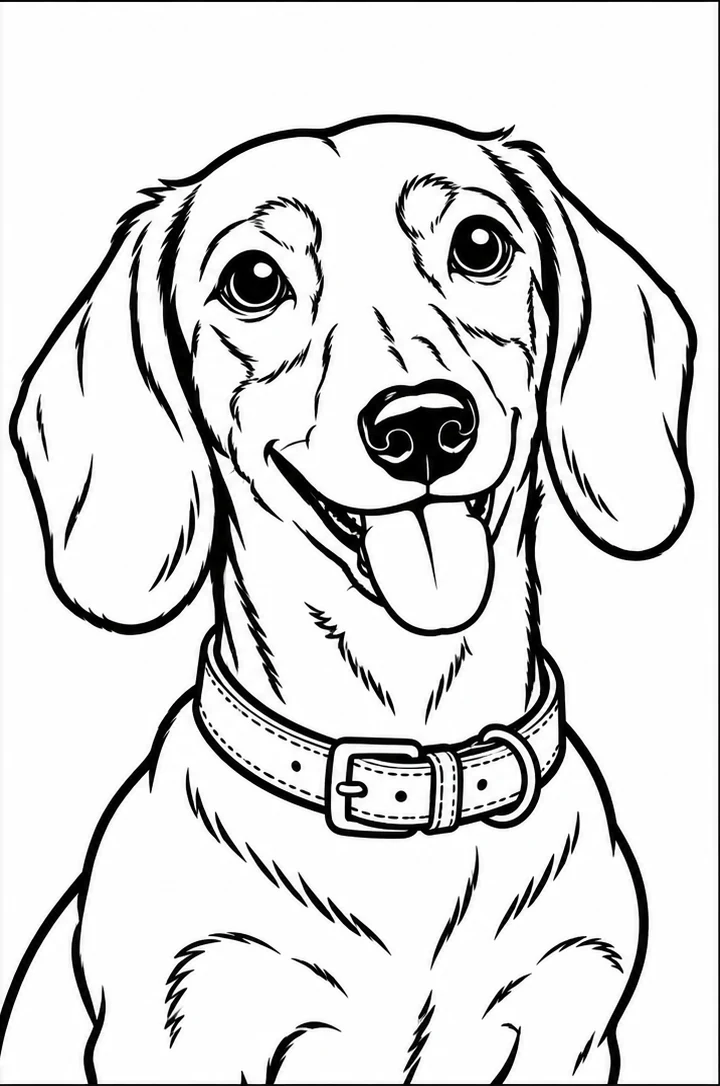
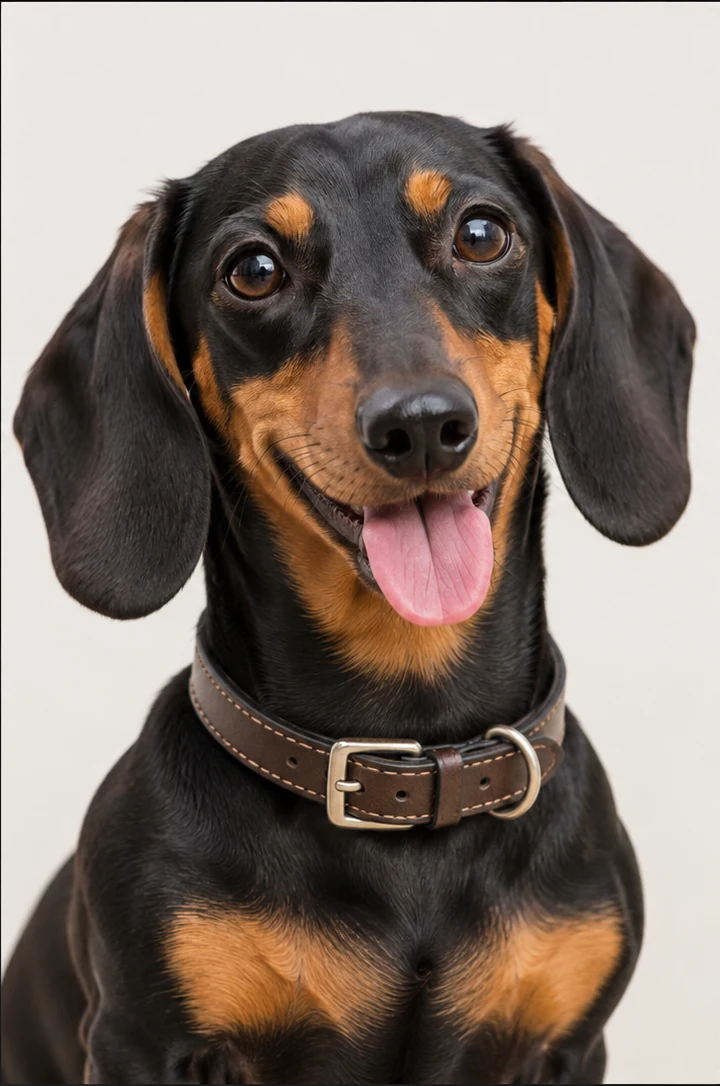
The examples illustrate contours and spacing. They are not output samples from this tool.
For a coloring sheet made from a photo, use Photo to Coloring Page. For a drawing from a written description, switch to Text to image here.
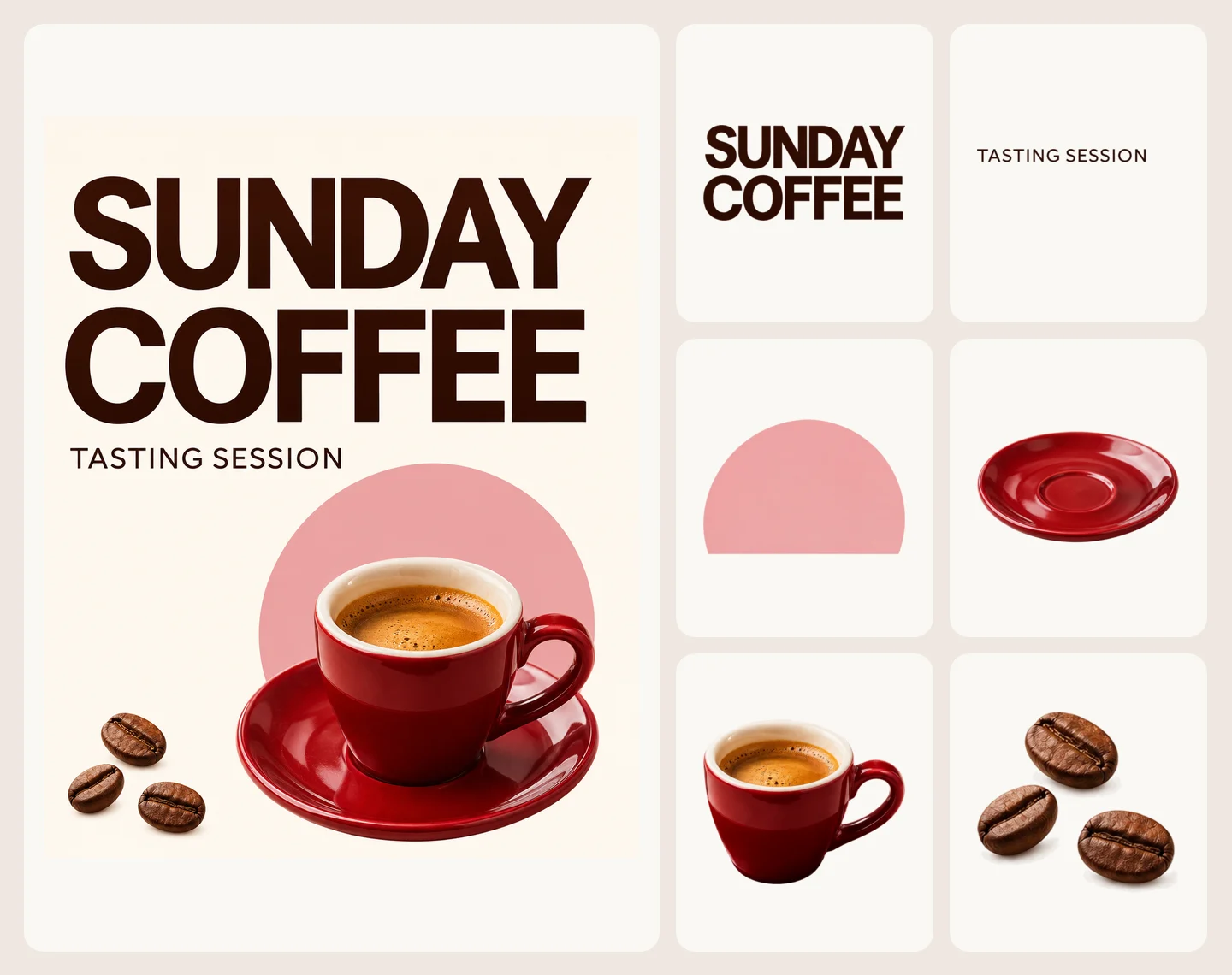
Open Seedream 5.5 Layerize in AI Image Editor.
Open GPT Image 2.6 in AI Image Editor.
Open Grok Imagine Image 2.0 in AI Image Editor.
Open Qwen Image 3.0 in AI Image Editor.
Open Midjourney V8.2 in AI Image Editor.
Open Nano Banana 2 Lite in AI Image Editor.
Open Seedream 5.5 in AI Image Editor.

Open Seedream 5.0 Flash in AI Image Editor.
Upload a photo to create a clear line drawing, outline, or black-and-white coloring sheet. You can also start from a text description. This turns source material into line art; it does not turn a sketch into a finished scene.
Upload a photo or switch to text-to-image, describe the subject and line style, then review the result before printing or coloring.
For a photo, name the subject and ask for clean contours, simple black linework, and the amount of detail you want. For text-only generation, describe the subject, pose, and background plainly.
This tool creates raster images, not automatically vectorized SVG. Fine details can merge or disappear, so inspect the result at print size.
For a photo, name the subject and ask for clean contours, simple black linework, and the amount of detail you want. For text-only generation, describe the subject, pose, and background plainly.
Ask for uncluttered black contours, closed shapes where helpful, and a plain white background. Keep the prompt focused on what should be printable.
This tool creates raster images, not automatically vectorized SVG. Fine details can merge or disappear, so inspect the result at print size.
The examples illustrate contours and spacing. They are not output samples from this tool.
Photo: convert a portrait of a dog into a clean black outline on a white background, keeping the ears, eyes, and collar distinct.
For a photo, name the subject and ask for clean contours, simple black linework, and the amount of detail you want. For text-only generation, describe the subject, pose, and background plainly.
Compare the silhouette at the size you’ll use. Check that the dog’s ears, eyes, and collar still read clearly.
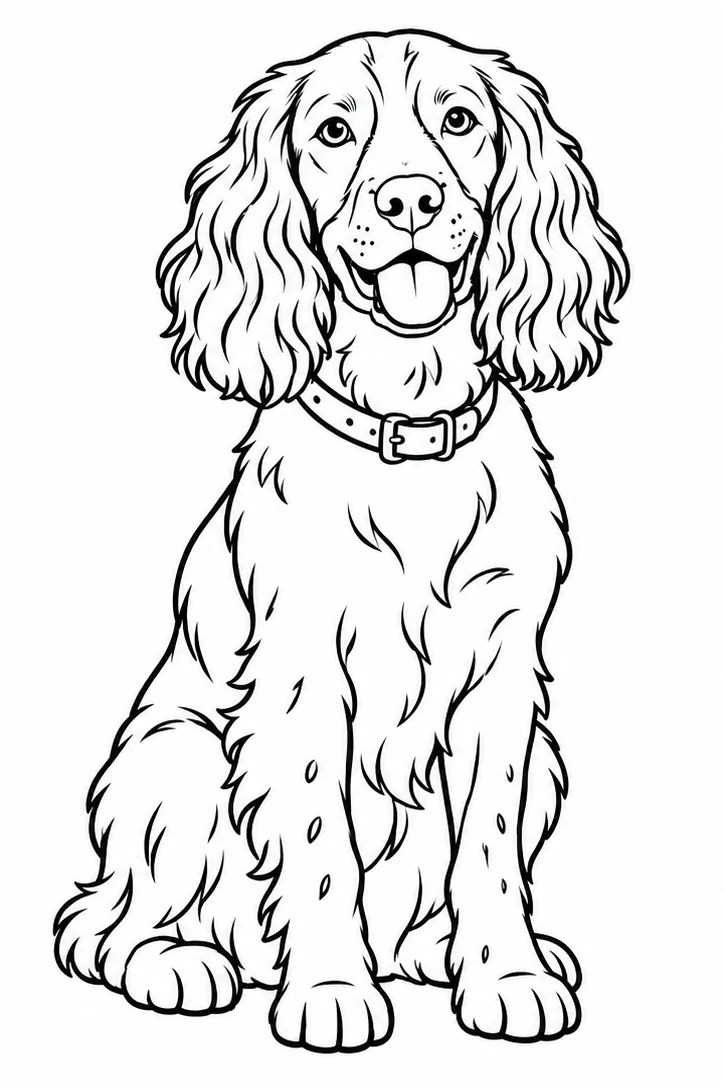
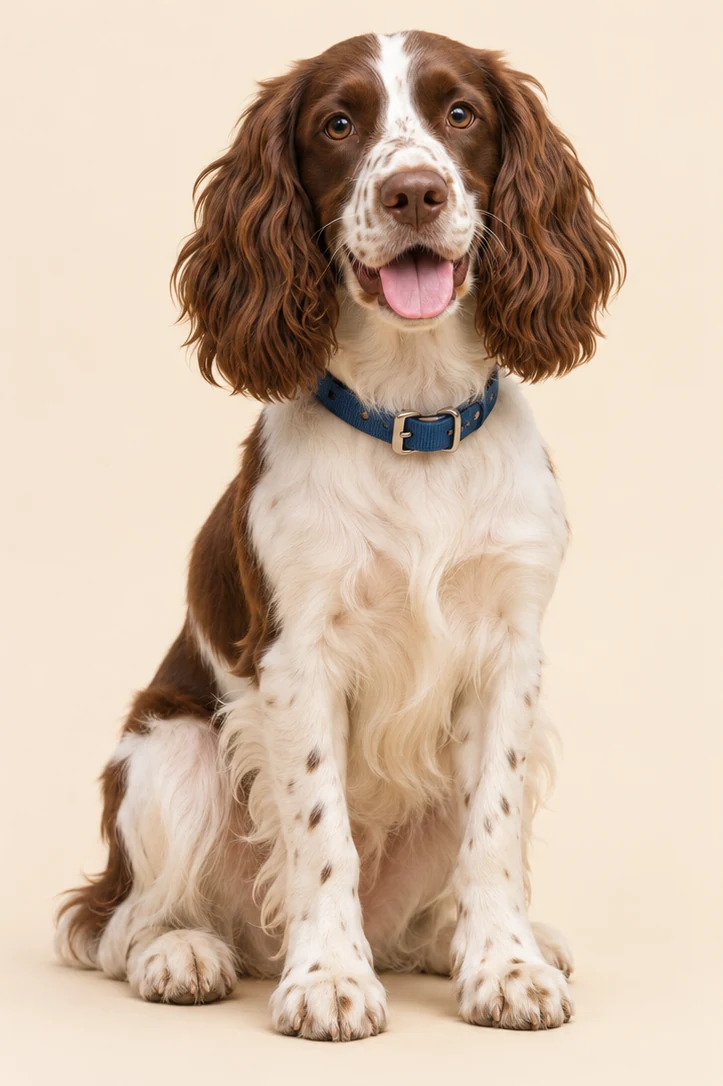
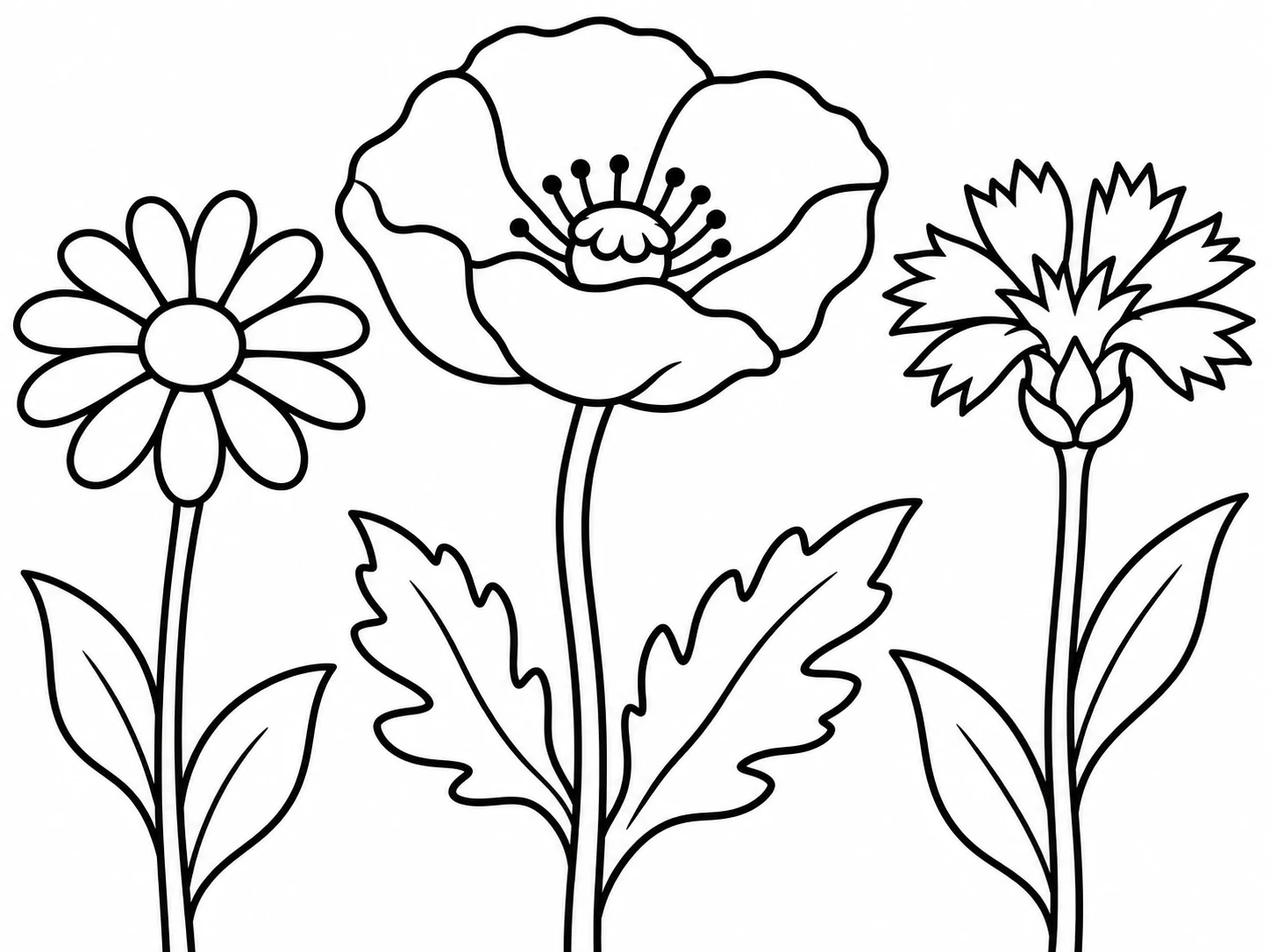
Text: make a simple botanical coloring page with bold black contours and open spaces for coloring.
Ask for uncluttered black contours, closed shapes where helpful, and a plain white background. Keep the prompt focused on what should be printable.
Leave enough space between leaves to color them. Inspect closed shapes at print size and remove stray lines.
Upload a photo or switch to text-to-image, describe the subject and line style, then review the result before printing or coloring.
For a photo, name the subject and ask for clean contours, simple black linework, and the amount of detail you want. For text-only generation, describe the subject, pose, and background plainly.
This tool creates raster images, not automatically vectorized SVG. Fine details can merge or disappear, so inspect the result at print size.
Upload a photo to create a clear line drawing, outline, or black-and-white coloring sheet. You can also start from a text description. This turns source material into line art; it does not turn a sketch into a finished scene.
This tool creates raster images, not automatically vectorized SVG. Fine details can merge or disappear, so inspect the result at print size.
This page makes line art from a photo or text. Sketch to Image starts with a sketch and creates a finished image. See /image/sketch-to-image for that reverse direction.
Upload a photo to create a clear line drawing, outline, or black-and-white coloring sheet. You can also start from a text description. This turns source material into line art; it does not turn a sketch into a finished scene.
InputUpload a photo or switch to text-to-image, describe the subject and line style, then review the result before printing or coloring.
OutputFor a photo, name the subject and ask for clean contours, simple black linework, and the amount of detail you want. For text-only generation, describe the subject, pose, and background plainly.
Keep in mindThis tool creates raster images, not automatically vectorized SVG. Fine details can merge or disappear, so inspect the result at print size.