



Local in browser
Images stay inside local browser memory—never uploaded to any server or AI model.
Drag across the preview image to cover private details. Press Space or Enter while the canvas is focused to add a centered redaction box.
100% browser-side redaction. No uploads, no cloud processing, zero cost.
Local canvas preview
Need full object erasure or prompt-based edits instead? Explore companion tools.
Drag boxes across addresses, faces, or ID numbers and export a permanently flattened PNG, JPEG, or WebP file—completely offline-safe with zero server uploads.
Images stay inside local browser memory—never uploaded to any server or AI model.
Combine opaque black boxes on text with mosaic or blur on faces.
Exports a single flattened PNG, JPEG, or WebP with original pixels overwritten.
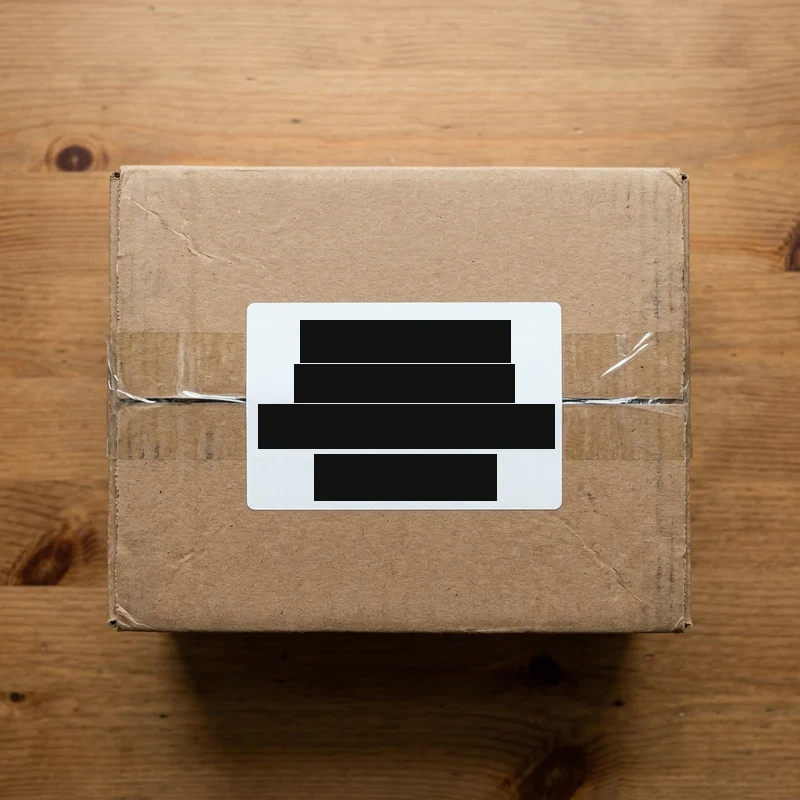
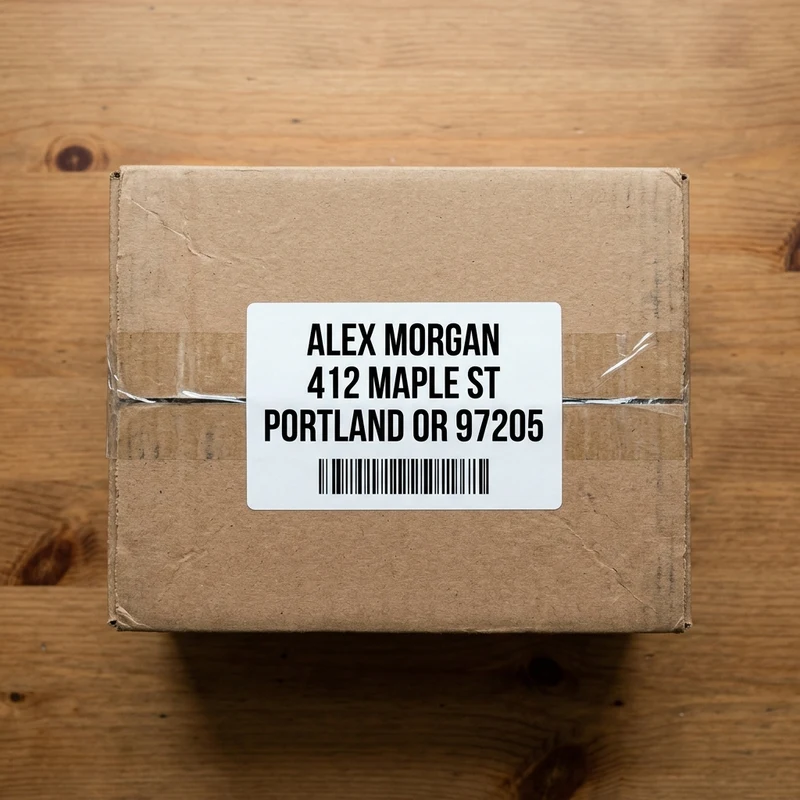
Cover shipping labels, badges, license plates, or bystander faces without risking recoverable metadata or semi-transparent strokes.
Everything renders on a local browser canvas so sensitive documents, tax forms, and family photos stay strictly on your machine.
Use true opaque black boxes on text and barcodes while applying pixelate mosaic or smooth blur on faces.
Draw any number of boxes, toggle between Original and Redacted to spot gaps, or undo individual regions cleanly.
Every redaction paints immediately in local memory—no waiting for server uploads, watermarks, or cloud queues.
Tune block coarseness or blur radius to cover large street signs, small screen text, or bystander faces cleanly.
Export writes the masked regions directly into raster pixels at native image dimensions with no removable overlay.
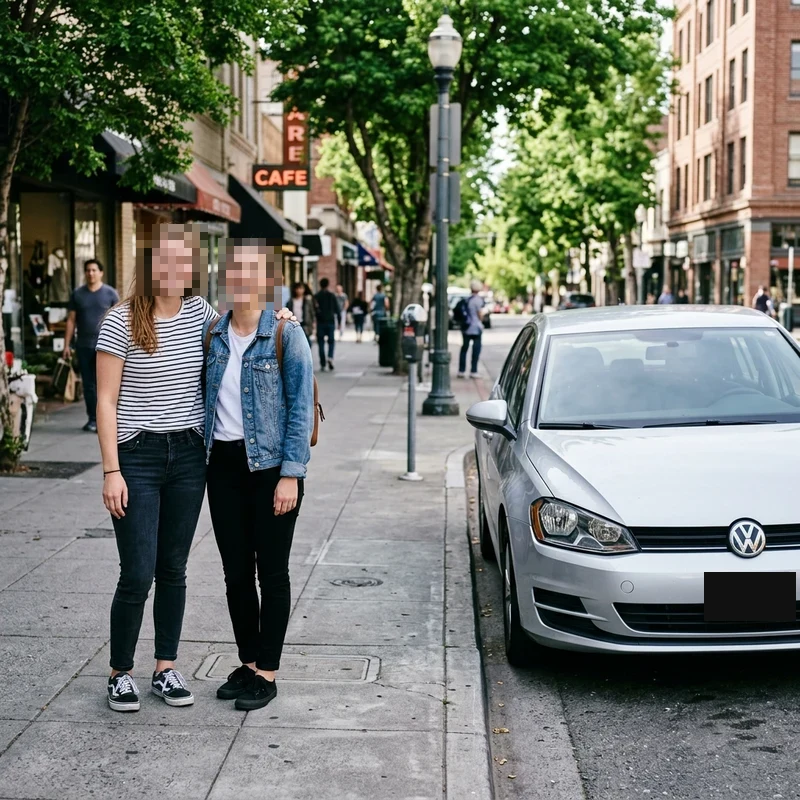
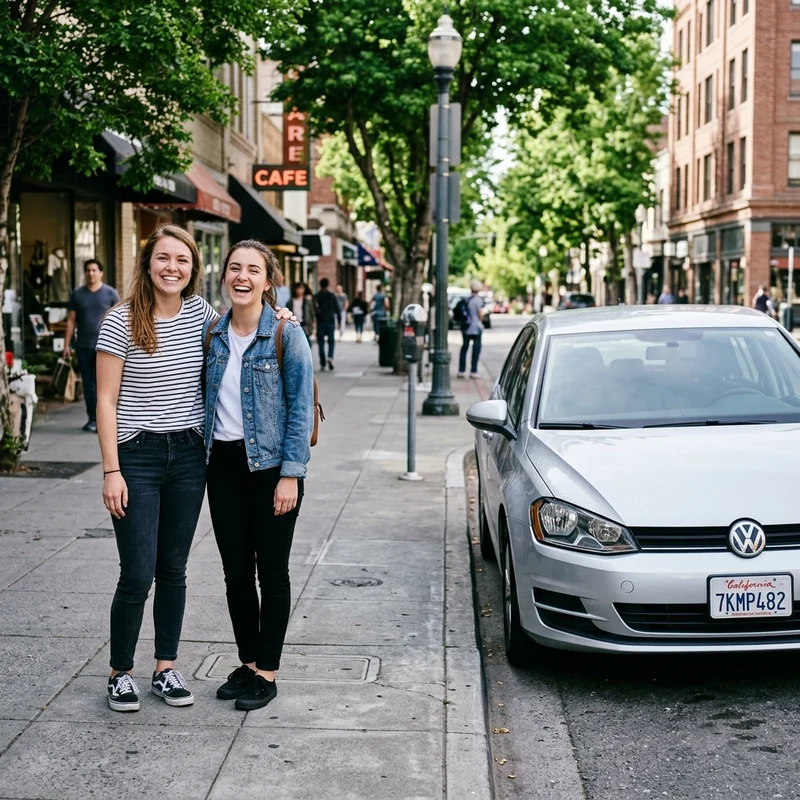
Apply coarse pixelation over passersby while placing an opaque black box neatly over the vehicle plate.
Extend redaction boxes slightly past chins, ears, and plate digits so no partial characters remain readable.
Use the Original toggle to confirm reflections or secondary plates were not missed.
Black out high-contrast badge numbers completely and blur bottom contact strings before sharing a document photo.
Solid black bars prevent contrast recovery or character-shape guessing on dark text over white paper.
Save directly from the browser canvas so receivers cannot lift or inspect hidden layers.
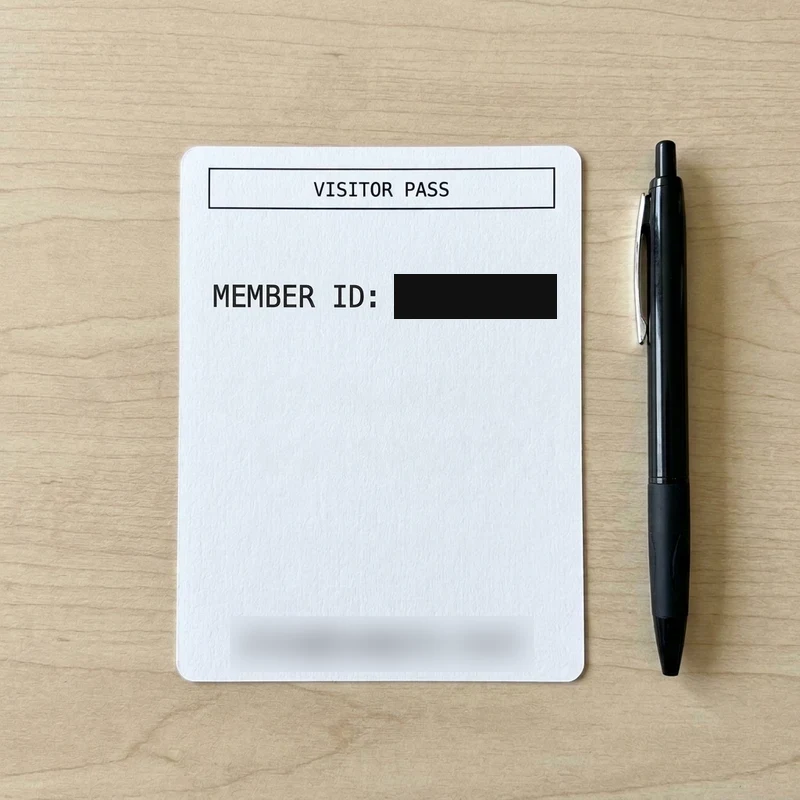
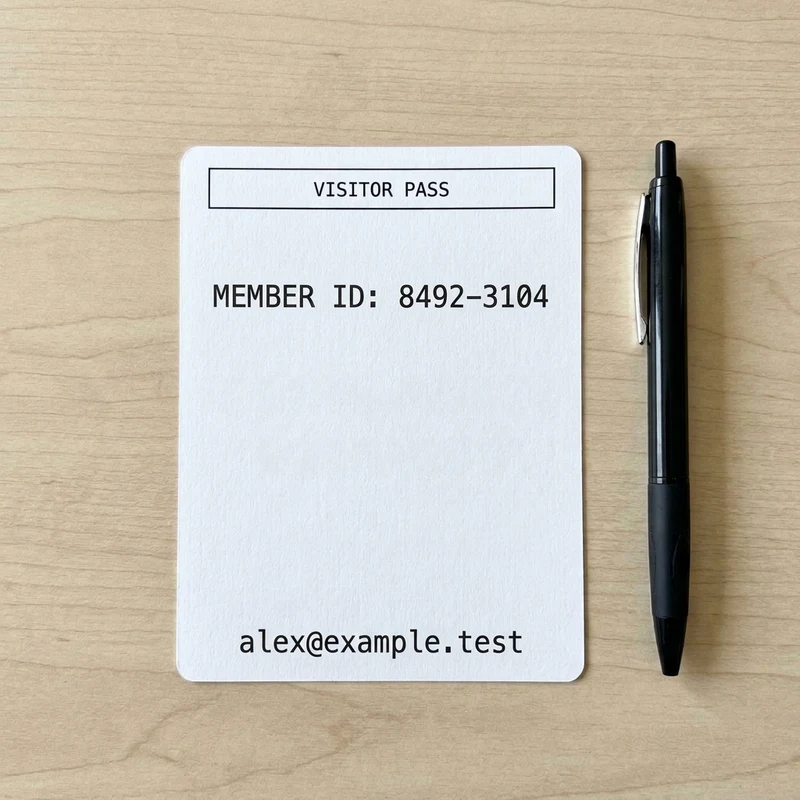
Open any PNG, JPEG, or WebP directly in your browser without uploading.
Pick a style and strength, then drag boxes over every private field.
Toggle Before/After to verify full coverage, then export PNG, JPEG, or WebP.
No. All drawing and exporting happen strictly on a local HTML5 canvas inside your browser. Zero image bytes are sent over the network or to external APIs.
No. Export draws your selected boxes directly onto a flattened raster PNG, JPEG, or WebP file, overwriting original pixel values completely—especially with Solid Black bars.
Always choose Solid Black for printed text, addresses, ID numbers, and QR codes; reserve Pixelate or Blur for faces and non-textual areas.
Hide private details right inside your browser with zero uploads and instant export.