

Brush mask
Draw the shape of the area you want to edit.
Preview
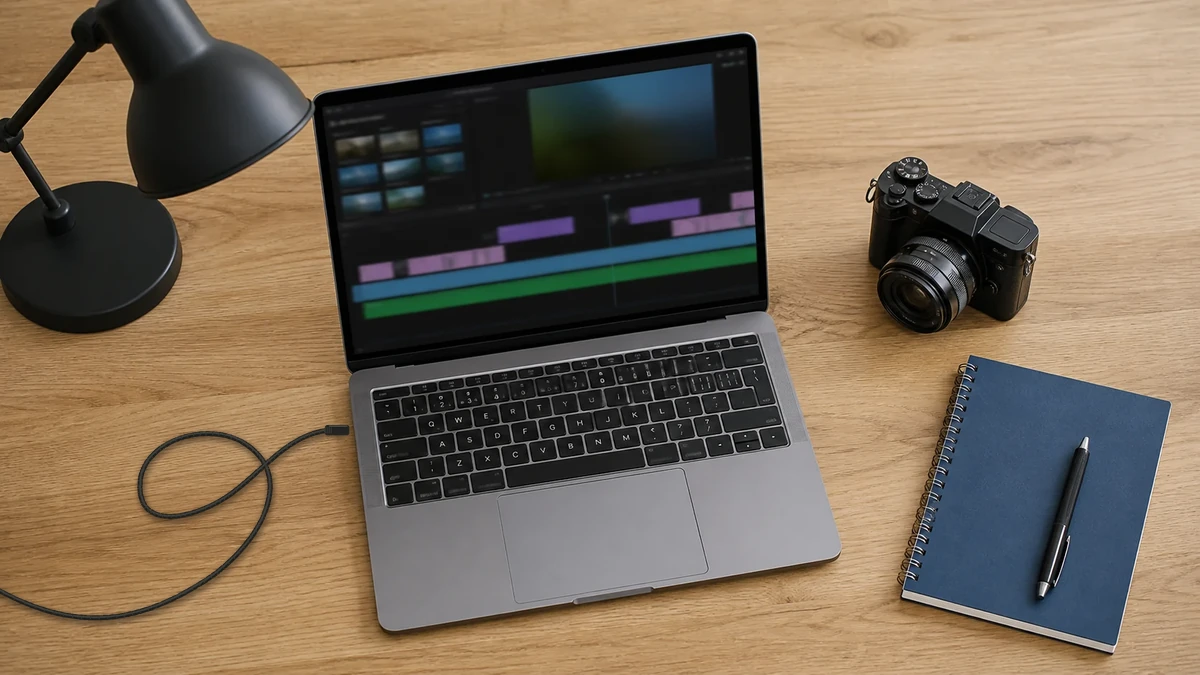
Explore other image models and their editing controls.
A cable across a desk or an extra prop can pull attention away from the subject. Paint just the area you want retouched, then compare how the edit fits the scene.
Draw the shape of the area you want to edit.
The editor sends the source and your selection as separate images.
Reopen the source next to the result to check small details.
Paint up to the target’s edge. Use a smaller brush in the gap between objects so the selection stays off the one you want to keep.
Change the brush diameter as you go, undo the last stroke or clear the selection and start again.
The brush creates a separate mask for the edit and leaves your uploaded image untouched.
Switch between the source and the edit to follow lines, grain and shadows across the filled area.
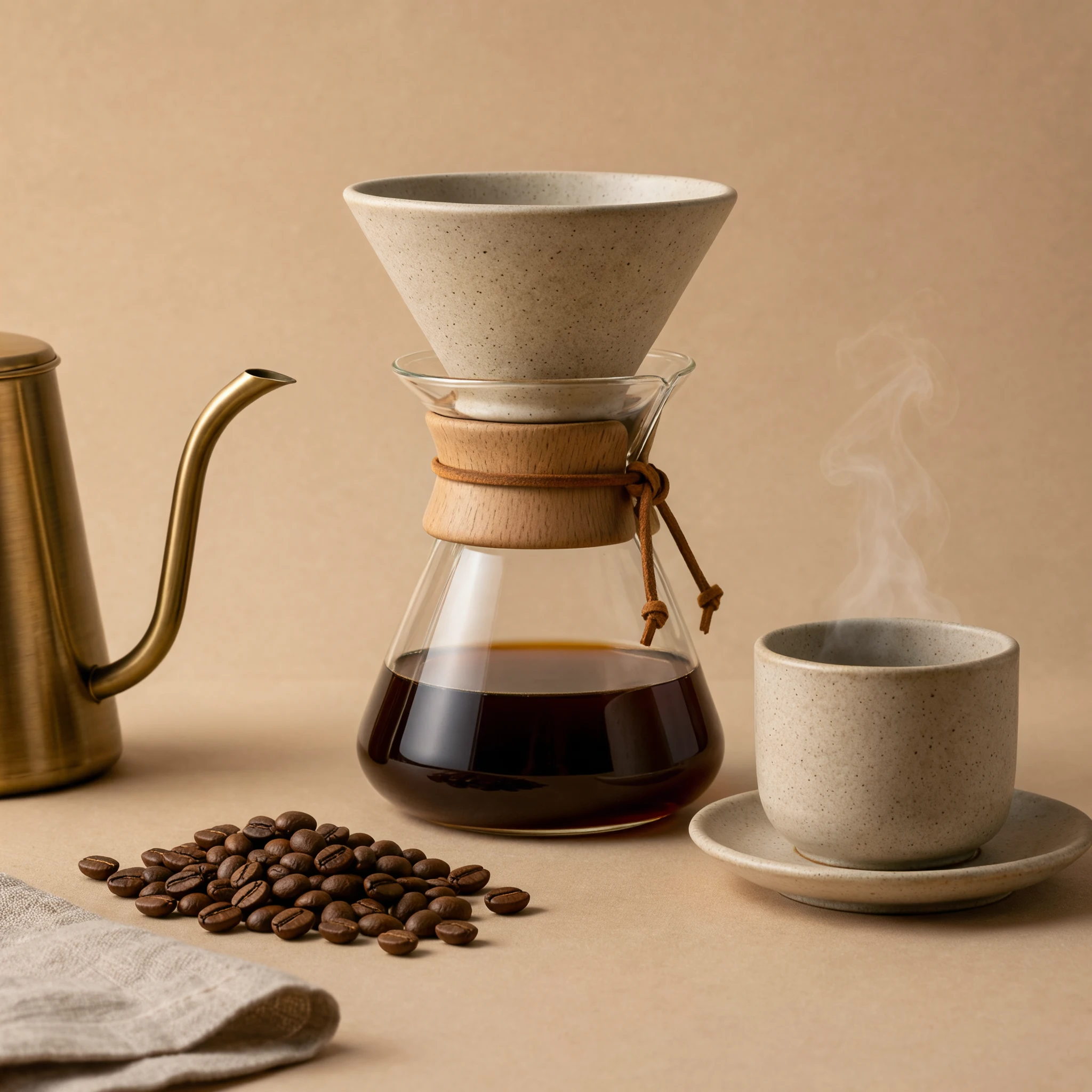
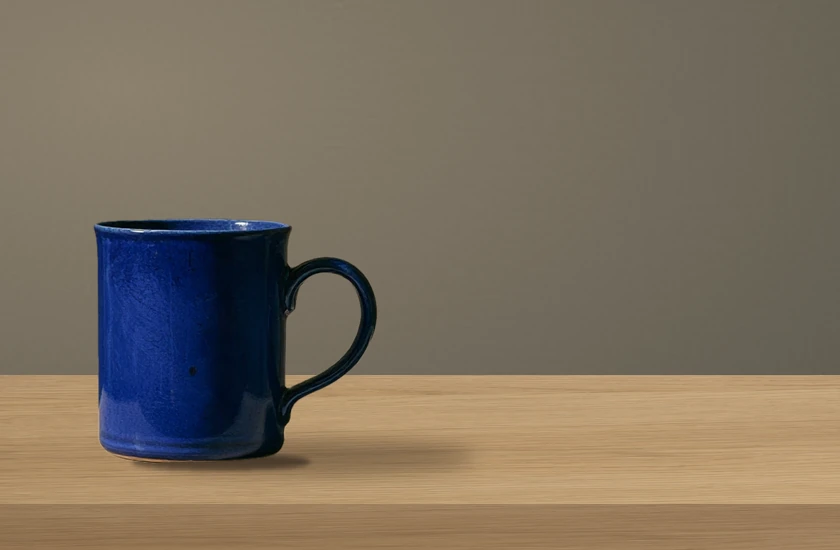
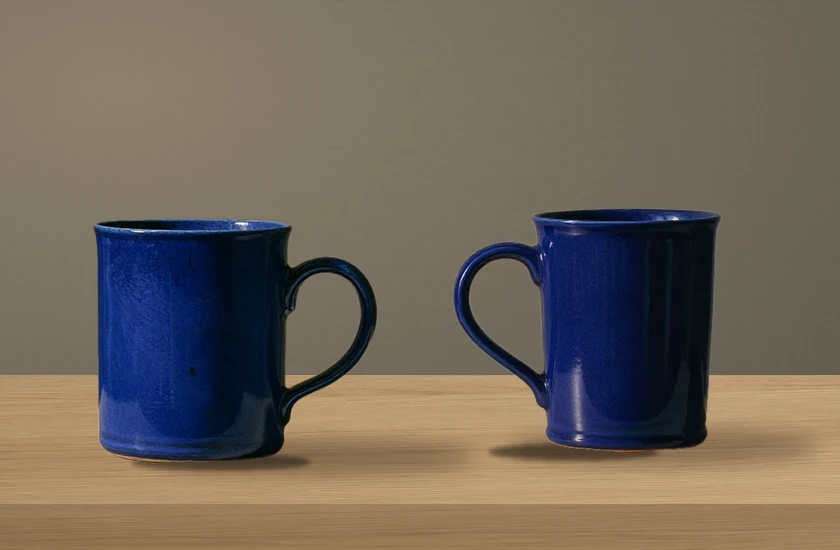
Two mugs sit on the same tabletop. The left mug anchors the composition after the right one is removed.
Cover the cup, its handle and its contact shadow, leaving the gap and the left mug clear.
Compare its handle and shadow with the original, then follow the wood grain through the space where the other mug stood.
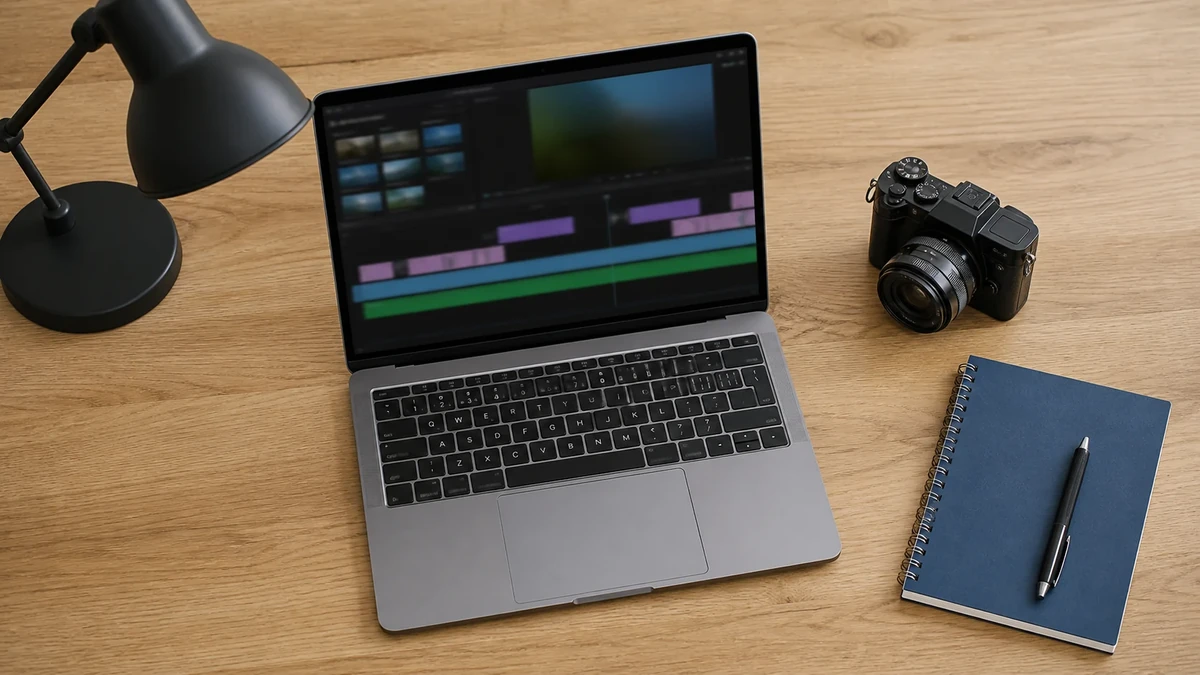
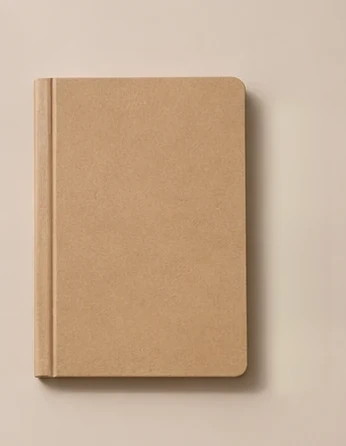
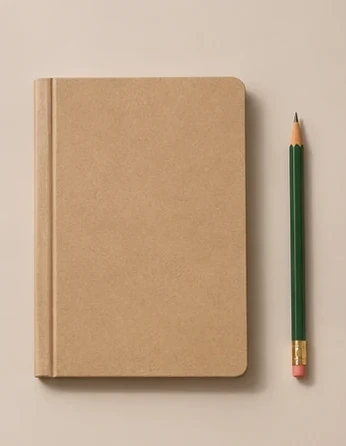
Removing the pencil opens up the space beside the notebook while keeping the overhead composition.
Run a narrow brush along the pencil and cover its tip and cast shadow. Stop short of the notebook edge.
Toggle back to the source and check for an intact notebook edge and an even transition across the cleared patch.
Upload a photo with the full target visible so you can see its edges and shadow.
Paint over the entire object and any shadow you want removed.
Compare texture, shadows and any similar object near the marked area before saving.
Yes. Use a smaller brush near the gap and leave the object you want to keep unmarked. Compare both positions after editing.
Change the brush diameter for tight spots. Undo removes the last stroke and Clear selection starts a new one.
Start with a photo and mark one object to remove. Give its shadow a pass with the brush if you want it gone too.