
Readable reference
Upload a sharp graphic or a shirt photo with the print visible.
Preview
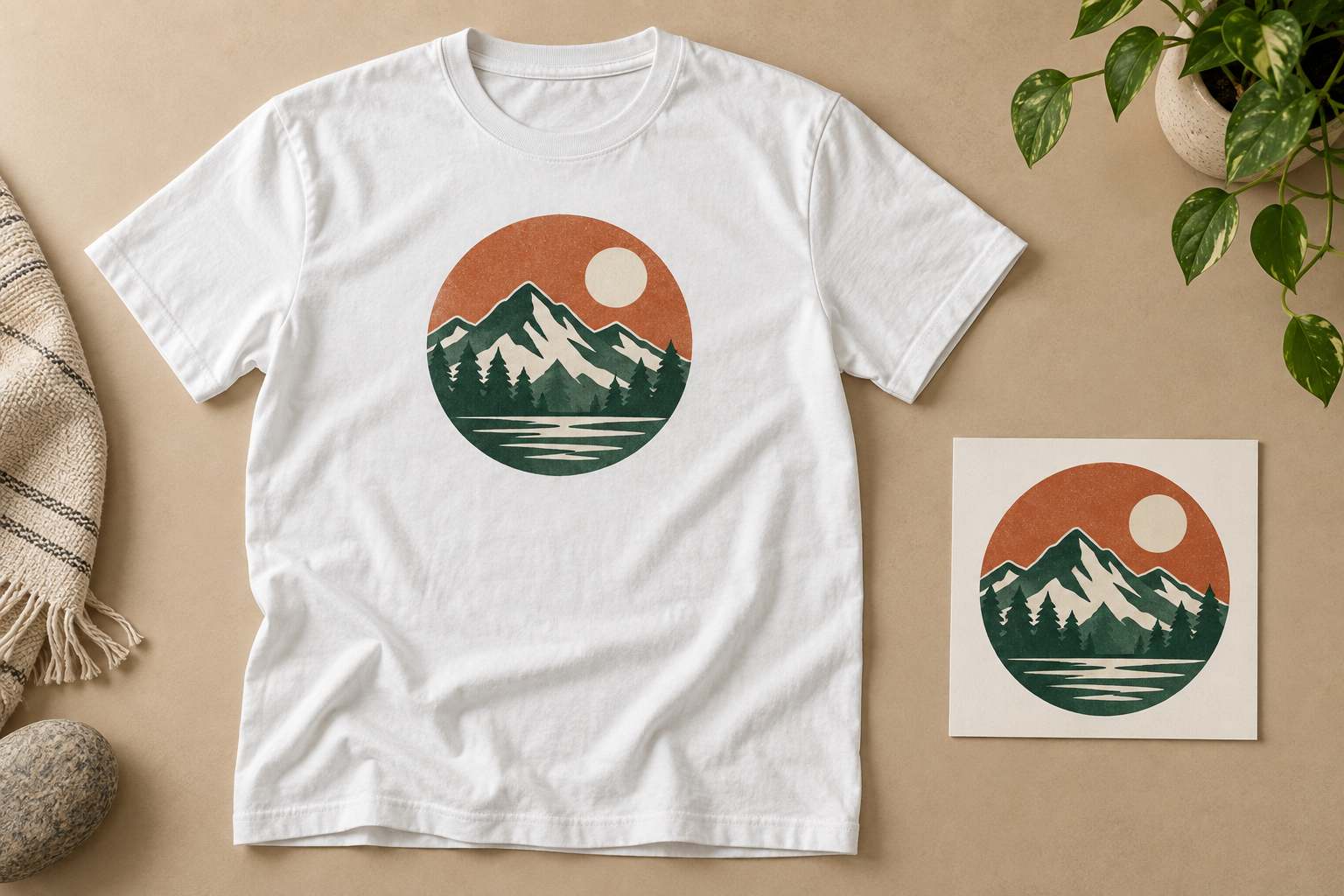
Explore the image models available here, or use the product photo link below to build a wider catalog.
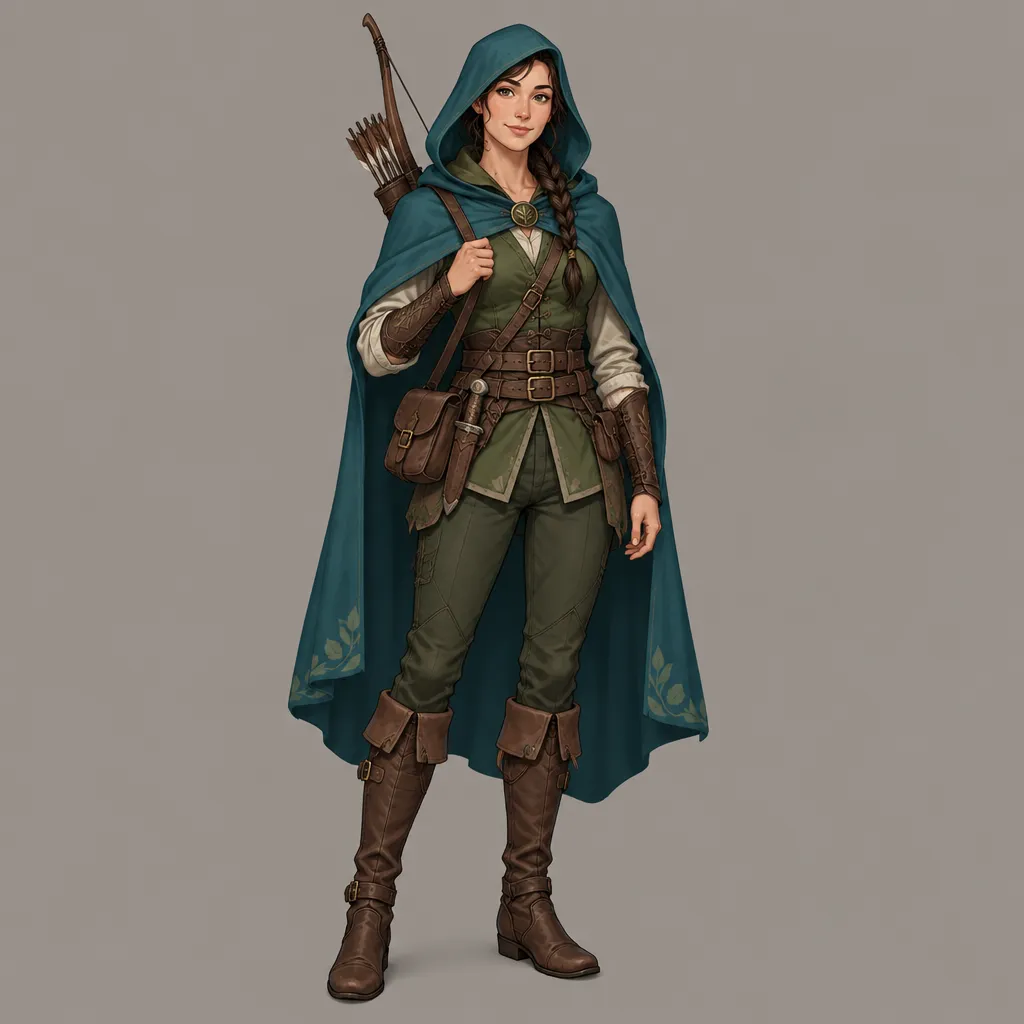
Open GPT Image 2.5 in AI Image Editor.
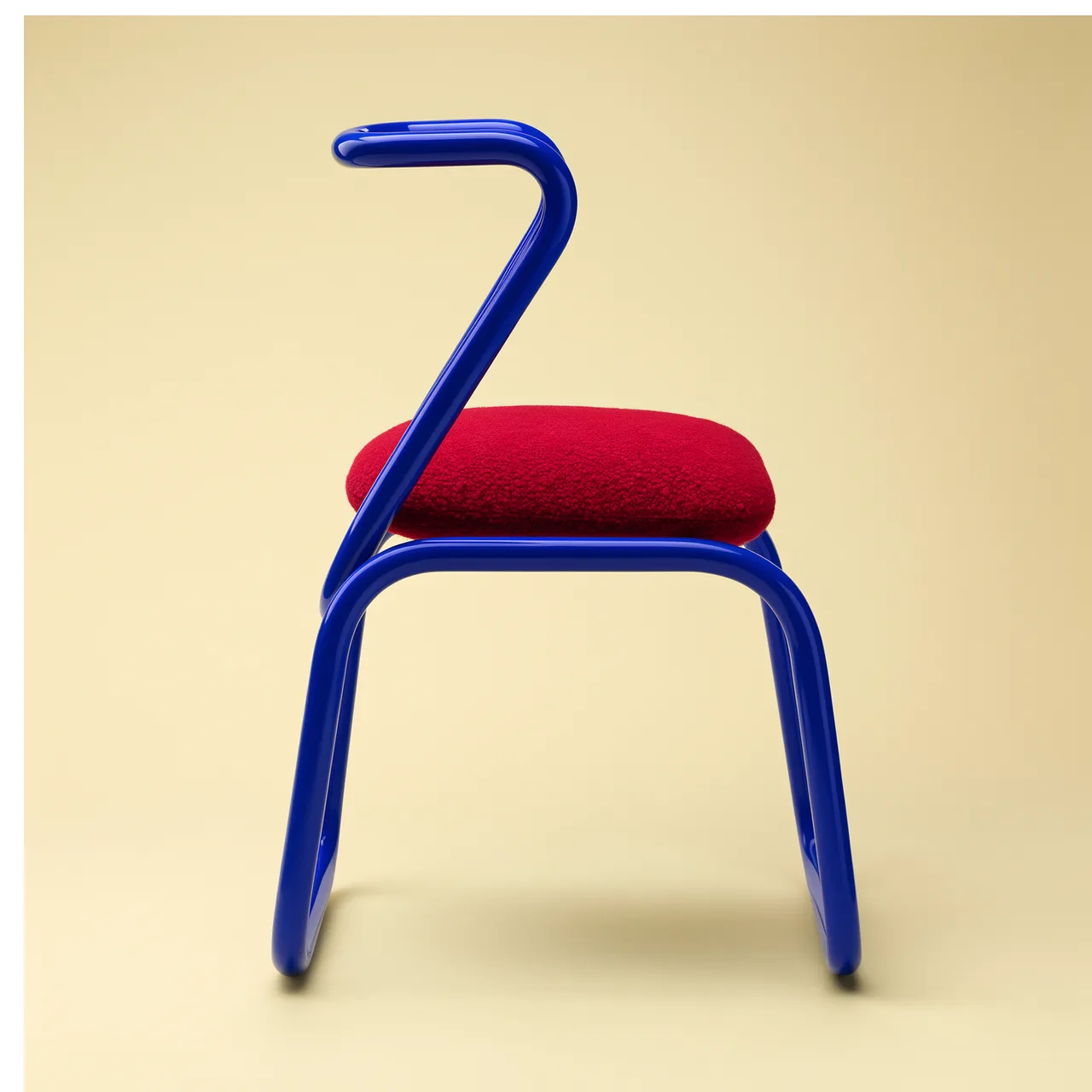
Open FLUX 3 Image in AI Image Editor.
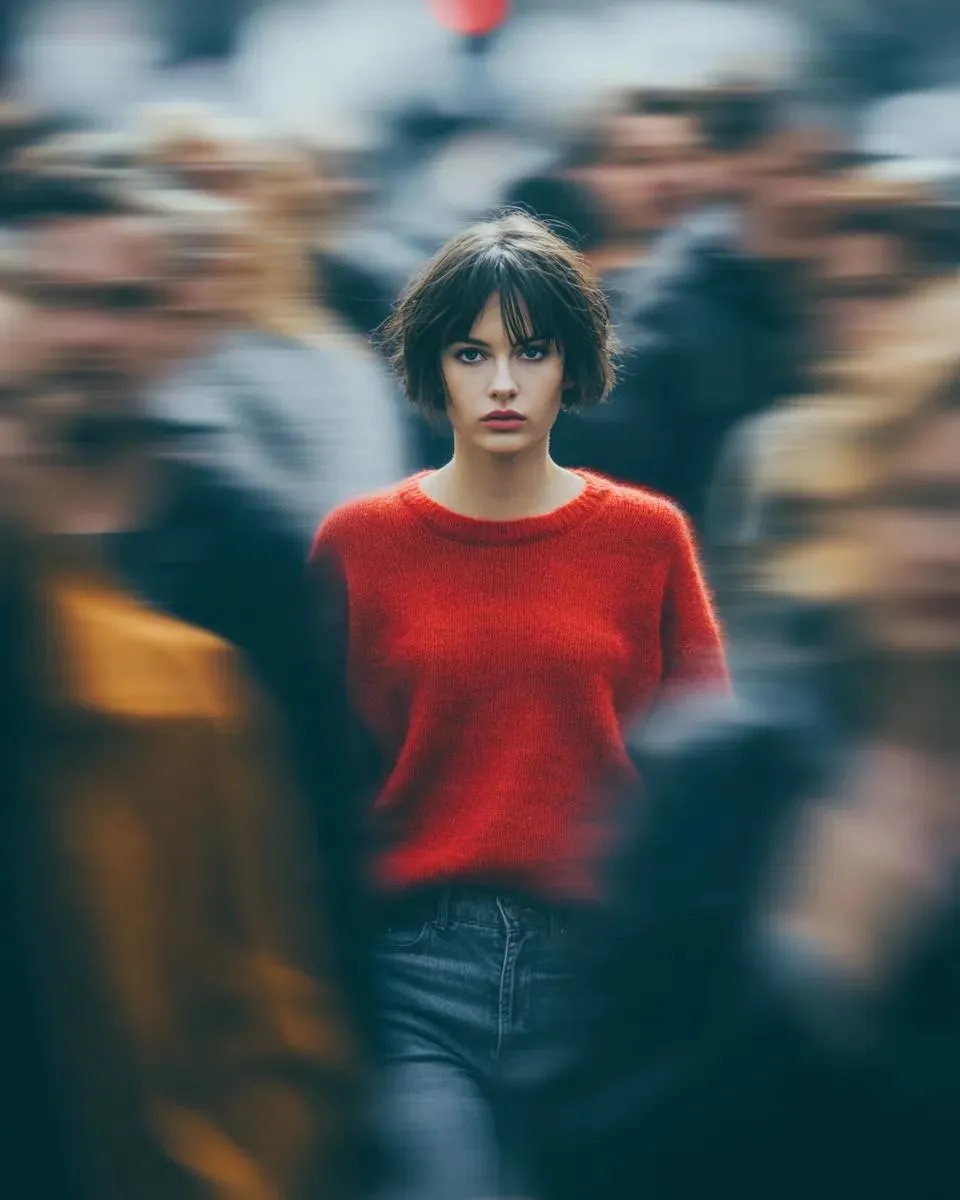
Open Seedream 5.0 Pro in AI Image Editor.
Open GPT image 2 in AI Image Editor.
Open Nano Banana 2 in AI Image Editor.
Open Seedream 5 Lite in AI Image Editor.
Upload a graphic or a shirt photo, choose a sample prompt, and create a T-shirt mockup with GPT image 2. Set the garment color, print placement, and flat-lay or on-model presentation, then check the design before downloading.
Upload a sharp graphic or a shirt photo with the print visible.
Name the shirt color, print position, camera angle, and background.
Check lettering, color, seams, and print size against your original.
A useful apparel preview starts with a clear reference and ends with a deliberate artwork check.
Use a cropped graphic for a new shirt concept, or upload an existing garment photo when its cut and print need to guide the result.
Describe cotton texture, natural folds, garment color, and a clear front view. Keep hands and props away from the design.
AI may alter small text or graphic details. Use the image for visualization after review; keep the original artwork for printing and manufacturing.
These AI-created illustrations show intended presentation styles, not measured results from this site’s generator. Your upload, prompt, model, and settings affect the actual output.
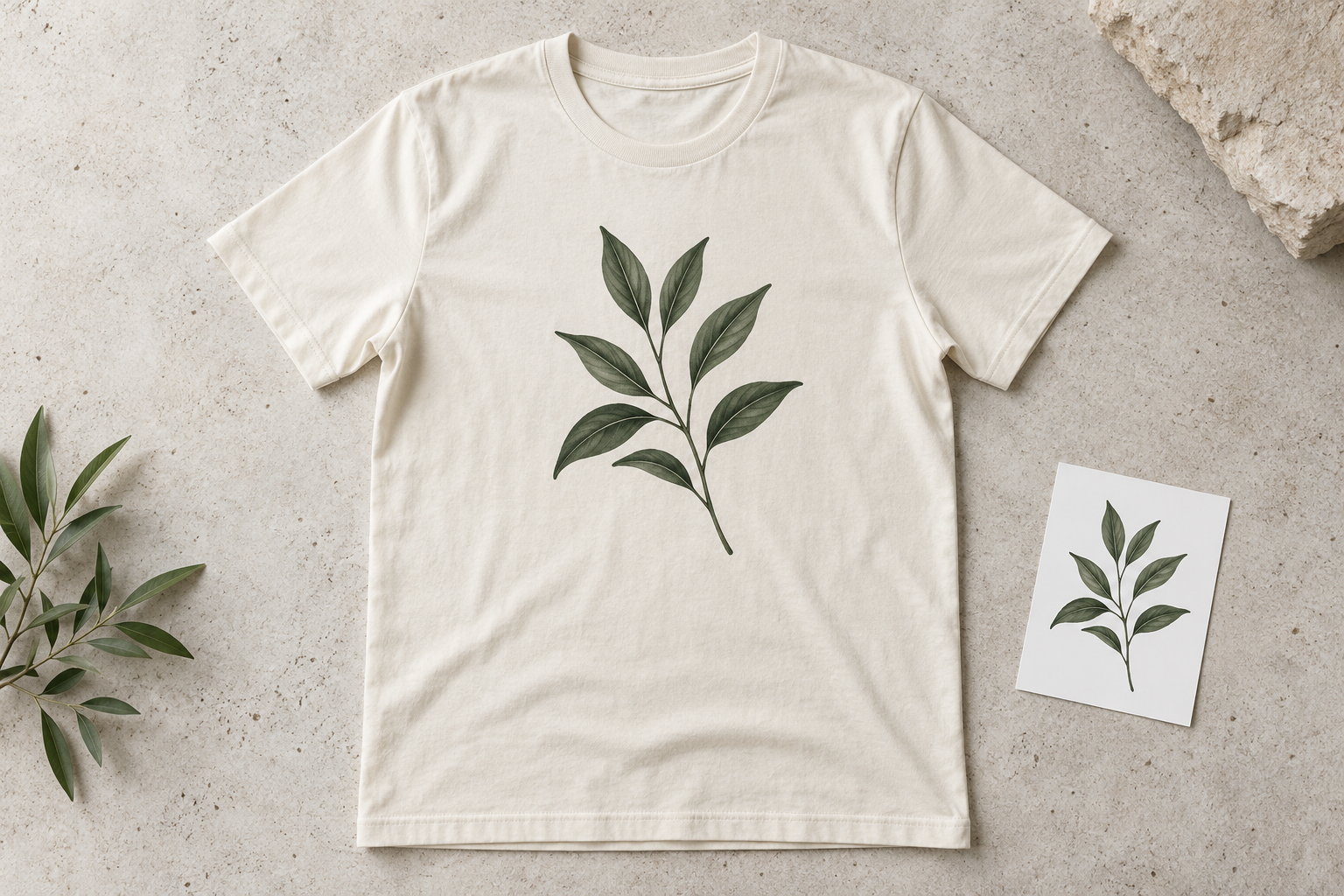
A front-facing shirt gives the artwork room to read and helps you compare design placement across a catalog.
Specify center chest, the shirt color, and the amount of space around the graphic.
Compare the print proportions, collar, sleeves, and hem. Reject extra seams or changed lettering.
A worn-shirt preview helps you explore how a design sits on fabric in a lifestyle or studio composition.
Request a waist-up front view with relaxed arms and simple surroundings.
Inspect distortion around the chest and compare each design element with the source artwork.
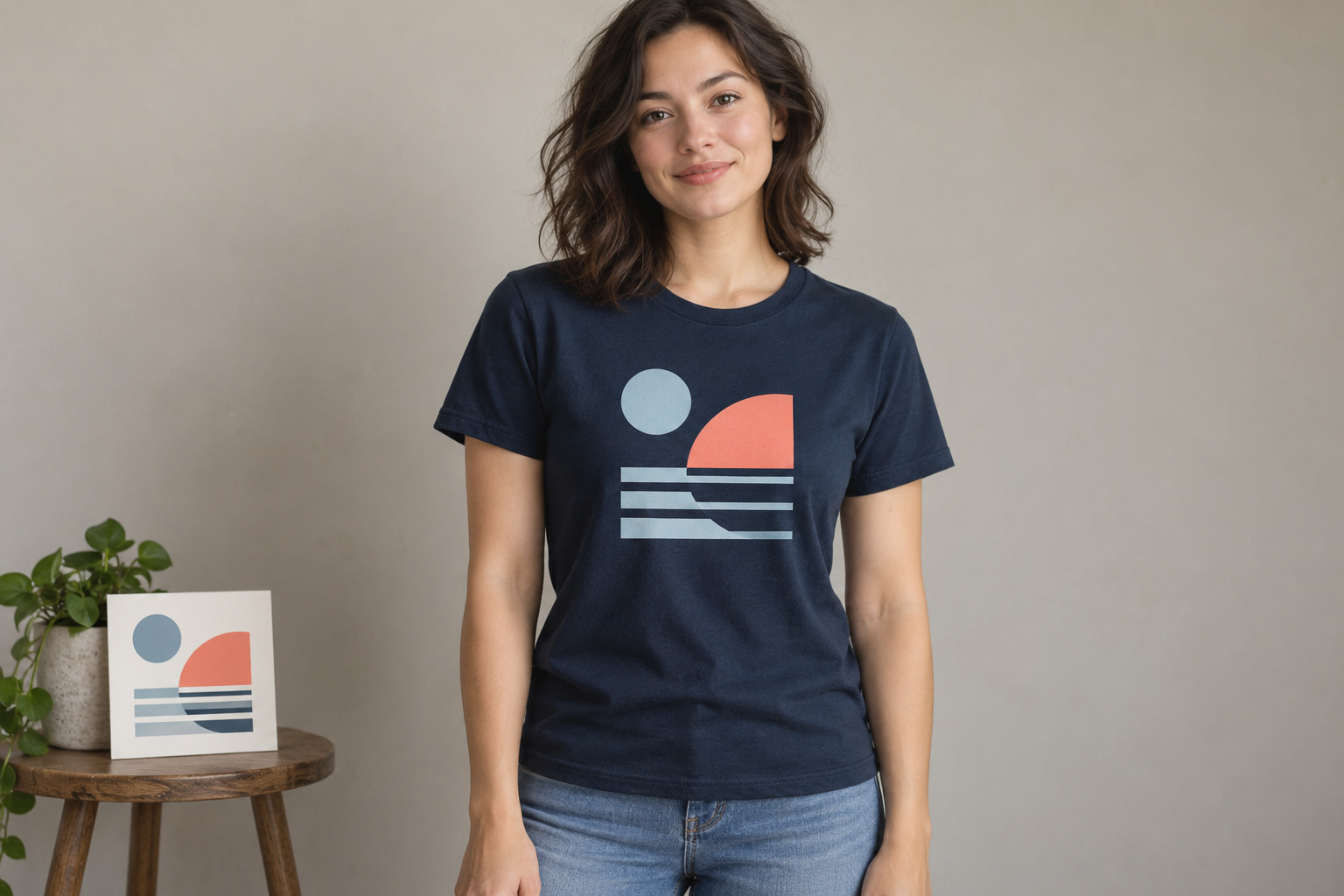
Use a clear graphic with readable edges, or a shirt photo showing the garment you want to reference.
Select a sample above, adjust the shirt color and presentation, and check the displayed credit estimate before generating.
Inspect the artwork and shirt at full size. Refine the prompt if details drift, then download a preview you have reviewed.
Upload a sharp graphic, logo, or a garment reference you are authorized to use. Crop away unnecessary surroundings so the design is easy to identify.
Exact reproduction is not guaranteed. Small lettering, graphic shapes, and colors can change, so compare the result with your original artwork at full size.
The generator produces an image preview, not a layered template, vector file, or manufacturing specification. Use your original design and your printer’s requirements for production.
Generation uses your account credits. Check the estimate and available balance in the generator before starting; trial access depends on the offer available to your account.
The images on this page are AI-created illustrations of possible presentation styles. They are not a benchmark or a guarantee of results from this site’s generator.
Bring a clear design, describe the garment, and compare the preview with the original before using it.